 Author:
Ever posted the perfect photo to your Instagram Story, only to realize the default background color just… doesn’t vibe?
Whether you’re going for a clean aesthetic, bold pop of color, or something that matches your outfit, knowing how to change your Instagram Story background color can completely transform the look of your post.
From coordinating your feed to creating eye-catching announcements, a custom background color helps your Stories stand out.
Maybe you’re sharing a minimal quote Story, giving a sneak peek of your product launch, or showing off your latest travel snapshot - the right background color sets the tone instantly.
Let’s look at how to do it the basic way on Instagram and then, the better way using YouCam Perfect’s Editing Agent, your AI-powered photo editing chat assistant that helps you change background colors in seconds.
| Table of Contents |
|---|
How to Change Your Instagram Story Background Color
Changing your Instagram Story background color is quick and easy — whether you’re starting with a blank Story or adding a photo. Here’s how to do it right inside the app:
1. Open Instagram Stories.
Tap the “+” icon on your profile picture or swipe right from your home screen to open the Story camera.
2. Choose a photo (optional).
Select a photo from your camera roll if you want to post an image on top of a colored background. If you’d rather start with a blank canvas, skip this step.
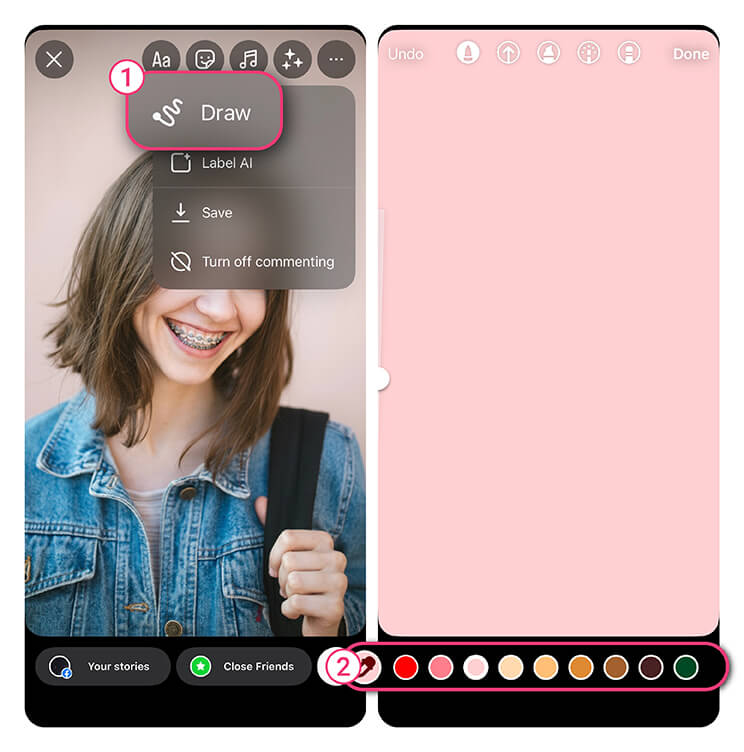
3. Open the Draw tool.
4. Pick your background color.
You’ll see a color bar at the bottom of the screen. Tap one of the preset colors, or press and hold any color to open the full palette for more options.
5. Fill the screen.
To create a solid background, press and hold anywhere on the screen until it fills with the selected color. Tap Done when finished.
6. Add your photo or text.

💡 Pro tip: Try layering transparent backgrounds by lowering the opacity of your brush before filling the screen. It’s a simple trick for adding depth and texture to your Story.
YouCam Perfect: The AI Way to Change Instagram Story Background Color
Instagram’s built-in tools make basic edits easy, but if you want more control over gradients, textures, and creative effects, YouCam Perfect offers endless customization options to help your Stories truly stand out.
YouCam Perfect makes it easier than ever to create stunning Stories that match your vision, without complicated tools or editing experience. The app’s Editing Agent feature is like having your own creative assistant right in your pocket.
Think of it as a friendly, AI-powered chat that understands exactly what you want. Whether you type “Change background color to lavender” or “Make my Story background pastel green,” the Editing Agent instantly applies the edit for you.
Ready to transform your Stories? Here’s how to change background color on Instagram Story using YouCam Perfect in just a few steps.
Step 1. Download YouCam Perfect
YouCam Perfect is free on both iOS and Android. Download it from the App Store or Google Play and open it to start exploring the features.
Step 2. Open the Editing Agent

Step 3. Upload Your Photo
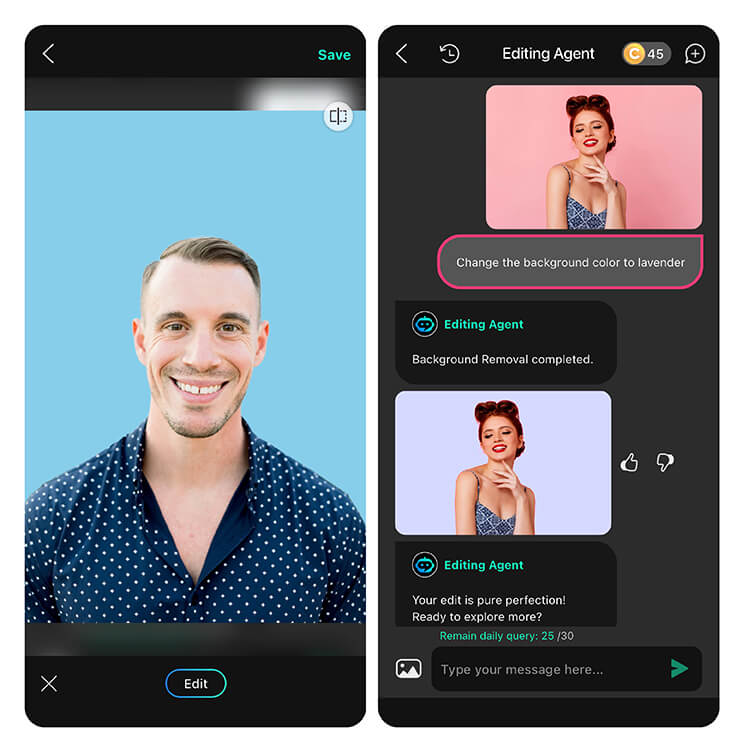
Step 4. Type Your Prompt
This is where the fun begins! Simply tell the Editing Agent what you want to do.
For example:
- “Change the background color to sky blue.”
- “Make the background a soft beige.”
- “Add a pastel pink gradient behind me.”
- “Match the background color to my shirt.”

Step 5. Save the Final Image
Once you’re happy with the result, tap Save. Your edited image is now ready to upload directly to Instagram. You have a customized background that looks completely unique!
Pro Tips for Stunning Story Backgrounds
To really make your Stories pop, try these quick creative tips:
- Use color psychology. Blues and greens feel calm, while reds and oranges create excitement.
- Match your brand palette. Keep your Story colors consistent with your overall feed aesthetic.
- Try gradients. Ask the Editing Agent to blend two colors for a smooth, professional look.
- Frame your subject. Choose a color that highlights your photo’s main focus, not one that competes with it.
With YouCam Perfect, experimenting with colors feels natural. And since the AI handles the hard work, you can focus on being creative.

Why YouCam Perfect is the Best Alternative
Unlike Instagram’s limited tools, YouCam Perfect gives you total creative freedom.
You can:
- Instantly change any background color, not just solid fills.
- Match the background to your photo’s vibe, brand palette, or mood.
- Experiment with gradients, soft tones, or bold hues.
- Preview and tweak your edits in real time with the AI chat.
The Editing Agent eliminates guesswork. Just describe what you want, and it gets it done, whether you’re going for a clean white background for a minimalist look, or a bright coral to make your summer selfies pop.
So instead of being stuck with the same few Instagram options, you can use YouCam Perfect to craft your Story background exactly the way you imagine it.
Make Every Story Pop with YouCam Perfect
Changing your Instagram Story background color shouldn’t be a hassle. With YouCam Perfect’s Editing Agent, it’s as easy as typing what you want and watching it happen.
Whether you’re creating a cozy beige backdrop for your morning coffee Story or a vibrant neon background for a concert selfie, YouCam Perfect gives you the power to design freely.
So the next time you wonder how to change background color on Instagram Story, skip the tedious manual steps and let AI handle it for you. Download YouCam Perfect, chat with the Editing Agent, and transform your Stories into scroll-stopping visuals that capture your style, mood, and creativity.
About the Editors

The PERFECT Corp. Editorial Team
We are a team of experts on photo and video editing apps. Our goal is to deliver engaging content on everything from stunning selfie edits to eye-catching video effects. We cover the latest trends and share niche tips to help you master digital creation.
How to Change Instagram Story Background Color FAQs
How do I change the color of the background on an Instagram story?

To change the background color on an Instagram Story, open the Story editor, tap the Draw tool, select a color, and hold your finger on the screen until it fills. However, this only works for solid backgrounds. For more creative control, try YouCam Perfect to change your Story background color easily with AI tools.
How do I change my Instagram background color to black?
To make your Instagram Story background black, open the Story editor, choose the Draw tool, select the black color, then press and hold on the screen to fill it. If you want a custom black backdrop behind a photo, use YouCam Perfect’s Editing Agent to instantly apply a smooth black background with AI precision.
How do I change the background behind a photo on Instagram?
Instagram doesn’t let you directly change the background behind a photo in Stories. You can only use solid color fills. To easily replace or recolor the background behind your photo, use YouCam Perfect’s Change Background or Editing Agent tools: just upload your image and let AI handle the editing in seconds.
Is there a default background color for IG stories?
Yes. When you upload a photo to Instagram Stories, the app automatically generates a background color that matches your image’s main tones. You can change it using the Draw tool for a solid color, but for full customization (gradients, pastels, or creative effects) apps like YouCam Perfect give you more flexibility.
How do I put a background behind a picture on an Instagram story?
To add a background behind a picture on your Instagram Story, first create a colored Story using the Draw tool, then paste your image as a sticker. For an easier, polished look, use YouCam Perfect. Its Editing Agent lets you chat your way to the perfect Story background with any color or texture you like.