 Author:


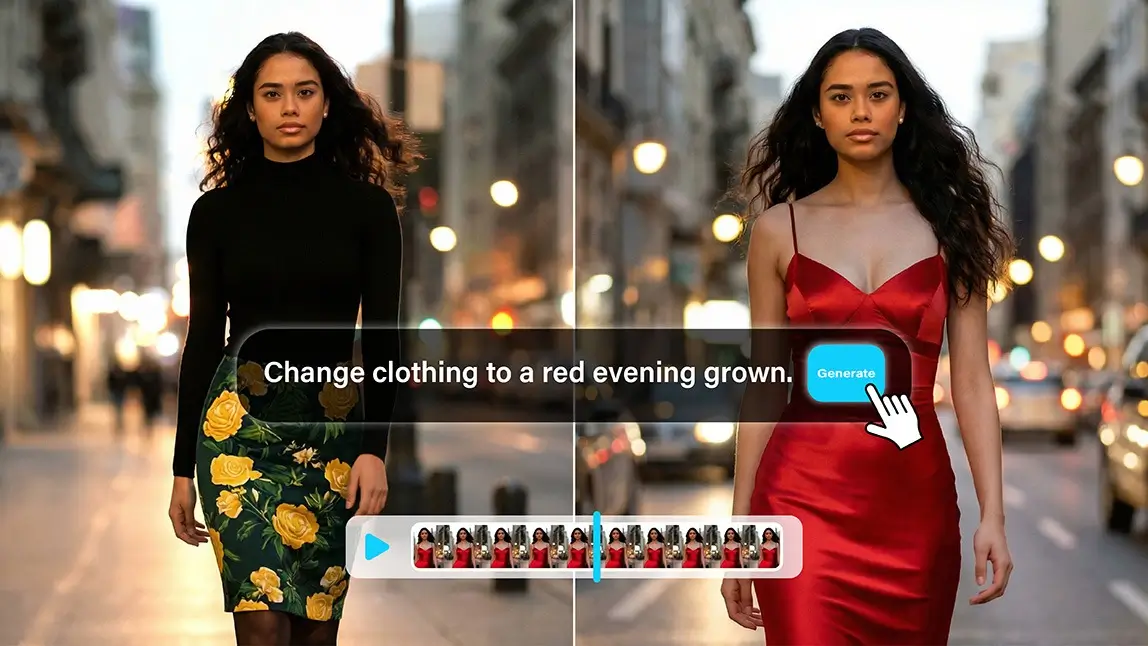
If you ever wonder how exactly AI video-to-video works, and how you can leverage it to create jaw-dropping effects with minimal effort, this guide will walk you through everything you need to know—from understanding AI video-to-video technology to hands-on steps for transforming your videos in unique and creative ways.
What is AI Video-to-Video?
At its core, AI video-to-video uses AI to transform your existing video into a new version while keeping motion, timing, and facial expressions intact. Unlike traditional editing, you don’t need to spend hours in complex software—AI handles the heavy lifting.
Basically, it opens up a world of possibilities that were either impossible or way too time-consuming before.
What Scenarios Can You Try with AI Video-to-Video?
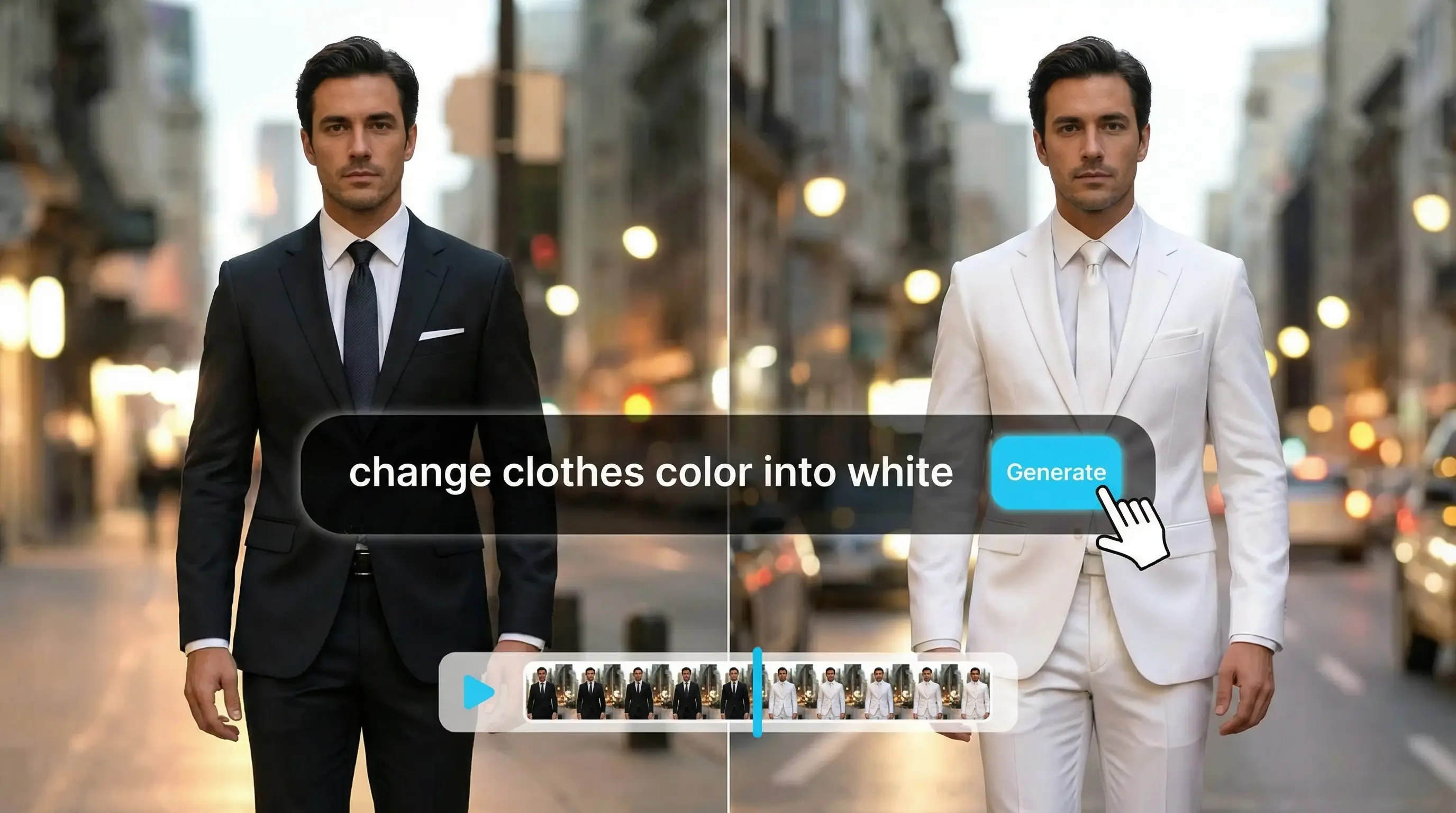
Change Clothing Color
Swap outfits color on the fly. Perfect for fashion bloggers, influencers, or virtual try-ons without reshooting a thing.
Remove Photobomber
Unexpected guests in your video? AI can erase unwanted objects or people in seconds, leaving your video looking clean and professional.
Change the Season of the Scene
Turn summer into winter, spring into autumn, or add magical snow. The AI adjusts lighting, colors, and the environment seamlessly.
Make Character Dance
Animate your subjects to groove or perform actions. Great for social media clips, birthday videos, or playful marketing content.
Turn People into Animals
Transform your friends or characters into cats, dogs, or cartoon-style animals for a hilarious, shareable twist.
Turn Real Moments into Animation
Transform real-life scenes into an animated art style for posts that are stylish and attention-grabbing.
Deliver a Message
Make it feel like someone’s talking directly to your viewer. Perfect for greetings, promotions, or even virtual classrooms.
How To Use AI Video-to-Video?
Here’s the good news: you don’t need to be a tech wizard. YouCam Video makes AI transformations super simple.
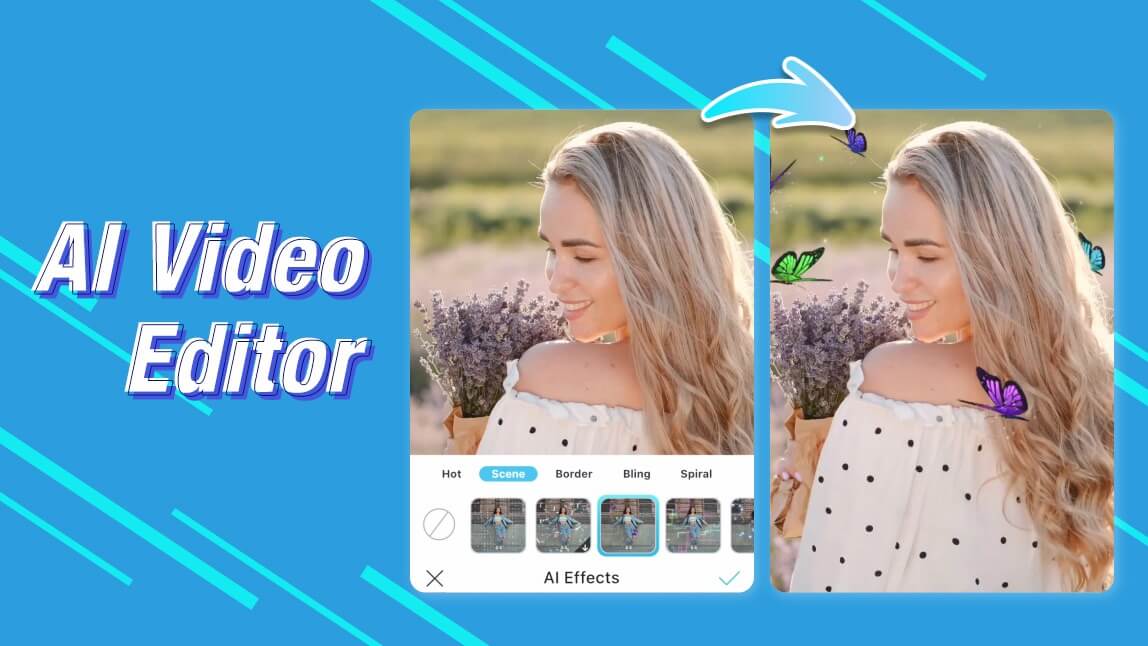
Step 1: Open AI Video Editor
Launch YouCam Video and head to the AI Video Editor. This is your hub for all the creative magic.
Step 2: Select Video Transformation
Choose Video Transformation. Here’s where the AI works its magic, whether you want a clothing swap, seasonal change, or animation.
Step 3: Enter Your Prompt
This is the fun part. Tell the AI what you want to do. Some examples:
- “Change clothing to a red evening gown”
- “Remove photobomber in the background”
- “Make the character dance to pop music”
The more detailed your prompt, the better the result.

Step 4: Generate and Save
Hit Generate, let the AI do its thing, then preview and save your masterpiece. Share it on socials or download for personal use.
Pro Tip: High-res videos + clear prompts = smoothest, most impressive transformations.
Tips for Maximizing Your AI Video-to-Video Creations
- Plan Your Prompt Carefully: Specificity leads to better results. Include clothing styles, colors, backgrounds, and actions in your prompts.
- Use High-Quality Source Videos: Clear, high-resolution videos yield smoother transformations.
- Experiment with Different Styles: Try multiple prompts to see which transformation looks best.
- Combine Scenarios: Layer effects like changing seasons and animating dance moves for more dynamic content.
- Preview Before Saving: Always check the AI-generated video to ensure quality and accuracy.
Why Use AI Video-to-Video?
Traditional video editing can be a headache: complicated software, long rendering times, and a steep learning curve. AI video-to-video changes that. Here’s why it’s worth your attention:
- Speed: Create transformations in minutes instead of hours.
- Creativity: Try things that were impossible before—like dancing pets or seasonal swaps.
- Personalization: Make content that feels unique to your audience.
- Engagement: Fun, eye-catching effects keep viewers watching longer.
With AI video-to-video, the possibilities are endless. Whether you’re swapping outfits, animating characters, or changing the season of a scene, you can bring your ideas to life in ways that used to take hours—or even days.
So why wait? Experiment with your first prompt, and watch your videos transform by using YouCam Video. Have fun, get creative, and share your masterpieces with the world.