


Bring Friends Into One Frame
Start with a solo photo of each friend and create one group picture. Pick a setting that suits the mood, like a sunny park.


Bring separate photos together into one group picture, or add the person who could not be there. AI Group Photo in YouCam AI Pro creates a shared photo from the faces you choose.

Start with a solo photo of each friend and create one group picture. Pick a setting that suits the mood, like a sunny park.
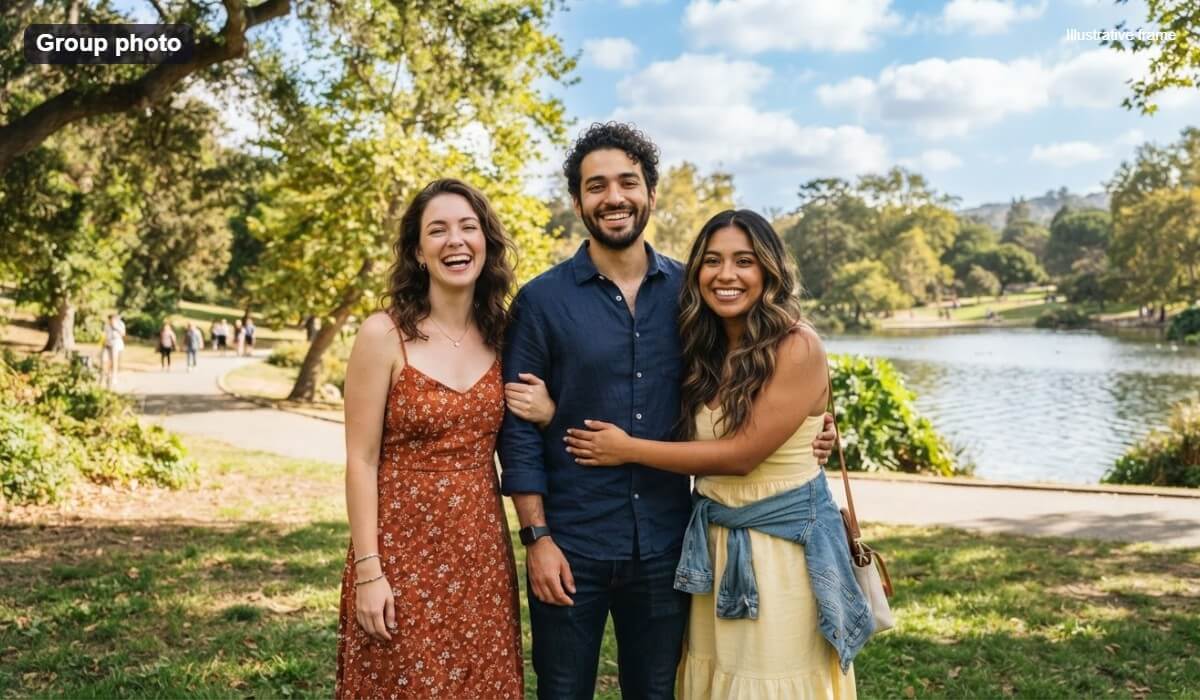
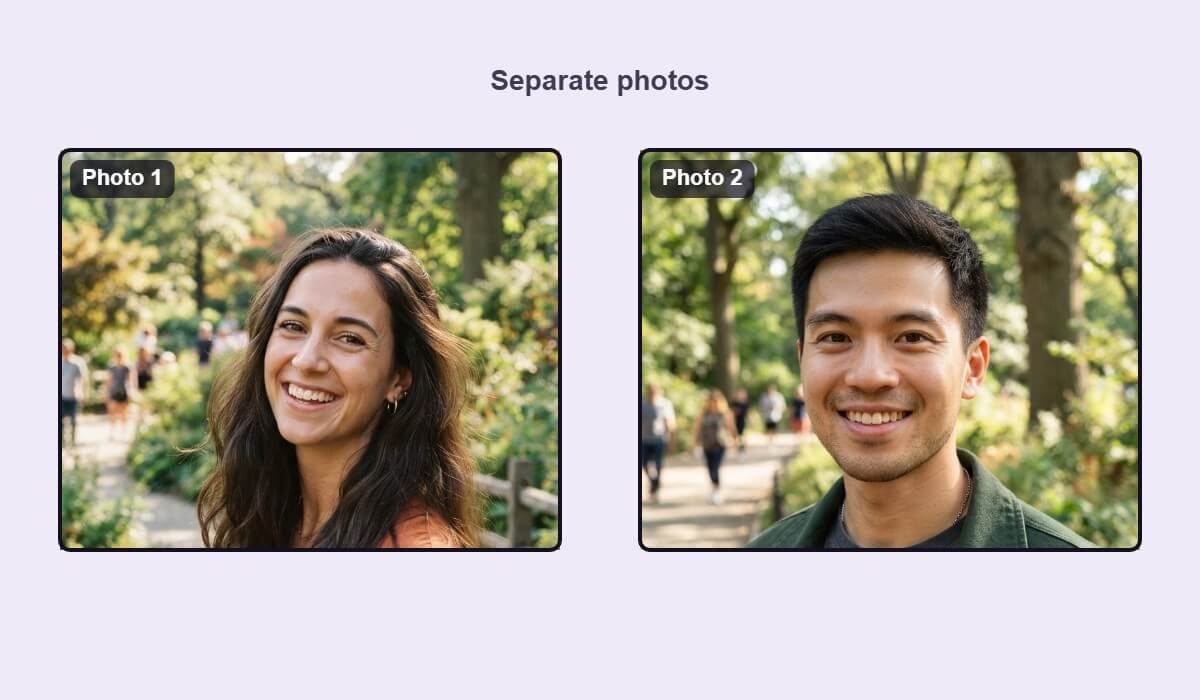

When someone could not join the family photo, add their picture to the group so everyone appears together.
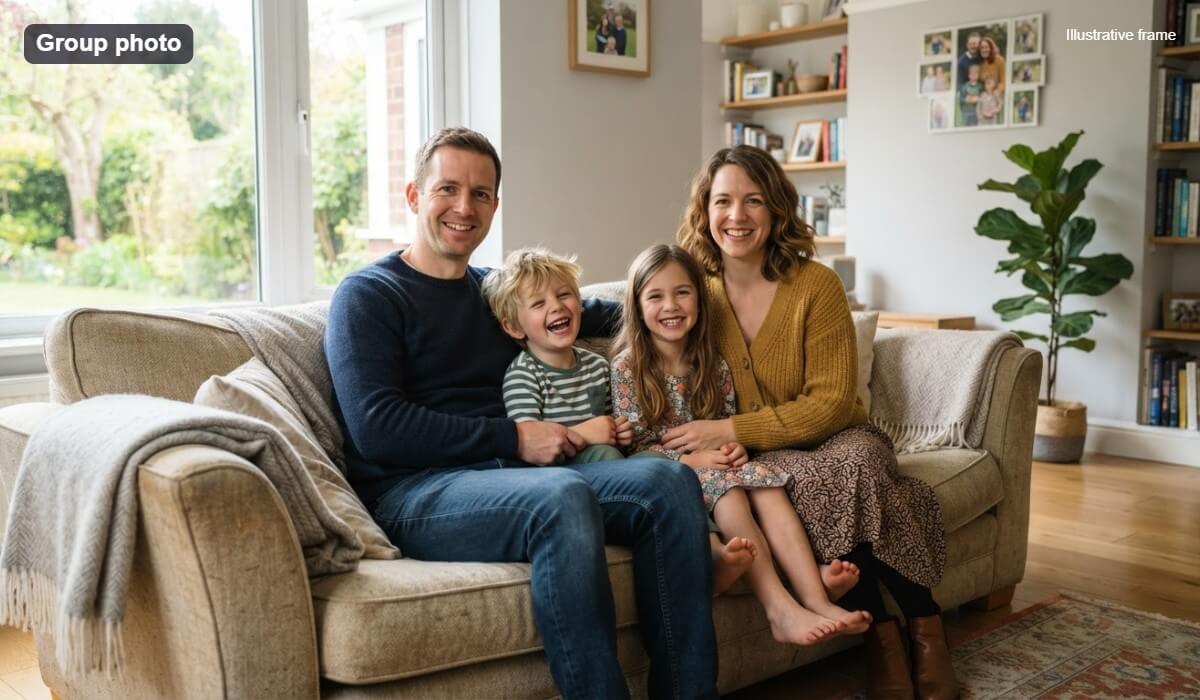
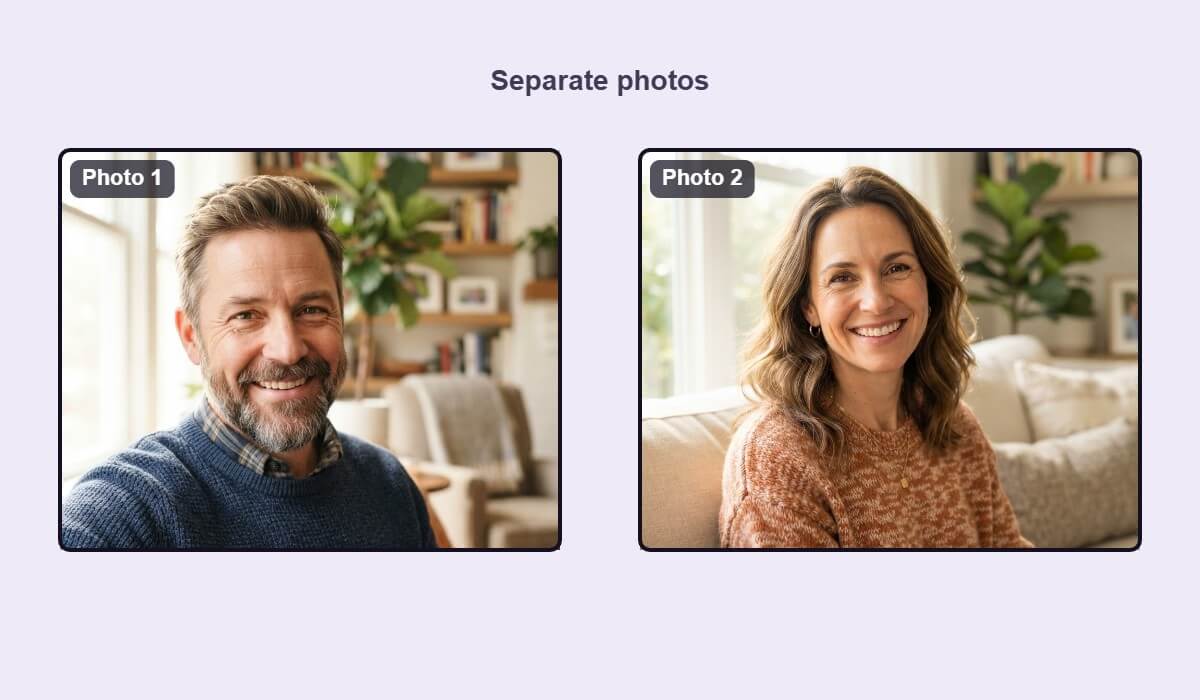
Combine individual office headshots into one team photo for a profile page or an announcement.

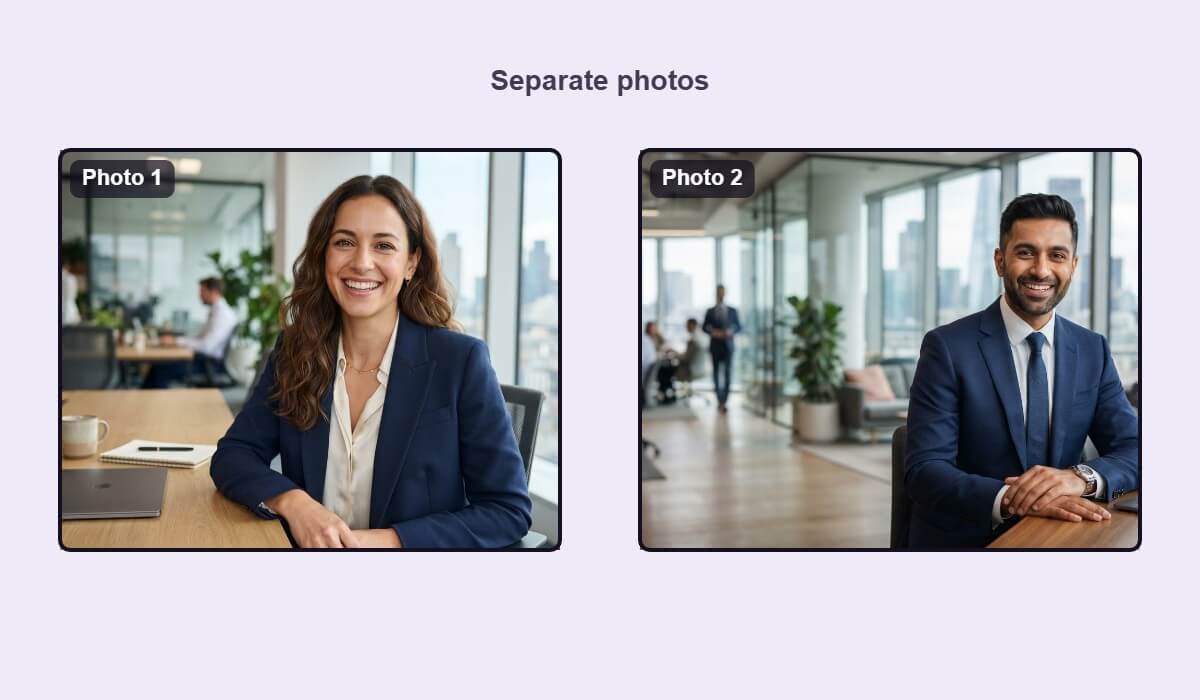
The quality of a group photo depends on the photos you start with. These habits help.
Photos taken in similar light merge more naturally. A very dark photo next to a bright one looks mismatched.
Choose sharp photos where each face looks toward the camera at a similar angle and distance.
Zoom in on faces, hands and the edges between people. Regenerate if anything looks unnatural.

An AI group photo combines separate photos of people into one shared picture. In YouCam AI Pro you add each person, choose a setting and generate the result.
Yes. Add a clear photo of the missing person along with the others and generate a new group photo that includes them.
Sharp, front facing photos in similar light work best. Avoid heavy filters, sunglasses and photos where the face is small or partly hidden.
Not always. AI results can change small details, so compare each face with the source photo and try again if one looks off.
Smaller groups usually give cleaner results. Start with a few people and add more if the result looks good.
Yes. Only use photos of people who agree, and do not use a group photo to suggest that someone attended an event they did not.
Open YouCam AI Pro on your phone and choose AI Group Photo to get started.


