


Restyle a Photo Without Starting Over
Turn an everyday photo into a watercolor, an illustration or any style you can describe. The subject and pose stay recognizable, so you get a new look instead of a new picture.


Upload a photo, describe the change you want, and choose an art style. Image to image AI in YouCam AI Pro rebuilds your picture while keeping the composition you started with.

Turn an everyday photo into a watercolor, an illustration or any style you can describe. The subject and pose stay recognizable, so you get a new look instead of a new picture.
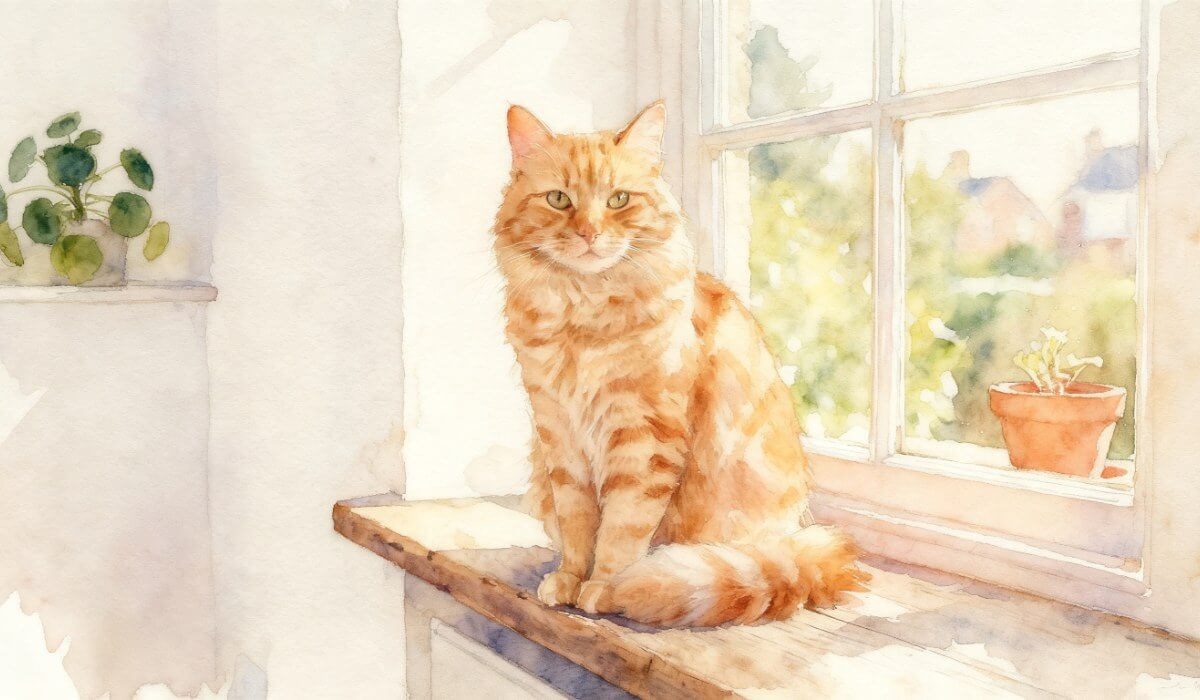
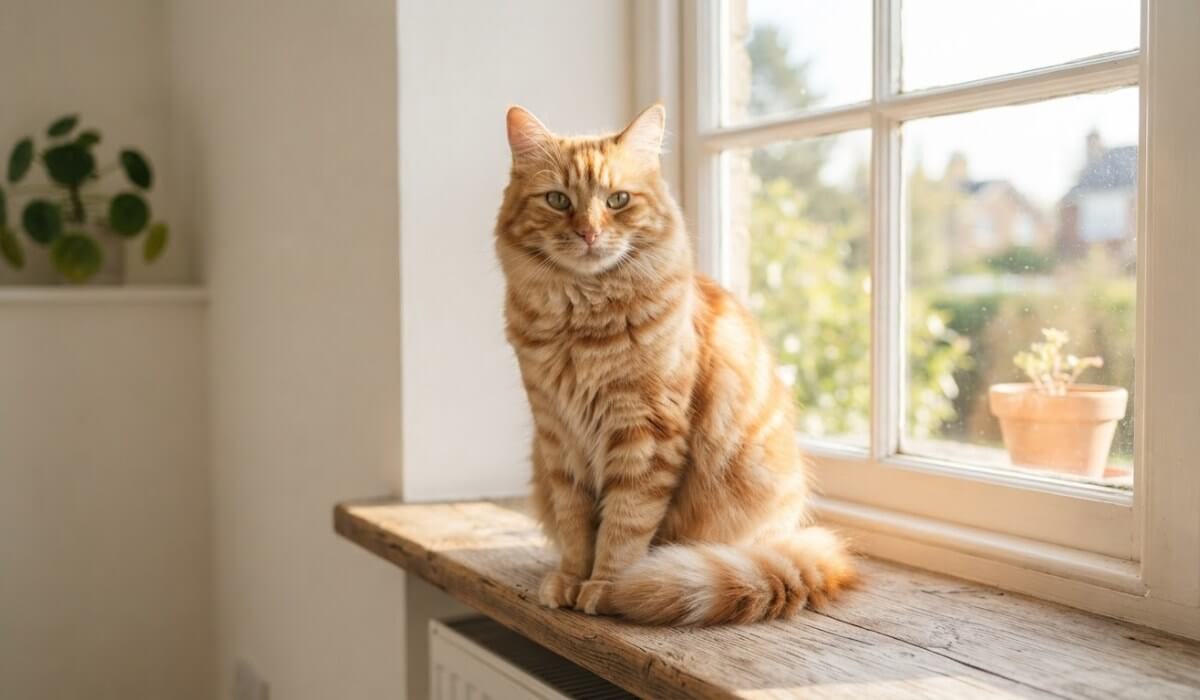

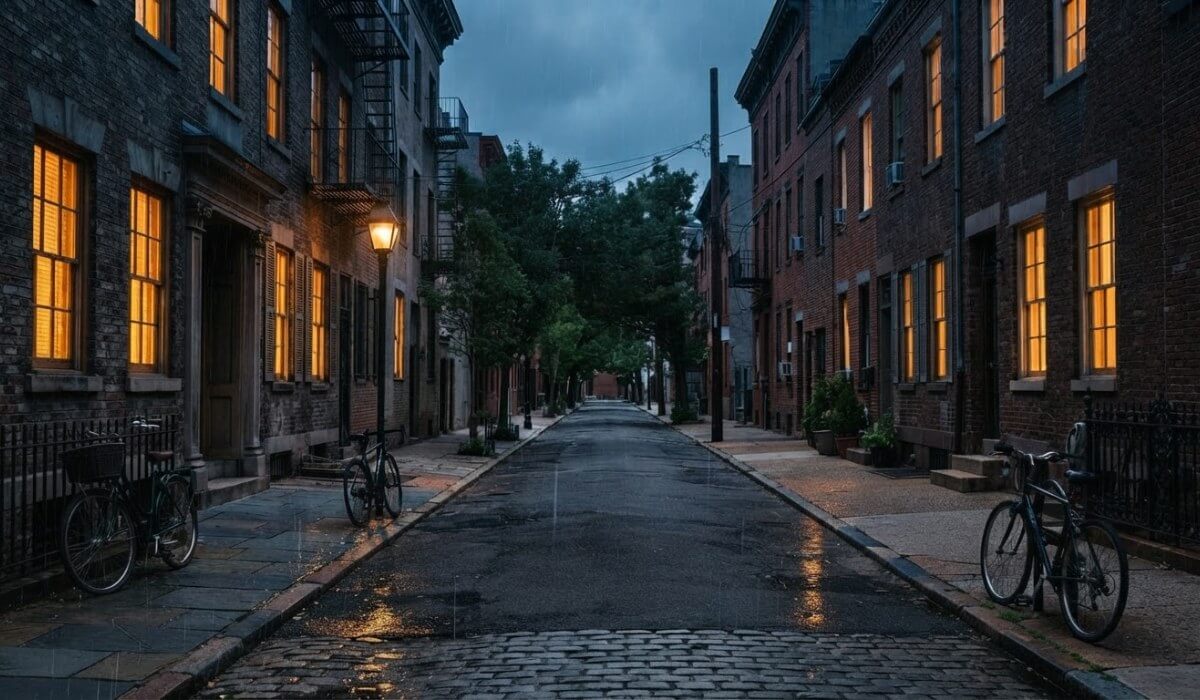
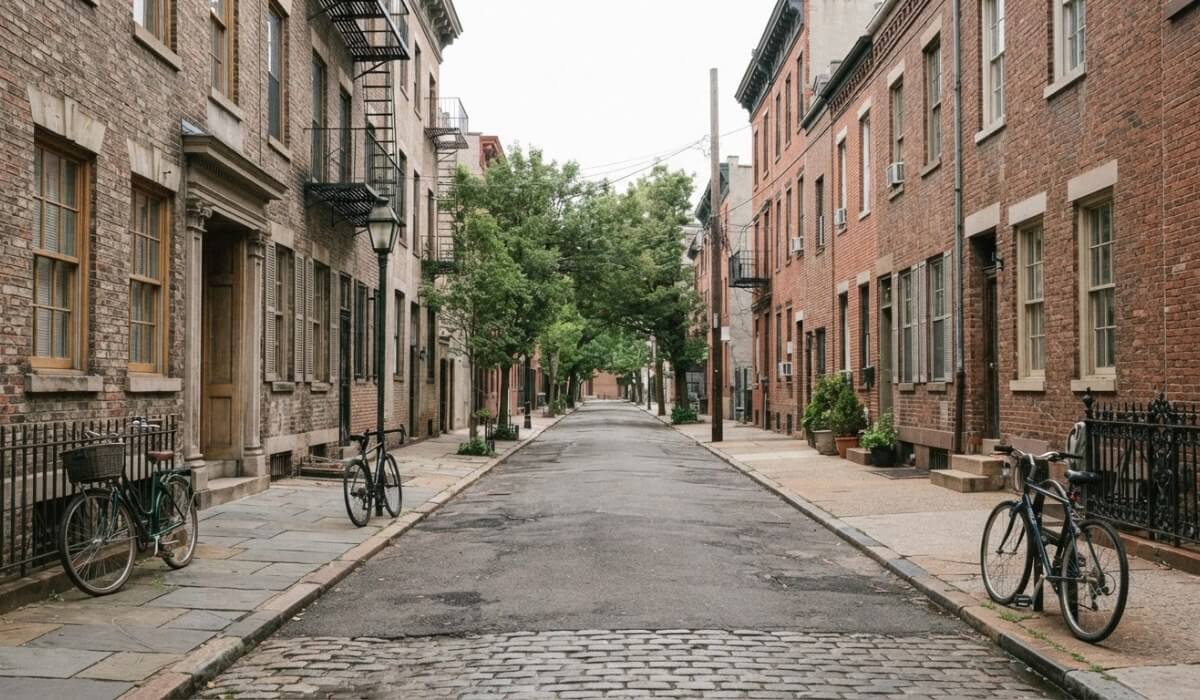
Describe a different scene and the AI redraws the light around what is already there. A daytime street can become a rainy night, with the same buildings kept in place.
Start from an empty room and describe the style you want. Use the result to test ideas such as a sofa, a rug or a plant before you buy anything.
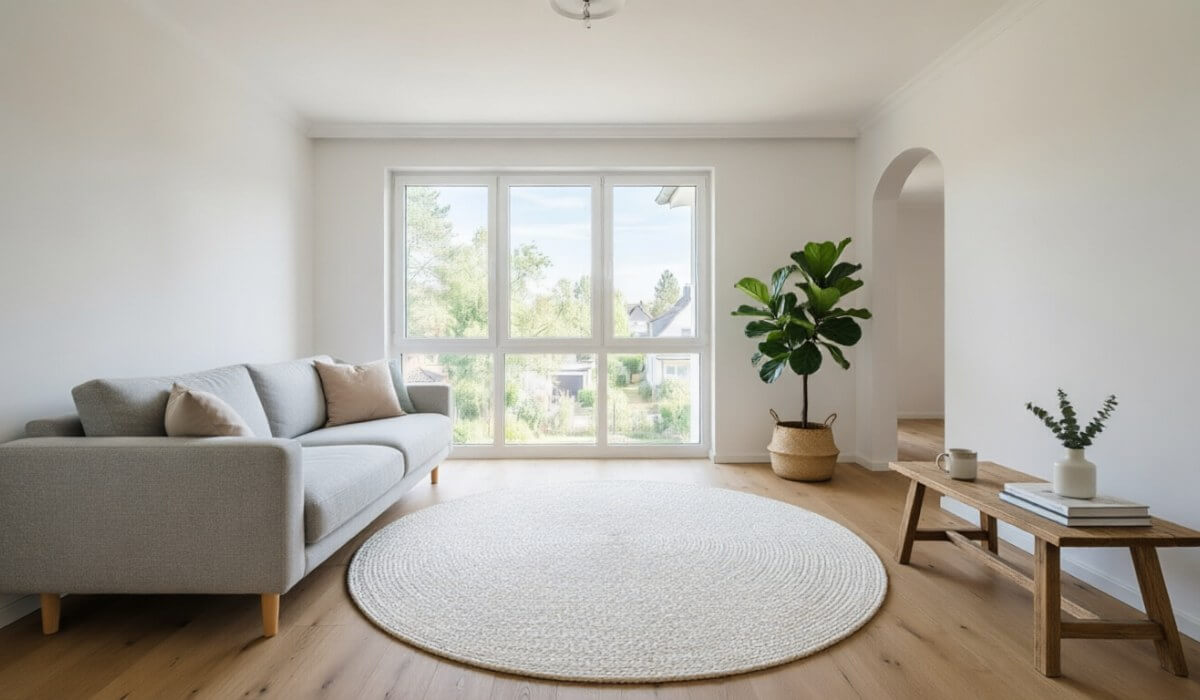
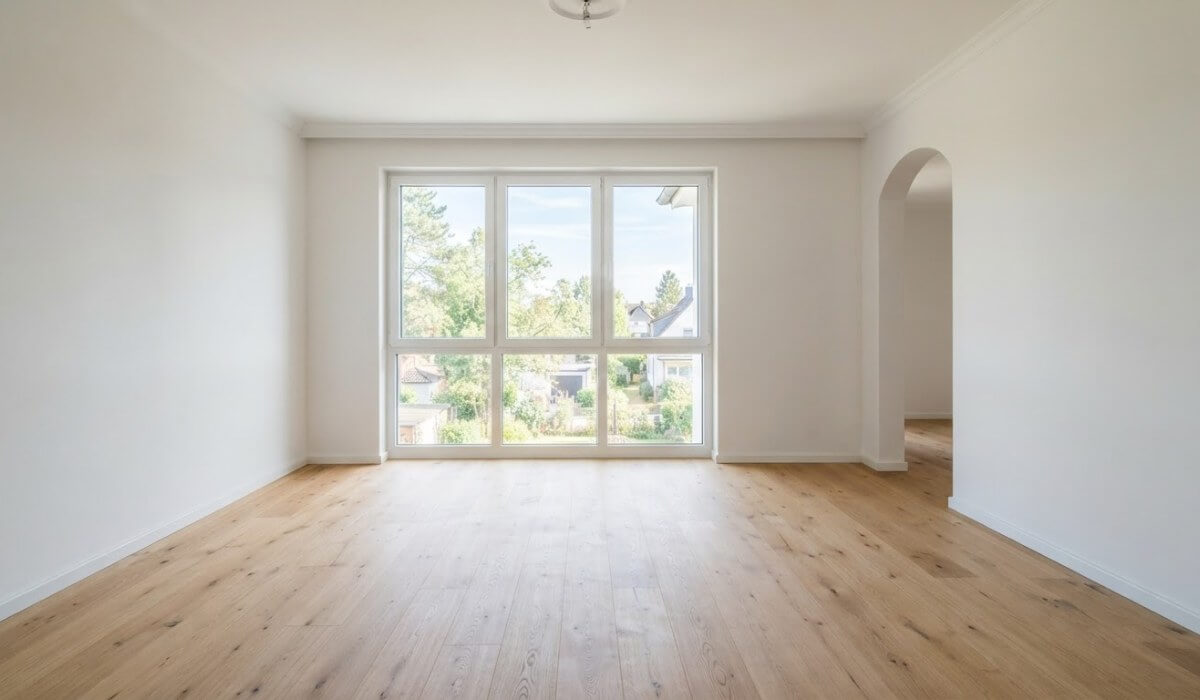
The AI follows your source photo closely, so the input and the prompt matter more than the style you pick.
Blurry or dark photos leave the AI guessing. A clear subject and even light give cleaner edges, and the result keeps more of what you liked in the original.
You do not need a photograph. A simple pencil sketch can be a source image, and your prompt tells the AI how to color and finish it.
For product shots and objects, name what should not change, such as the shape and the color. A plain background makes the subject easy to protect.

Image to image AI takes a photo you already have and creates a new image from it, guided by your text prompt and a chosen style. Unlike text to image, it starts from your picture, so the layout and subject carry over.
Upload the photo, describe the look you want, such as a watercolor painting, and choose an art style. Generate, then compare the result with your original and adjust the prompt if needed.
Yes. Color over the area you want to change and describe what should replace it. The rest of the photo is left alone.
The AI redraws the picture, so some detail can change, especially with busy backgrounds or low-quality photos. Use a sharper source, keep the prompt to one idea, and name what should stay the same.
Not always. A perfect result can take a few attempts, so try small changes to your prompt or a different art style before starting over.
Text to image creates a picture from words alone. Image to image starts from your own photo, so the composition follows what you uploaded.
Only upload photos you own or have permission to use, and be thoughtful when the photo shows someone else. Check the result before you share it.


