 Author: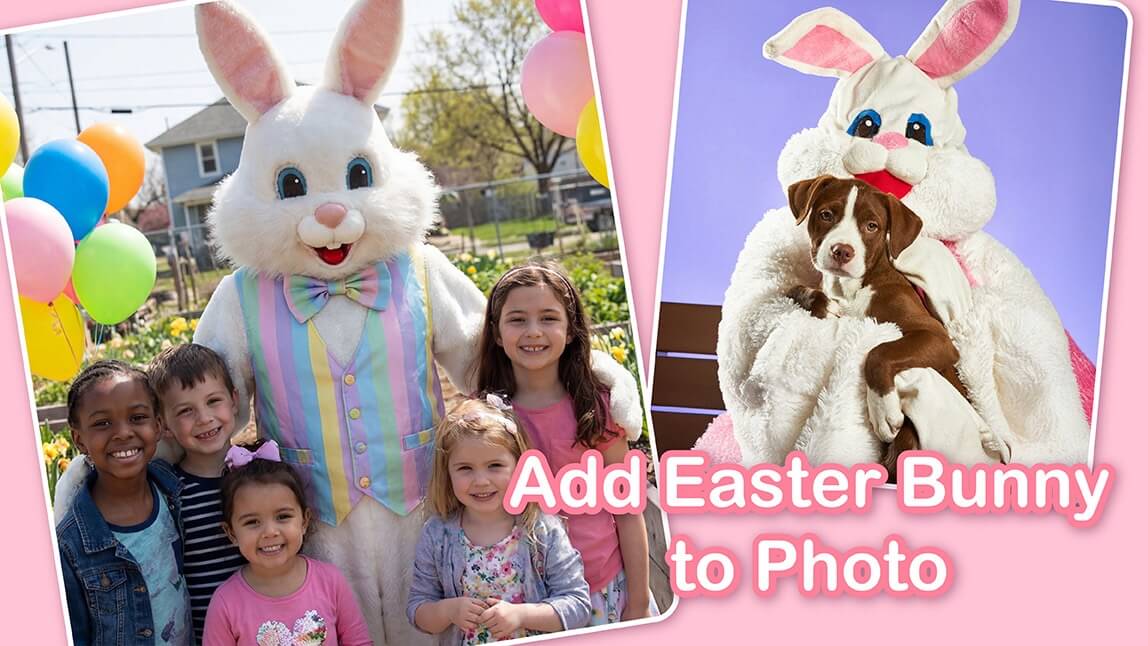
Easter is one of those holidays that practically begs to be captured: pastel colors, blooming flowers, baskets full of treats, and of course, the iconic Easter Bunny.
But what if you could make your photos even more magical this year? Instead of waiting for the perfect moment, you can create it. With AI-powered editing tools, adding an Easter Bunny to your photos is no longer complicated or time-consuming.
In just a few taps, you can turn an ordinary picture into a festive, share-worthy Easter scene, no design skills required.
How to Add an Easter Bunny to Photos with AI
With YouCam Enhance, you can easily add an Easter Bunny to any image using smart AI tools like AI Replace and Text-to-Image. Follow these simple steps:
Step 1: Download the YouCam Enhance App
Start by downloading the YouCam Enhance app on your device. It’s designed for quick, beginner-friendly photo editing powered by advanced AI, so you don’t need any prior experience.

AI Photo Enhancer
Fix blurry photos & enhance quality.
Add Easter Bunny to Photos with AI.
Step 2: Upload Your Photo
 Open the app and select the photo you want to edit.
This could be:
- A family Easter photo
- A spring outdoor shot
- A selfie or portrait
- Even a picture of your pet
Choose an image with enough space where the Easter Bunny can naturally fit into the scene.
Step 3: Use AI Replace to Add an Easter Bunny
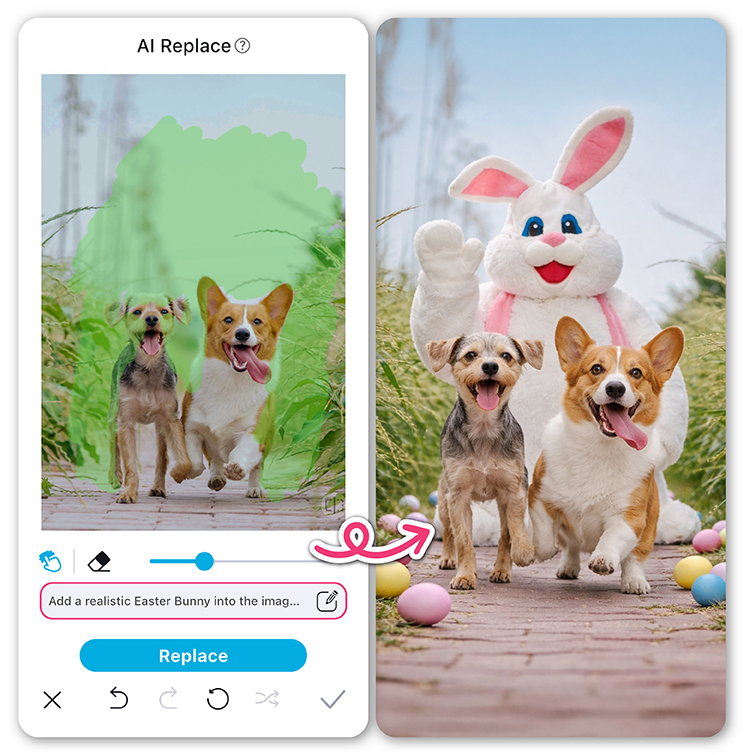 With the AI Replace feature, you can insert an Easter Bunny directly into your photo:
1. Select the AI Replace tool
2. Brush over the area where you want the bunny to appear
3. Type a prompt like: “a cute fluffy Easter bunny sitting on grass with pastel eggs”
4. Let the AI generate and blend the bunny into your image
The result? A realistic, seamlessly integrated Easter Bunny that looks like it was always part of the photo.
Step 4: Save and Share Your Easter Photo
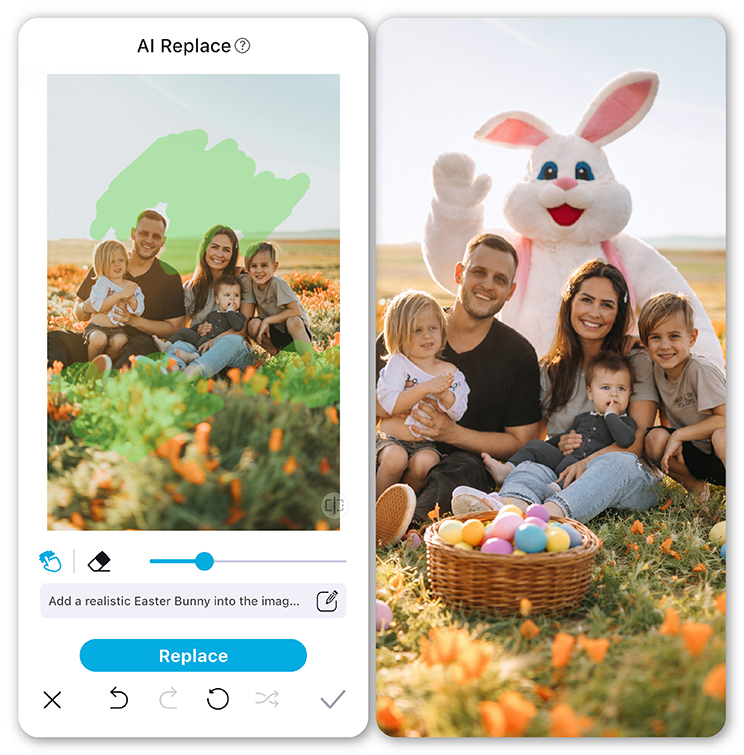 Once you’re happy with your creation, save the image to your device.
From there, you can:
- Share it on Instagram, TikTok, or Facebook
- Send it to friends and family
- Use it as a festive greeting or digital card
Fun Easter Photo Ideas to Try
Not sure where to start? Here are some creative ways to use AI to add an Easter Bunny to your photos and make them stand out:
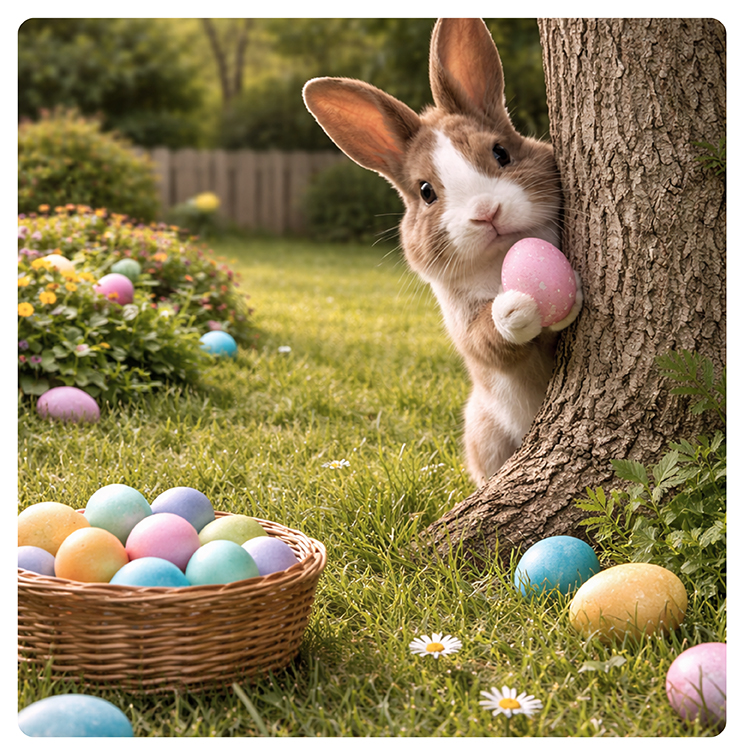
- Easter Egg Hunt Scene: turn a simple backyard or park photo into a full Easter egg hunt. Add a bunny hiding eggs in the grass or peeking from behind a tree for a playful, storybook feel.
- Bunny Photobomb: add a cute Easter Bunny into your selfie or group photo as if it jumped into the frame at the last second. This works especially well for social media posts and adds a fun, unexpected twist.
- Pet + Bunny Combo: place a friendly Easter Bunny next to your dog or cat for an adorable cross-species moment. Try prompts that match your pet’s pose for a more natural look.
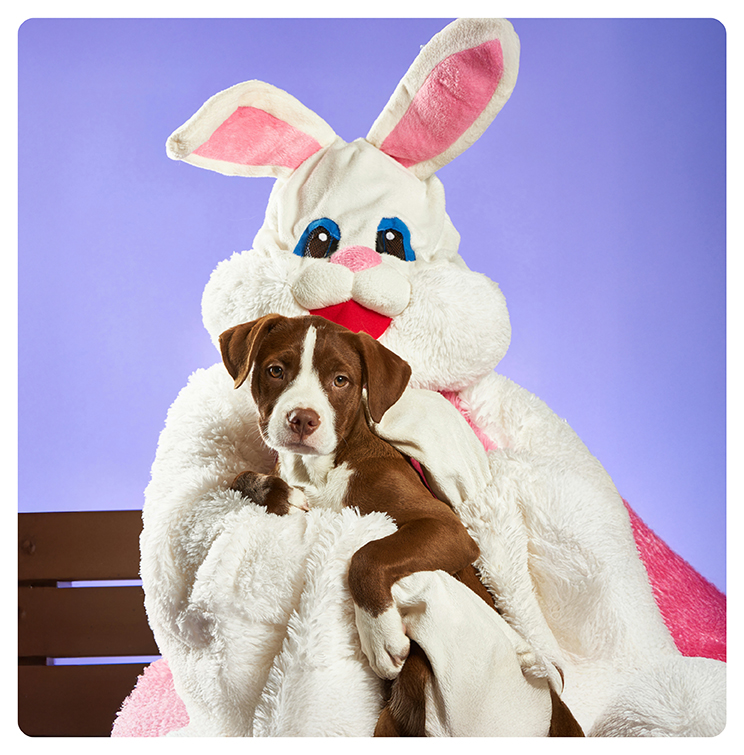
- Magical Spring Garden: transform your photo into a dreamy spring landscape with flowers, soft sunlight, and a bunny as the centerpiece. This is perfect for aesthetic, Pinterest-worthy images.
- Easter Greeting Card Style: create a polished Easter card by adding a bunny along with pastel eggs and soft backgrounds. You can even pair it with a short holiday message for a personal touch.
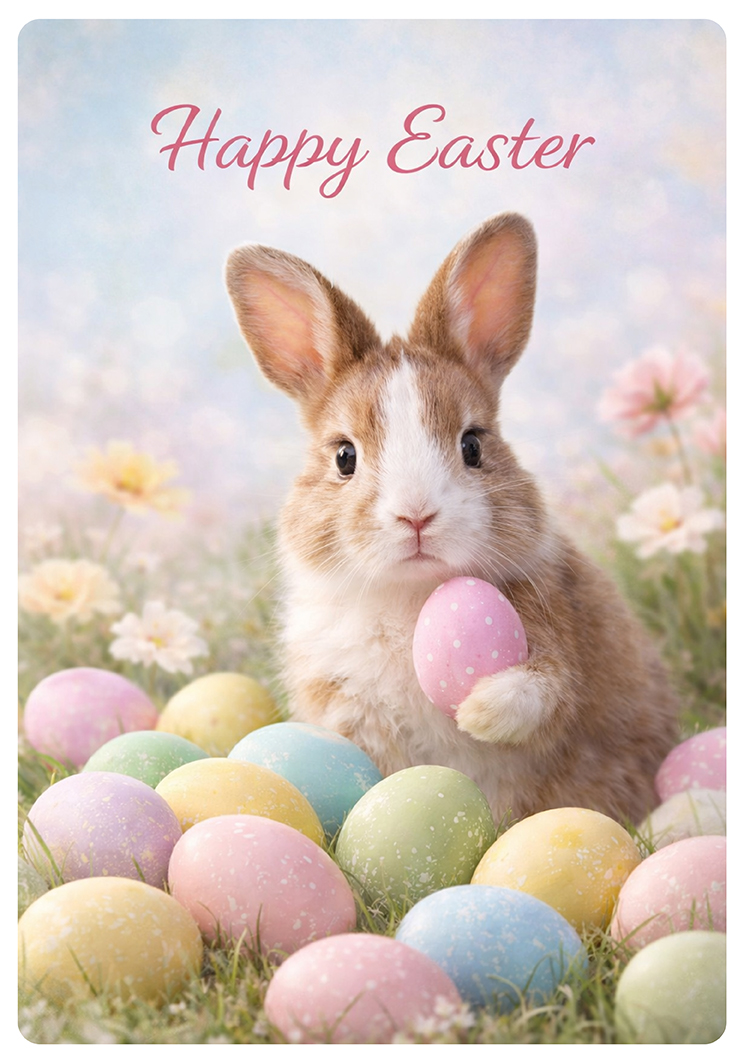 These ideas are great starting points, but don’t be afraid to experiment. With AI, you can test different concepts in seconds and discover what works best for your style.
Tips for Creating the Best Easter Bunny Photos
Want your edits to look even more realistic and eye-catching? Keep these tips in mind:
- Match lighting and shadows: Choose prompts that align with your photo’s lighting for a natural blend
- Be specific with prompts: Instead of “bunny,” try “small brown Easter bunny sitting in grass with soft sunlight”
- Use open space wisely: Place the bunny where it won’t overlap awkwardly with people or objects
- Experiment with styles: Try realistic, cartoon, or even fantasy Easter bunny looks
- Keep it balanced: Don’t overcrowd your image. Sometimes less is more
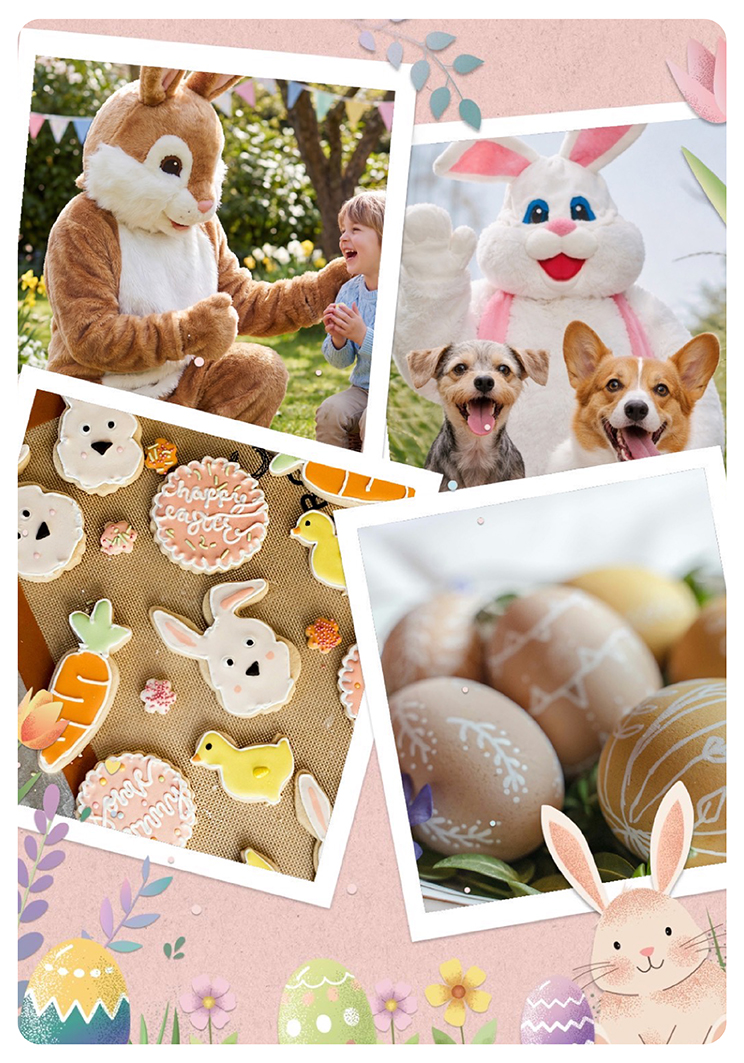
Make Your Easter Photos Unforgettable
Adding an Easter Bunny to your photos is one of the easiest ways to capture the spirit of the season. With AI tools like AI Replace, you can transform everyday pictures into creative, festive masterpieces in seconds.
Ready to try it for yourself? Download YouCam Enhance today and start creating your own Easter Bunny photo edits.
AI Photo Enhancer
Fix blurry photos & enhance quality.
Add Easter Bunny to Photos with AI.
Easter Bunny Photo FAQs
How do I add an Easter Bunny to a photo?

Adding an Easter Bunny to your photo is easy with AI-powered tools like YouCam Enhance. Upload your image, use the AI Replace feature to brush the area, and type a prompt like “cute fluffy Easter Bunny on grass.” The AI will seamlessly insert the bunny, making your photo festive and share-ready in seconds.
How to photoshop Easter Bunny into picture online free?
You don't need Photoshop to add an Easter Bunny to your photos. Free apps like YouCam Enhance let you use AI Replace and Text-to-Image features. Upload your photo, select the area for the bunny, and type a descriptive prompt. The AI generates a realistic bunny instantly, no editing experience required.
How do you add bunny ears to photos on iPhone?
On iPhone, apps like YouCam Enhance let you add bunny ears easily. Open your photo, choose AI Replace or stickers, then either brush the area or use a text prompt like “cute bunny ears on head.” The AI will automatically adjust size, angle, and lighting for a realistic look.
What app can I use to add objects to a photo?
YouCam Enhance is a top choice for adding objects to photos. Its AI Replace and Text-to-Image features let you insert anything, from Easter Bunnies to decorative elements, directly into your images. Simply upload your photo, select the area, and enter a descriptive prompt to generate realistic results in seconds.
Can I create realistic Easter Bunny photos without Photoshop?
Absolutely! AI-powered apps like YouCam Enhance allow you to create realistic Easter Bunny photos without Photoshop. Use AI Replace to integrate a bunny into your photo, or generate entire scenes with Text-to-Image. The AI handles shadows, lighting, and blending, making professional-looking edits quick and effortless.
What are the best AI tools for Easter photo edits?
For Easter-themed photo edits, AI tools like YouCam Enhance offer features like AI Replace and Text-to-Image. These tools let you add bunnies, eggs, or full spring scenes seamlessly. Just upload your photo, brush or prompt the area, and the AI produces realistic, festive images perfect for social media or holiday cards.