 Author:
In this guide, we’ll walk you through everything you need to know about using an image merger to combine photos for free, whether you prefer templates, manual editing, double exposure effects, or AI-powered prompts.
What Is Image Merger?
 An image merger is a tool that lets you merge two photos together or blend multiple images into one cohesive composition.
Whether you want to overlay photos, create double exposures, or mix textures and colors, an image merger gives you endless ways to get creative.
How To Merge Two Photos Together with AI?
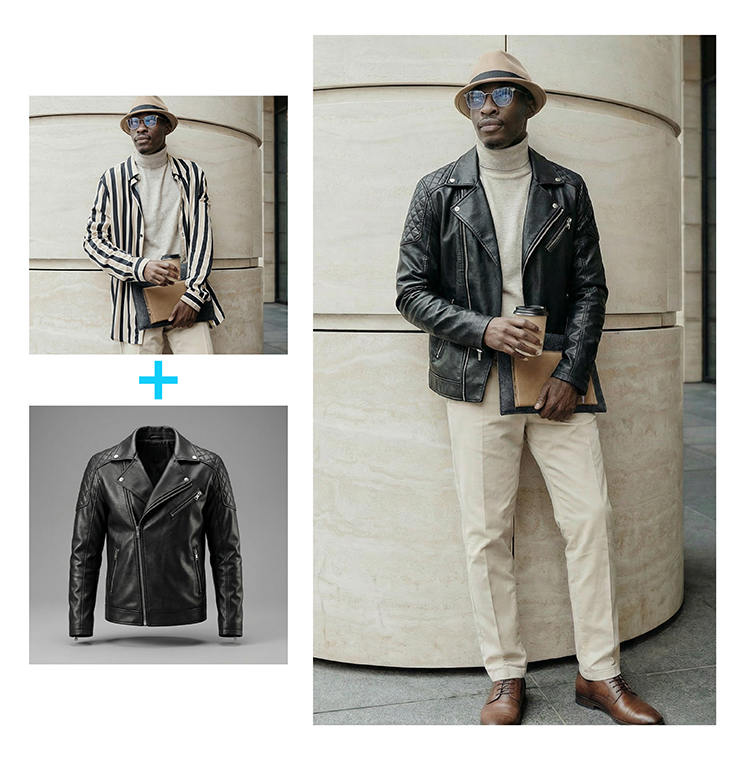 If you want to merge photos in a more creative way—YouCam Perfect’s AI Agent is a game changer. Instead of manually adjusting layers or blending photos, you simply type what you want, and the AI does the rest for you.
This method goes beyond simple merging. With the right prompt, you can:
Change clothing styles
Add or replace people
Modify textures and backgrounds
Create artistic or fantasy-style blends
Turn two normal photos into a unified, stylized visual
How to Merge Pictures Using AI Prompts
1. Select “AI Agent” from the YouCam Perfect home page.
2. Upload at least two photos you want to combine.
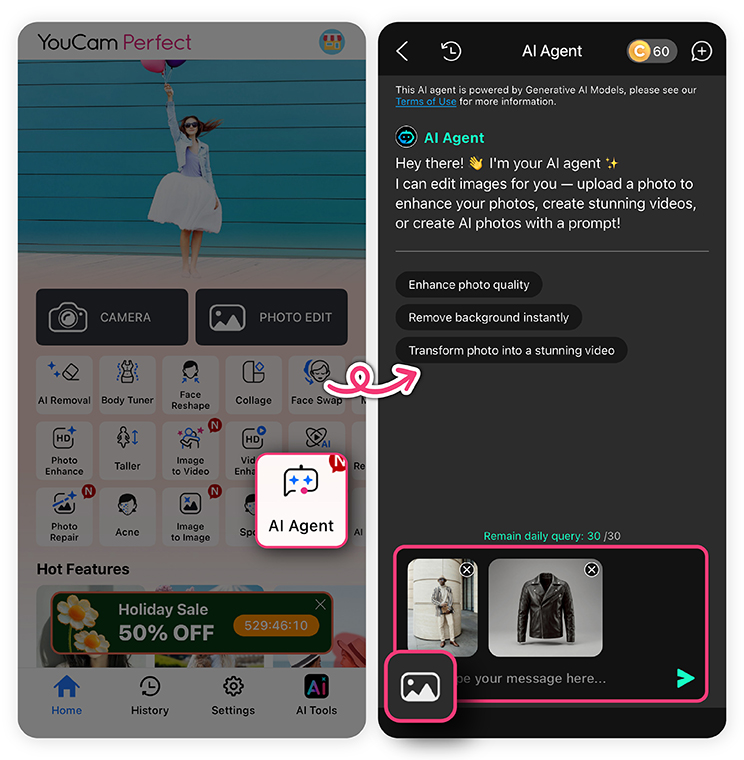 3. Enter your prompt, such as:
- “Merge these two photos into a winter-themed portrait”
“Match their outfits and blend the background into one cityscape”
“Create a single image with both people wearing matching denim jackets”
“Blend the textures of Photo A onto the outfit in Photo B”
4. Generate and save your AI-created merged image!
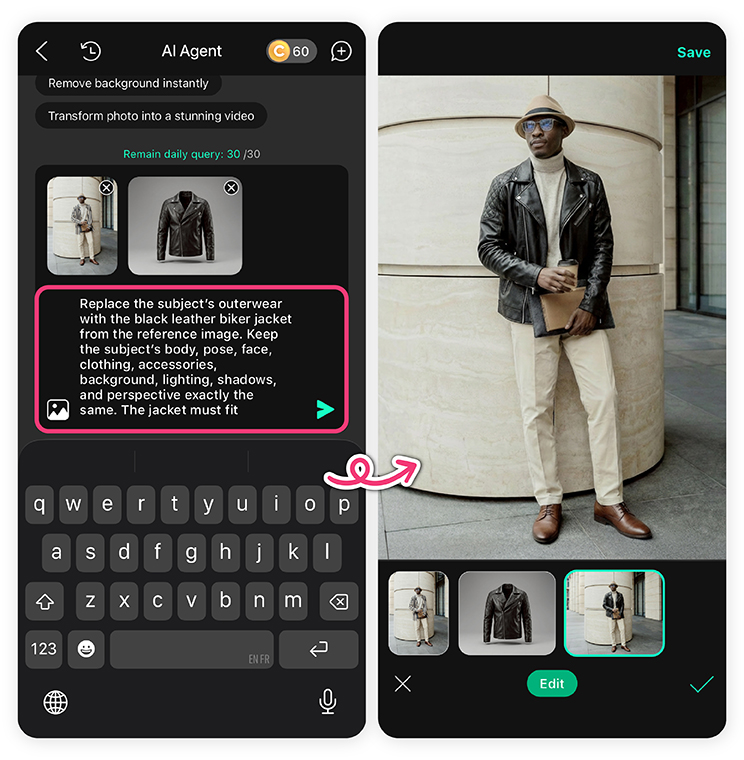 This prompt-based merging tool gives you much more freedom compared to traditional collage or overlay tools. AI Agent makes it easy—just describe what you want and let the AI handle the details.
How to Use the Image Merger?
There are different ways to combine images, here we share 3 creative ways to do so:
How To Merge Photos with a Grid Template
YouCam Perfect offers a variety of merging photo templates from 1-9 images for you to choose. Based on my experience the easiest and fastest way to find the tool is:
Step 1. Download the YouCam Perfect app
Step 2. On the main screen you will see ‘Collage’ > Click here and choose the photos you want to merge

Step 3. Below you see 2 options: Grid or Poster I clicked on ‘Grid’ and it looked like this:

I noticed that I was able to customize it by myself with the following options:
- Ratio
- Border
- Background
- Color
Step 4. Then, I clicked on ‘Poster’ to check which one of the 2 gave me better results and this one actually gave me the combination that I wanted so I selected this one, the only downside is that I was not able to change the frame color, however, I could add text such as the date and stickers.

Tip: Find Instagram-like grids under the 'Classic' category.
How To Merge Photos with a Double Exposure Tool
To use the 'Blending' tool on the YouCam Perfect app, I found a fun way to merge photos. Also this way, the images combined look quite nice!
Step1. Download the YouCam Perfect app for free on iOS and Android.
Step 2. On the main page select 'Photo Edit' > choose a photo with a face (preferably)

Step 3. Find the 'Blending Tool' and select 2 of your photos. One as the background and the other as the one merged on the portrait photo. It will look something like this:
 Feel free to arrange which one goes first and which one is the background!
How To Merge Photos Manually
If you want to choose the size of the photos you are merging and have a more personalized style, you can merge the photos manually, using the 'Add Photo' tool. Here I wanted to first put them into a plain background to merge my photos. This is how I did it:
Step 1. Download the YouCam Perfect app for free on iOS and Android.
Step 2. On the main page scroll down and you will see 'Store' > click and choose a background
 Step 3. After selecting the background, find the 'Add Photo' tab and add the photos you want to merge
 Step 4. Done. I also explored the blend tool to edit the color and contrast of my images to make their colors more vivid.
Tips and Tricks on Merging Photos Like a Pro
Here are some other tips for you to merge the photos perfectly:
- Overlap and Blend: When merging photos, overlap similar elements between images to create smooth transitions. Take care to blend the edges seamlessly using tools like layer masks or opacity adjustments.
- Refine and Edit: After merging the photos, refine the composite image by adjusting colors, tones, and contrast. Use photo editing software to fine-tune the overall look and ensure a polished result.
- Practice and Experiment: Merging photos takes practice. Experiment with different techniques, tools, and compositions to find your own unique style. Embrace creativity and explore different possibilities to push the boundaries of your composite images.
FAQs About Merging Photos
What is the easiest way to merge two photos together?

The easiest way to merge two photos together is by using an image merger app like YouCam Perfect. Just upload your photos, choose a layout or AI tool, and the app will combine them in seconds—no editing skills needed.
Can I merge two photos for free?
Yes! Many apps and websites let you merge two photos for free, including YouCam Perfect, Canva, and Fotor. These tools offer templates, grids, and AI-powered merging without requiring paid plans.
How do I add two pictures together using AI?
You can add two pictures together with AI by uploading both images into the AI Agent tool in YouCam Perfect. Just describe what you want—like “combine these into a winter portrait”—and the AI automatically blends them into one creative result.
Can I merge more than two photos together?
Absolutely! Many tools allow you to merge 3 to 9 photos—or even more. YouCam Perfect’s grid and poster templates make it easy to add multiple pictures together seamlessly.