 Author: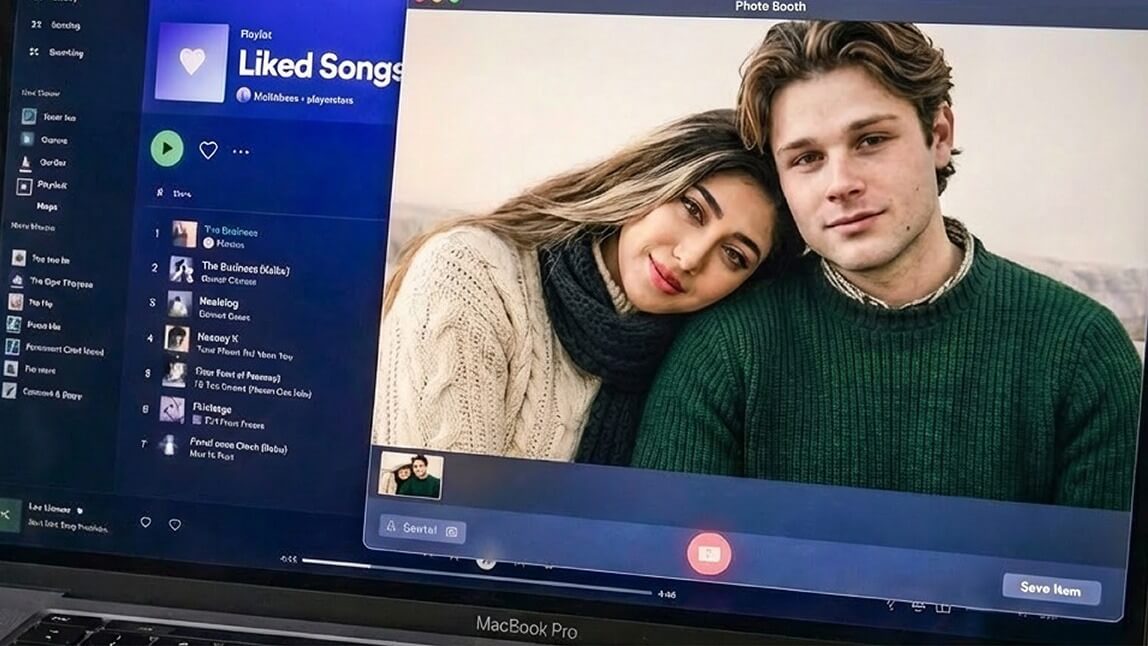
If you’ve been scrolling TikTok or Reddit lately, you’ve probably seen those cozy, low-key couple selfies that look like they were taken straight from a MacBook. Soft lighting, slightly blurry quality, casual poses — nothing fancy, but somehow really cute.
That’s the MacBook Photo Booth selfie trend, and people love it because it feels real. Now with AI tools like YouCam Perfect AI Agent, you can recreate the same vibe using just a few photos and the right prompt.
Let’s break it down in a simple way.
What Is the Photo Booth MacBook Trend?
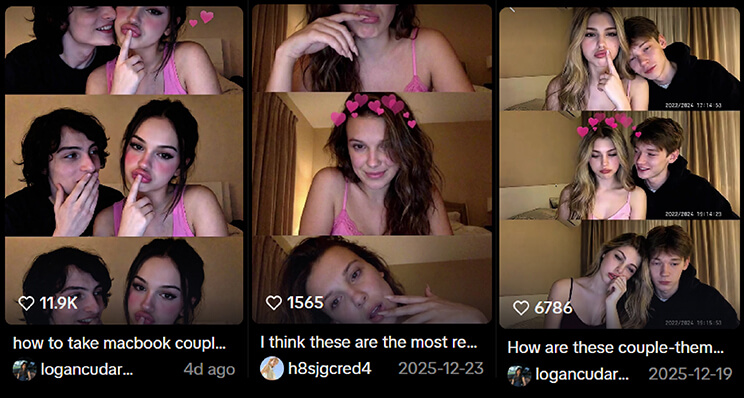
The Photo Booth MacBook trend is inspired by photos taken with Apple’s built-in Photo Booth app. Because MacBook webcams aren’t meant for professional photography, the results feel very different from polished social media shots.
Most MacBook selfies have:
- Soft or slightly blurry focus
- Warm indoor lighting
- A bit of grain or low resolution
- Casual, unposed expressions
That imperfect look is exactly what makes the trend so popular. For couples especially, it feels intimate and genuine — like a moment you didn’t overthink.
Originally, the trend focused on couple selfies, but it has since expanded to: friends, solo selfies and even AI-generated selfies with celebrities, styled to look like a casual MacBook webcam shot.
How to Take a Selfie on MacBook (Traditional Way)
If you want to try the original version first, you can take a real MacBook selfie using Photo Booth.
- Open Photo Booth on your MacBook
- Choose Single Photo or Burst Mode
- Sit close to the screen so the webcam frames your face (or both of you)
- Use a warm lamp or room light instead of bright overhead lighting
- Take a few shots and pick the most natural one
Quick tips:
- Don’t pose too hard — relaxed expressions look best
- Sitting close together helps sell the “Photo Booth” vibe
- A bedroom or couch background feels more natural than a blank wall
This method is simple, but it does require both people to be there at the same time — which isn’t always realistic.
How to Create an MacBook Selfie with Prompt
If you don’t have a Macbook, YouCam Perfect AI Agent makes it easy to generate an AI MacBook selfie that still looks natural.
This works great if:
- You don’t have a MacBook
- You and your partner are in different places
- You want a MacBook-style selfie with a celebrity
- You want a cleaner but still casual version of the trend
How To Make AI MacBook Selfie
1. Open YouCam Perfect

Best AI Photo Editor
The Best AI Photo Editor & Selfie Camera.
Remove objects, apply filters & more.
2. Select AI Agent
3. Upload one or two photos (your photo + a reference image)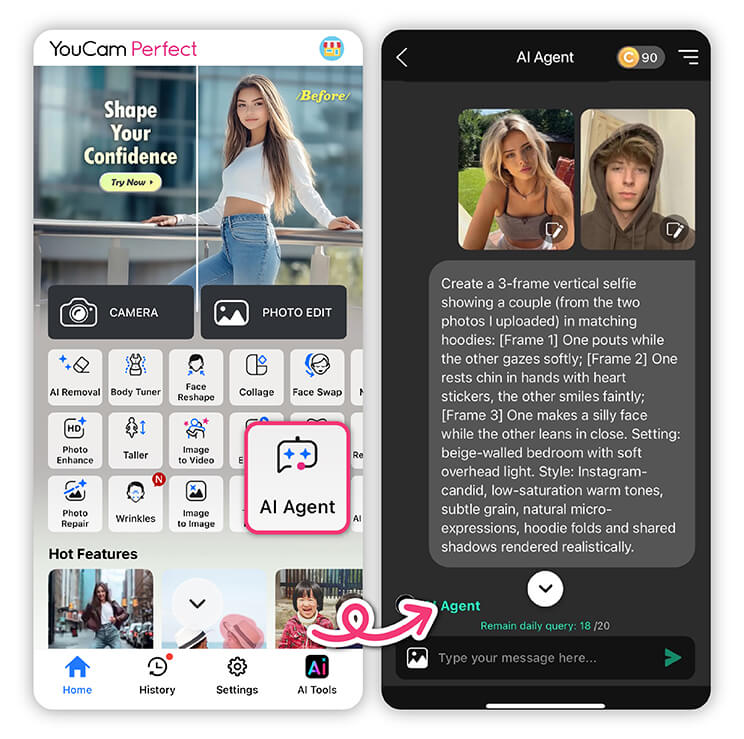
4. Enter a MacBook Photo Booth–style prompt
5. Generate and save your AI MacBook selfie
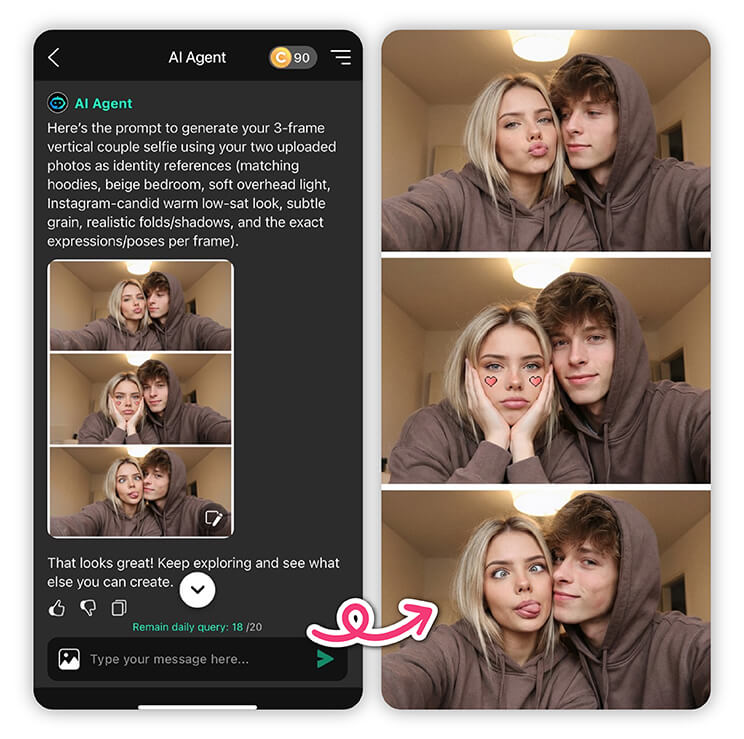
The AI Agent blends both faces naturally and applies the soft lighting and webcam feel that matches the Photo Booth trend.
AI MacBook Selfie Prompts (Copy & Paste)
This is the most important part.
MacBook selfies aren’t meant to look perfect — so your prompt shouldn’t be either.
What to include:
- Laptop or webcam framing
- Warm indoor lighting
- Slight blur or grain
- Casual expressions
What to avoid:
- “Ultra HD”
- “Cinematic lighting”
- “Studio quality”
Below are ready-to-use prompts that work well for the MacBook selfie look.
Couple MacBook Selfie Prompts

1. Classic Photo Booth Couple
Create a 3-frame vertical selfie showing a couple (upload photos) in matching hoodies: [Frame 1] One pouts while the other gazes softly; [Frame 2] One rests chin in hands with heart stickers, the other smiles faintly; [Frame 3] One makes a silly face while the other leans in close. Setting: beige-walled bedroom with soft overhead light. Style: Instagram-candid, low-saturation warm tones, subtle grain, natural micro-expressions, hoodie folds and shared shadows rendered realistically.
2. Cozy Late-Night Vibe
A candid MacBook webcam selfie of a couple sitting closely together at night, warm yellow lamp lighting, slightly blurry and grainy, relaxed and intimate atmosphere.
3. Soft Romantic Mood
A realistic laptop webcam couple selfie with warm lighting, gentle shadows, subtle blur, natural skin texture, calm and romantic vibe.
4. Heart-Sticker Trend Style
A MacBook Photo Booth–style couple selfie with warm indoor lighting, slightly grainy webcam look, casual expressions, cozy bedroom setting, small heart sticker overlay.
Celebrity MacBook Selfie Prompts

5. Casual Celebrity MacBook Selfie
Create a 3-frame vertical MacBook webcam selfie of me (uploaded photo) and [CELEBRITY NAME] wearing matching hoodies.
Frame 1: One pouts playfully while the other gazes softly.
Frame 2: One rests chin in hands with heart stickers; the other smiles faintly.
Frame 3: One makes a silly face while the other leans in close.
Setting: Beige-walled bedroom, soft overhead light.
Style: Instagram-candid, warm low-saturation tones, subtle grain, realistic hoodie folds, shared shadows, natural micro-expressions, authentic webcam angle.
6. Late-Night Celebrity Selfie
A candid MacBook webcam selfie of one person sitting next to a celebrity, warm lamp lighting, slightly blurry and grainy, natural expressions, cozy and unposed atmosphere.
7. Low-Key Fan Moment
A casual MacBook Photo Booth selfie with a celebrity, low-resolution webcam quality, soft indoor lighting, natural skin texture, friendly and relaxed mood.
Solo MacBook Selfie Prompts
8. Classic Solo MacBook Selfie
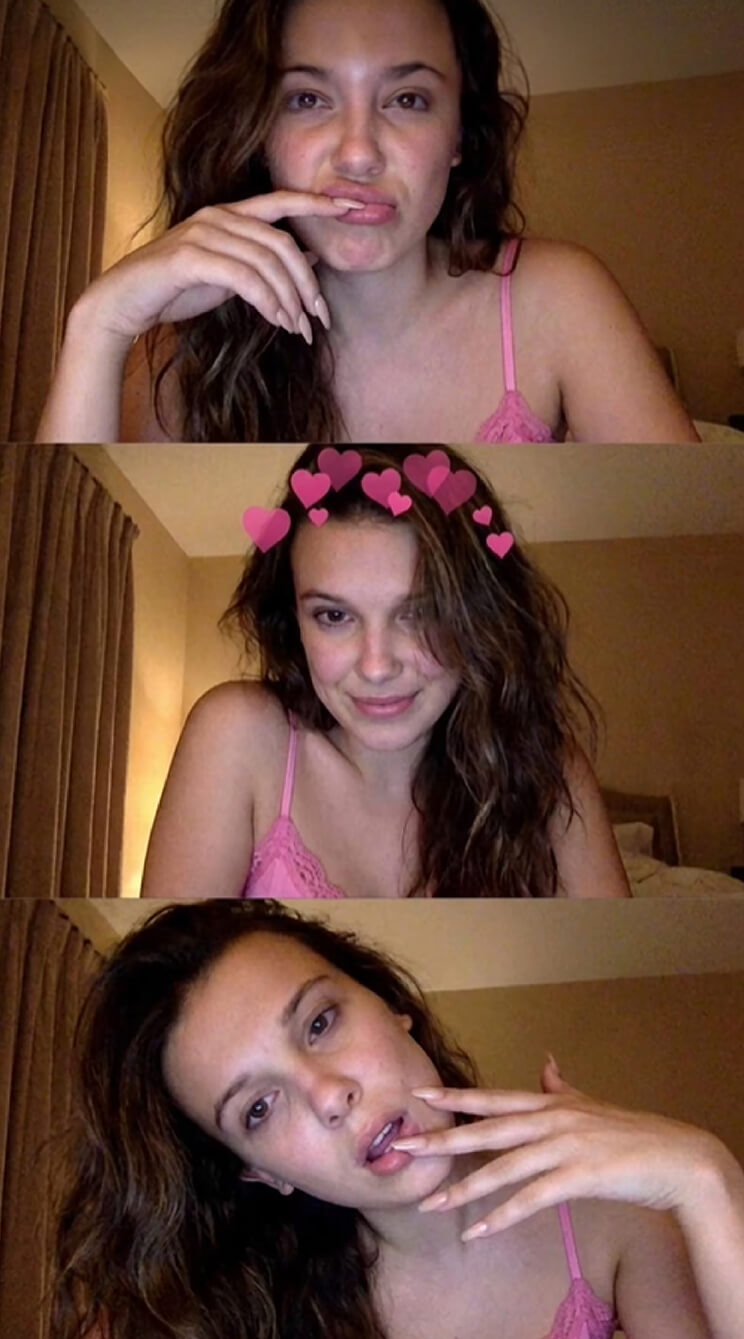
Generate a vertical 3×1 collage mimicking a real MacBook Photo Booth session: [Panel 1] Close-up with exaggerated pout, finger near lips, wearing pink spaghetti-strap top; [Panel 2] Shy smile with soft gaze, pink heart sticker overlaid; [Panel 3] Playful “dramatic” pose in dark top, hand near mouth. Background: simple bedroom with warm, dim screen light. Style: slightly grainy, low-resolution, 3:4 aspect ratio, consistent appearance across all frames, no borders.
9. Chill At-Home Look
A candid laptop webcam selfie at home, soft warm lighting, low-resolution Photo Booth style, relaxed and natural look.
Single Frame MacBook Selfie Prompt
10. MacBook Screen Selfie
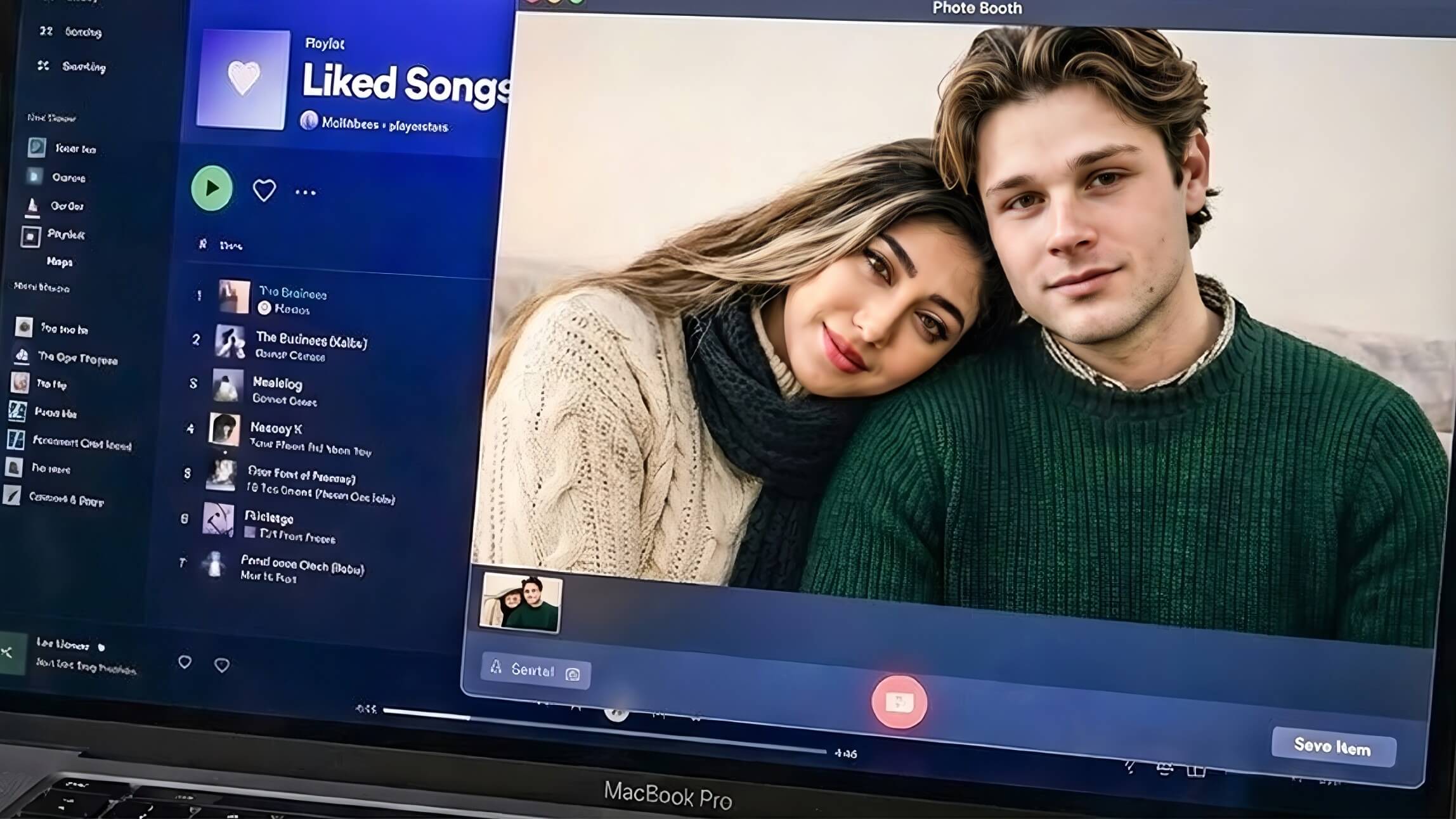
Create an overhead handheld iPhone photo looking down at a MacBook resting on a beige duvet.
The screen shows Photo Booth in fullscreen with a live preview of a hoodie-wearing couple lying side by side, relaxed expressions, natural eye contact. A Spotify mini-player is visible in the corner of the screen. Lighting comes from the screen and a dim room lamp, creating soft shadows across the keyboard and bedding. Details to include: realistic glass reflections, faint dust on display, shallow highlights on keys, hoodie fabric folds, subtle skin imperfections.
Style: hyper-realistic, warm low-saturation tones, authentic late-night iPhone aesthetic.
Faces and features must match the reference exactly.
Try This AI MacBook Selfie Trend
Best AI Photo Editor
The Best AI Photo Editor & Selfie Camera.
Remove objects, apply filters & more.
The MacBook Photo Booth selfie trend proves that not everything needs to be perfectly edited to look good. Whether you’re taking a real Photo Booth selfie or creating an AI couple MacBook selfie with YouCam Perfect AI Agent, the key is keeping things relaxed and natural.
Soft lighting, simple prompts, and casual expressions go a long way. With the right setup, you can easily recreate this viral aesthetic — no MacBook camera required.
Macbook Selfie FAQs
What is the Photo Booth MacBook selfie trend?

The Photo Booth MacBook selfie trend is inspired by photos taken with Apple’s built-in Photo Booth app. These selfies usually look soft, slightly blurry, and casually lit, which gives them a cozy and natural feel. The imperfect webcam quality is what makes the trend popular on TikTok and Reddit.
Do I need a MacBook to join the MacBook selfie trend?
No, you don’t need a MacBook. With AI tools like YouCam Perfect AI Agent, you can create a MacBook-style selfie using just one or two photos and a prompt that recreates the Photo Booth look.
Can I make an AI MacBook selfie if I only have solo photos?
Yes. You can upload solo photos and use AI to generate a MacBook-style selfie. This works whether you’re creating a couple photo, a solo selfie, or even a selfie with someone you can’t take a photo with in real life.
How do you take a selfie on a MacBook?
To take a selfie on a MacBook, open Apple’s built-in Photo Booth app. Choose Single Photo or Burst Mode, then sit close to the screen so the webcam frames your face. Use warm indoor lighting instead of harsh overhead lights, relax your expression, and take a few shots to get a natural-looking MacBook selfie.