


 Author:



Want to try on an outfit before changing or buying it? With a virtual try-on, you upload a photo and test different styles right on your phone. In YouCam Makeup, this feature is called AI Wardrobe and it also helps you organize your pieces in a virtual wardrobe.
You can try outfit combos for work, put together a holiday look, plan your travel suitcase, or see how a trend would look on you. The idea is not to replace the mirror or size chart, but to make your choices easier and give you inspiration when that famous “I have nothing to wear” feeling hits.
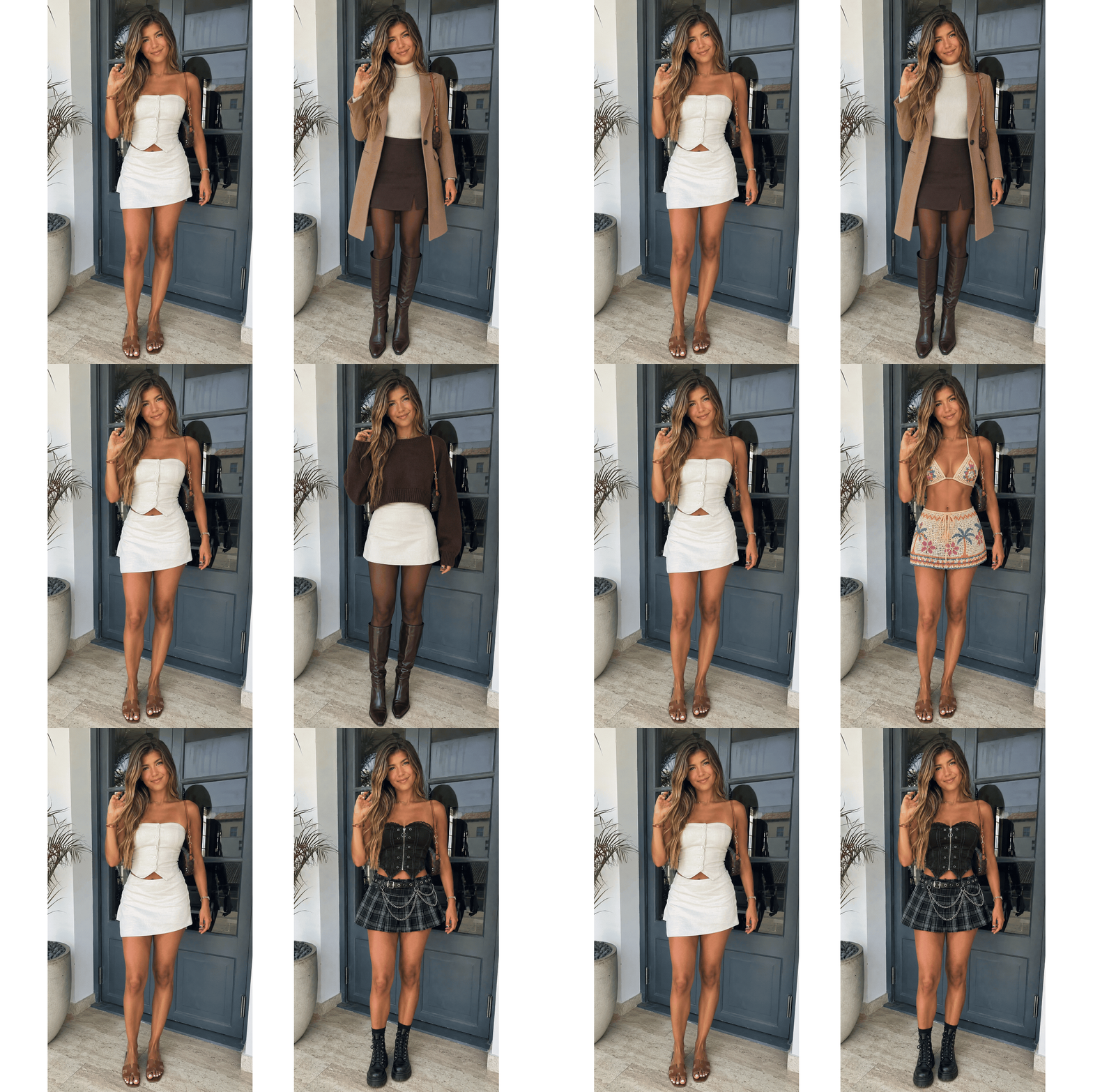
In this guide, you’ll learn how AI virtual try-on works, how to use AI Wardrobe step by step, and which photos and outfit combinations tend to deliver the most natural-looking results.
| Table of contents |
|---|
What is a virtual try-on?
A virtual try-on is a tool that uses artificial intelligence to show an outfit or look on your own photo. Instead of just pasting an image over your body, the technology analyzes the person, the pose in the photo, and the clothing details to create a more coherent visual preview.
There are experiences designed for shopping, which help you see products before buying, and creative tools you can use to test styles and build outfits. The YouCam Makeup AI Wardrobe falls into this second category: it turns your photos and references into style ideas for you to explore.
The feature can also work as a virtual wardrobe. You photograph or upload images of your pieces, mix items, and save outfit ideas to check later. This makes it easier to notice that a basic T-shirt goes with way more things than it seemed.
A virtual try-on is not a size chart
The generated image is a style simulation. It helps you understand colors, silhouettes, and combinations, but it doesn’t guarantee the size, fabric, or exact fit of a piece sold online.
Before buying, always check the store’s size chart, the garment measurements, fabric composition, and other customers’ reviews. Use the AI Wardrobe result as visual support for your decision, not as a substitute for trying the item on in real life.
How to use AI Wardrobe step by step
The flow may change a bit depending on your app version and phone system. Overall, the process is simple: you choose a photo, add pieces or styles, and save the results you like best.

1. Choose a good photo
Start with a photo where your body appears clearly. A full-body image is usually more helpful for visualizing clothes. Go for a straight pose, with your arms away from your torso and your face visible.
- Use natural light or a well-lit environment.
- Avoid filters, blur, and too many people in the background.
- Choose a relatively simple base outfit.
- Don’t cover your body with bags, coats, or large objects.
2. Open YouCam Makeup
Download or open YouCam Makeup and look for the AI Wardrobe feature.

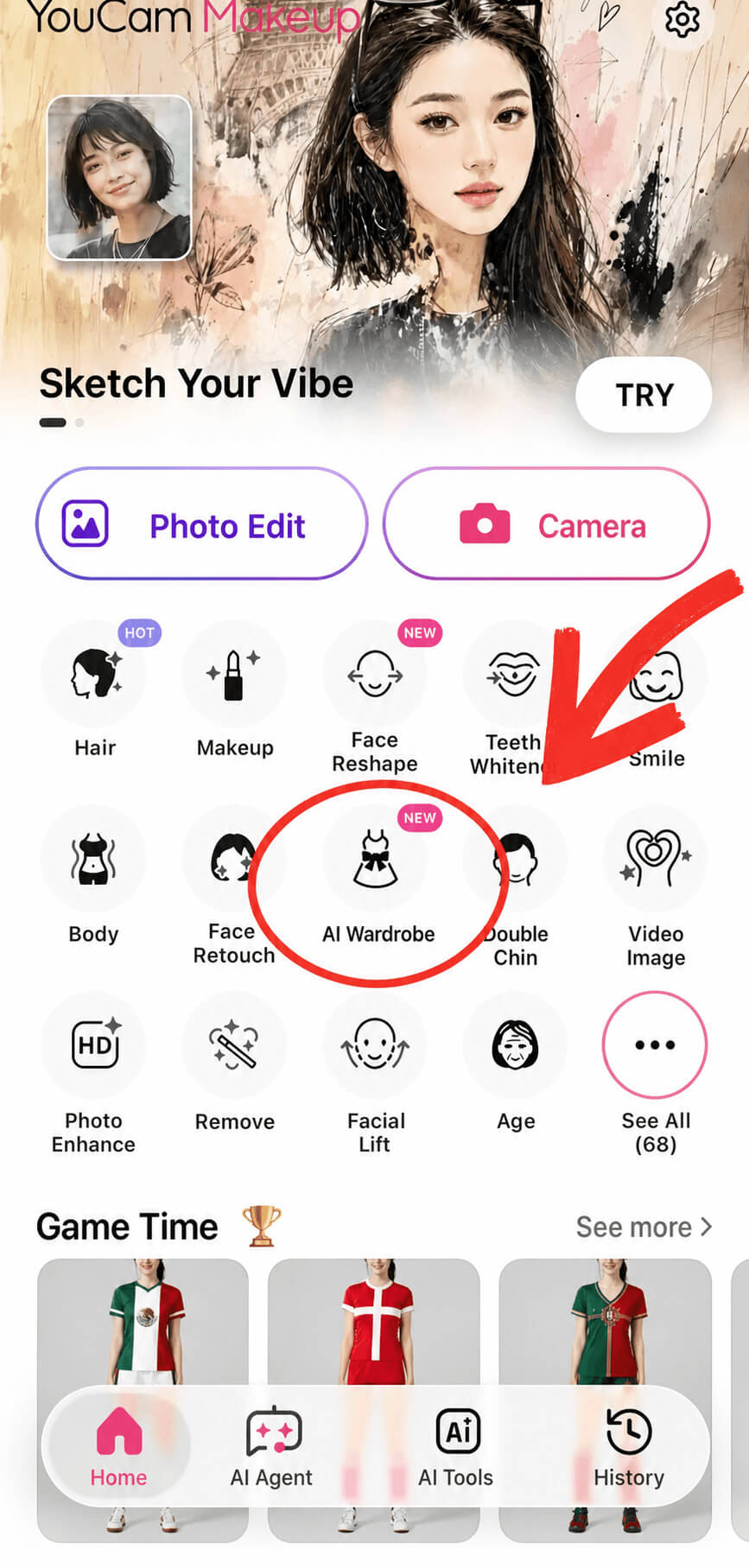
If you don’t find the name right away, update the app and check the photo and fashion editing areas. Menu names may be rearranged when a new version is released.
3. Add an item or choose a style
The AI Wardrobe lets you explore ready-made styles and, in compatible versions, upload photos of your own clothes to build a virtual wardrobe. Start with a category like top, pants, dress, skirt, jacket, or full look.
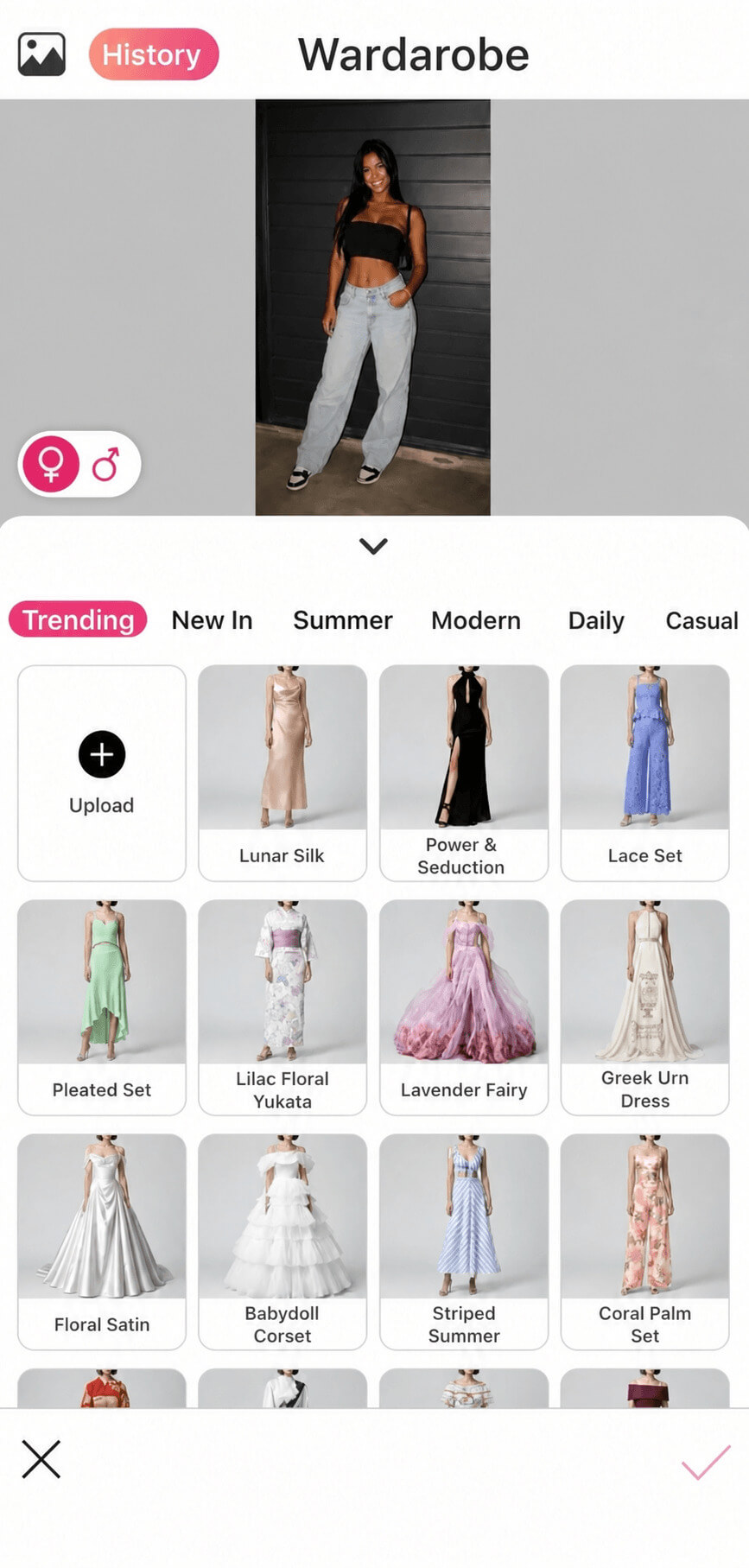
To test a piece you already own, photograph it on a light surface with a clean background. To look for inspiration, choose an aesthetic that matches the occasion, such as casual, elegant, sporty, romantic, vintage, or beachwear.
4. Compare the options
Generate more than one option and look at the outfit as a whole, not just the clothing item. See if the color works with your shoes, if the proportions suit your style, and if the look makes sense for where you plan to wear it.
A good idea is to save two or three versions: one more basic, one in-between, and one bold. Then you can ask friends for their opinion on WhatsApp or use the best one as a reference when you’re getting dressed.
How to use your own clothes virtually
This is one of the most useful parts of the virtual closet. Instead of imagining outfits with random pieces, you start with what’s actually in your wardrobe. The result helps you plan looks without taking everything off the hanger or piling clothes on the bed.
To start, photograph the pieces separately. A white T-shirt, a pair of jeans, a blazer, and neutral sneakers already give you several outfit combos. Then add more items little by little and mentally organize your collection by type, color, or occasion.
If the app offers a moodboard or collection option, save references by theme. You can create folders like “work,” “vacation,” “weekend,” “parties,” and “looks I want to repeat.”
| What you want to do | Best path |
|---|---|
| See a trend on yourself | Choose a style in AI Wardrobe and compare versions. |
| Use the clothes you already own | Upload photos of your items and build your virtual closet. |
| Choose an outfit from a store | Use the simulation as a reference and confirm the product’s measurements. |
| Create a fashion photo | Test full combinations and finish the image right in the app. |
Outfit ideas to try
A good virtual try-on becomes even more useful when you start from a real situation. Instead of choosing “any style,” think about the weather, the place, and the level of comfort you need.
- São João: try on a plaid shirt, jeans, boots, jacket, and accessories for a fresh, festive June-party vibe.
- Summer and beach: pair a bikini or one-piece with a light shirt, cover-up, flat sandals, straw bag, and sunglasses.
- Work: go for a comfortable base with tailored pants, shirt, blazer, or flats.
- Wedding: compare dresses, sets, or suits in different colors and accessories before deciding.
- Travel: build a capsule suitcase with pieces that mix and match and work for both day and night.
- Casual hangout: test T-shirt, jeans, sneakers, jacket, and layers to create a simple yet interesting look.
You can also use trend references to define the direction of your outfit.
Style briefs to try
If your version of the app shows a description field or allows style instructions, write what you want clearly and objectively. Include the occasion, pieces, colors, and level of formality.
- “Brazilian summer look, light and comfortable, with linen shirt, high-waisted shorts, sandals, and gold accessories.”
- “Casual look for college, with oversized T-shirt, straight-leg jeans, white sneakers, and crossbody bag.”
- “Elegant evening wedding look, with a long dress in a deep tone, subtle accessories, and sandals.”
- “Y2K-inspired streetwear, with denim jacket, cargo skirt or pants, chunky sneakers, and sunglasses.”
Use these examples as a starting point and adapt everything to your taste. The best instruction is the one that describes what you would actually wear.
Tips for a more natural result
The input photo makes a big difference. The clearer the image, the more information the AI will have to interpret your body, pose, and lighting.
- Choose a simple pose: face the camera or turn slightly sideways, without very fast movements.
- Avoid layering in front: large bags, hands in front of your torso, and bulky coats can make it harder to read the outfit.
- Watch the background: a plain wall or tidy space reduces distractions.
- Test one change at a time: first switch the outfit, then compare color, accessories, or hairstyle.
- Don’t over-retouch: the image looks more convincing when it keeps your features and proportions.
- Check the full look: shoes, bag, hair, and makeup help you understand the final result.
After you find the outfit, you can complete the look with an AI hairstyle simulator or try on makeup that matches the occasion. For a full transformation, see also how to try on makeup.
Is it worth using a virtual fitting room?
It’s worth it if you want to explore your style, visualize outfits, and make decisions with more confidence. The AI Wardrobe is especially useful if you love fashion, create content, plan trips, or often buy new pieces without knowing how to style them.
It can also help you shop more intentionally. By mentally testing several combinations with what you already own, it’s easier to see whether a new item really adds something to your wardrobe.
The main limitation is that an AI image is still just a preview. Sheer fabrics, small prints, very loose fits, and detailed accessories may look different in real life. So use the tool to choose the style and confirm the details before buying or heading out.
If you also want to polish the final photo, the AI face editor offers extra tools to subtly adjust lighting and finishing.
Frequently asked questions about virtual fitting rooms
- What is an AI virtual try-on?
- An AI virtual try-on is a tool that creates a preview of clothes or outfits on your own photo. It analyzes the image, your pose, and the clothing details to generate a visual simulation. In YouCam Makeup, the AI Wardrobe also lets you organize photos of clothes, try on styles, and save inspiration to create future outfits.
- How do I use the YouCam Makeup AI Wardrobe?
- To use AI Wardrobe, open YouCam Makeup, go to the fashion or clothing section, and choose a clear photo of yourself. Then select a style or upload photos of your own pieces, depending on the options available in your version. Generate some outfits, compare the results, and save the looks you’d like to try in real life.
- What is the best app to try on clothes virtually?
- YouCam Makeup is a practical option for anyone who wants to try on clothes virtually and explore styles on their own photo. The AI Wardrobe combines outfit creation with the option to upload items from your own wardrobe. The best choice depends on your goal: inspiration, closet organization, or viewing a specific product before you buy.
- Can I use my own clothes in the virtual try-on?
- Yes, the AI Wardrobe in YouCam Makeup lets you upload photos of your own clothes to create a virtual closet, as long as this option is available in your installed version. Photograph each item in good lighting, with a clean background and no objects covering the fabric. Then mix items like tops, pants, dresses, jackets, and accessories to discover new combinations.
- Can I use the virtual try-on before buying clothes?
- Yes, you can use the virtual try-on before you buy to preview color, style, and overall proportions. The simulation helps reduce doubts, but it doesn’t confirm the exact size or fit. Before placing your order, compare your measurements with the store’s size chart, check the fabric, and read reviews about the fit.
- Does the AI Wardrobe show the exact clothing size?
- No, the AI Wardrobe in should not be treated as a measuring tool. It creates a visualization of the outfit, but the result can vary based on the photo, pose, cut, and fabric. Use the image to assess the overall look of the combination, and always check measurements, proportions, and product details on the store’s website.
Try your next look
An AI virtual try-on turns choosing an outfit into a more visual and creative process. With AI Wardrobe, you can test trends, reuse pieces, and plan outfits for real occasions without messing up your entire room.
Choose a well-lit photo, start with a simple combination, and adjust it step by step. That way, you discover what suits your style and reach your final look with much more confidence.