


 Author:



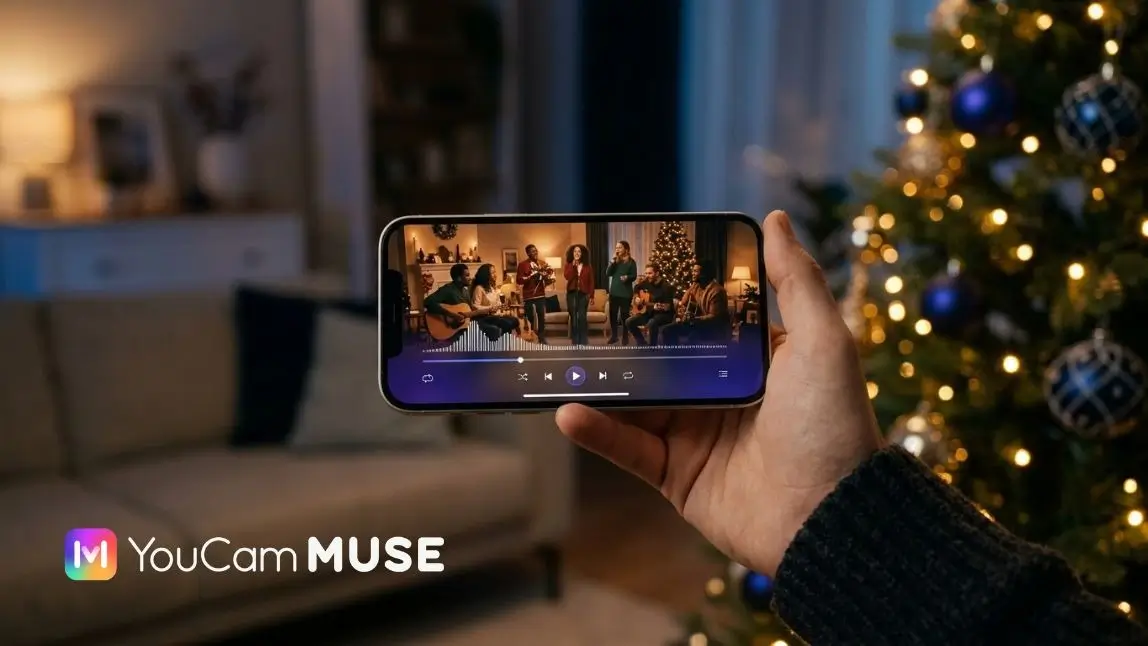
The easiest way to make a personalized Christmas music video is with an AI platform like YouCam Muse: choose a song, describe your idea, upload a photo if you like, and the AI turns it into your video.
Here, we’ll show you step by step how it works and share ideas for clips that truly feel like your family.

AI Song & Music Video Maker
Pick a song, describe your idea.
AI turns it into your music video.
The Key Points at a Glance
- You don’t need any video experience: describe your idea or choose a template, select a song, and you’re done.
- The music can come from the royalty-free music library, your own song, or an AI song you create yourself.
- A selfie or character photo makes the video more personal, but it’s optional.
What Is a Personalized Christmas Music Video?

A Christmas music video is a short clip with a festive style: a song accompanied by scenes that match your idea or text. It becomes personalized through what only you can contribute, such as your face, your family’s name, your own lyrics, or a story from this year.
In the past, this would have required a camera, editing software, and lots of time. With AI, you simply describe what you want to see and let the video be generated. The result may look different each time, so plan for two or three attempts.
What Ideas Work Well for Christmas?
The best Christmas videos tell a little story. These ideas work even if you’ve never made a video before:
- Christmas greeting for the family: A short clip with snow, lights, and your photo as the main character to send in the family chat.
- Personal Christmas song: Write a few lines about your year or the people who matter to you, then turn them into a song with a matching video.
- Gift announcement: Instead of a note under the tree, create a video that builds up to the surprise.
- Year in review with music: Describe the highlights of the year as scenes, such as a vacation, moving home, or a family celebration.
- Social media clip: A vertical video with festive vibes for your Story or status.
How Do I Make a Christmas Music Video With YouCam Muse?
YouCam Muse is available for iOS and on the web. Once you open the app or website, you can get started right away.
1. Start the Music Video Generator

In the app, tap "Music Video." In your web browser, click the "AI Clip" button. Then choose the MV type (how you want your music video to be structured).
2. Choose a Song
You have three options for music: the royalty-free music library, your own file via "Import Audio," or an AI song you created earlier in YouCam Muse.
3. Describe Your Idea or Choose a Template
Describe what should happen in the video in a text field, or choose one of the available templates. The more specific you are, the better the result will match your vision.
An example: "A woman in a red sweater dances in a snowy village, strings of lights glow in the background, warm evening atmosphere."
4. Add a Photo and Details
Optionally, upload a character photo so you can appear in the video yourself. You can also customize the aspect ratio, video quality, title and author, subtitles, and watermark.
5. Create Your Video
Tap "Create Music Video" and decide whether you want to view a storyboard first or create the video right away. The storyboard is useful if you want to check in advance whether the scenes match your idea.
How Do I Create My Own Christmas Song?
If you can’t find a suitable song, create one yourself: tap "+", choose "AI Song," describe the song in text or enter your own lines, optionally select a genre style, and tap "Generate."
The song is usually ready in around 30 to 60 seconds. On the web, you can access the feature through "AI Song."

For a personal Christmas song, names, a shared experience, and a mood can help, such as "calm and warm" or "cheerful and clap-along". Avoid sensitive details you do not want to share publicly.
Tips for Better Results
- Use a clear photo: A well-lit photo where your face is clearly visible helps the AI deliver better results.
- Keep your description short and specific: One scene, one mood, a few colors. Long descriptions with lots of ideas can dilute the result.
- Try multiple versions: AI results vary. Try a second description if you do not like the first clip.
- Choose the right format: Vertical for status updates and Stories, landscape for the TV at a family gathering.
- Start early: Begin a few days before the holidays so you have enough time for adjustments.
How Do I Share the Finished Video?
You can find your video under "My Creations." Use "More" and "Publish" to post it to the YouCam Muse community feed.
Published content is reviewed first, and once a video is published, you can no longer edit it again—only its title, description, and cover image.
You do not need to publish it for the family chat: save the clip to your device and send it from there.
Find more Christmas ideas in our articles on AI Christmas greetings for WhatsApp, the dancing elf video, and Christmas profile pictures.
Create Your Christmas Music Video
With YouCam Muse, an idea, a photo, and a song become a video you can give as a gift or share. Start with a small idea and see what the AI can make from it.
AI Song & Music Video Maker
Pick a song, describe your idea.
AI turns it into your music video.
Frequently Asked Questions About Christmas Music Videos
How do I make a personalized music video for Christmas?
In YouCam Muse, select "Music Video (MV)," or select "AI Clip" on the web. Choose a song, describe your idea or use a template, optionally upload a photo, and tap "Create Music Video."
Do I need my own song?
No. You can choose from the royalty-free music library, import your own song, or create a new song with "AI Song."
Is YouCam Muse free?
You can explore content for free. To create music videos and songs, you need a Premium subscription and credits.
Which devices does it work on?
YouCam Muse is available for iOS 15.0 and later, as well as on the web in current browsers such as Chrome, Safari, and Edge.
Can I use the video commercially?
Yes, for paying subscribers, subject to the Terms of Use. For private Christmas greetings, this is generally not relevant.