Author:
 ![How to Fix Blurry Pictures [iPhone, Android & Online Tool]](https://plugins-media.makeupar.com/smb/blog/post/2025-12-24/webp_11e5c26a-6749-4aaa-9de1-90b9e9fd2eea.jpg)
We’ve all been there. You snap what you think is the perfect candid shot—maybe it’s a concert, a pet running, or a fleeting smile—only to check your gallery and see a fuzzy mess. The lighting was bad, your hand shook, or the focus just missed the mark.
In the past, that photo was destined for the trash folder. But today? You can rescue it. Whether you are a professional photographer or just want to save a precious memory, fixing a blurry photo is no longer rocket science. Thanks to advanced AI, you can turn a foggy disaster into a high-definition masterpiece in just a tap.
Download YouCam Enhance now to start sharpening your photos immediately!
🔑 Key Takeaways
- AI is the Key: Modern tools use Artificial Intelligence to reconstruct details, meaning you don't need manual editing skills to unblur a picture.
- Cross-Platform: Fix photos on iPhone, Android with YouCam Enhance, or directly in your web browser using YouCam Online Editor.
- One-Tap Solutions: What used to take hours in Photoshop now takes seconds with AI enhancers.
Learn how to fix blurry images with AI app>>>
How to Fix Blurry Pictures on iPhone & Android
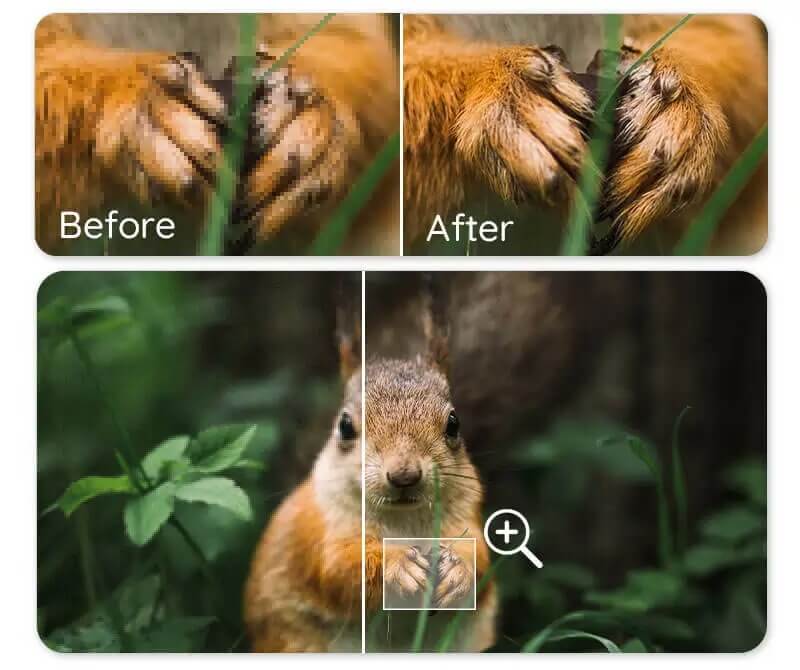
If you are wondering, "How can you unblur a picture on your phone?" the answer lies in AI-powered apps. YouCam Enhance is a powerhouse for mobile editing, utilizing deep learning to restore lost details.
Step 1. Download the Best Photo Enhancer App: YouCam Enhance
Shared Materials by Strapi
*Adjust the size of images ONLY. Please go to Strapi to edit the materials info.
Head to the App Store (iOS) or Google Play Store (Android) and download YouCam Enhance. It is lightweight, user-friendly, and designed specifically to make a blurry picture clear.
Step 2. Upload Your Blurry Picture
Open the app and tap the main upload button. Select the photo from your gallery that needs rescuing.
Step 3. Tap “Enhance” to Improve Picture Quality
Tap the "Enhance" button. The AI analyzes the noise and blur and reconstructs the pixels. You will see a "Before and After" slider showing a dramatic transformation.
Step 4. Tap “Object Remove” to Erase Unwanted Objects
If a clear photo reveals distractions, use the "Object Removal" feature within the same workflow to clean up the background.
Step 5. Save Your Picture
Once you are satisfied with the crispness, hit Save. Your high-definition photo is ready for social media!
Discover 12 best AI photo enhancer apps in 2026>>>
How to Fix Blurry Pictures on Desktop
Asking yourself, "How can I fix a blurry picture on my computer without installing software?" The online tool is your best bet.
Step 1. Open YouCam Online AI Photo Enhancer
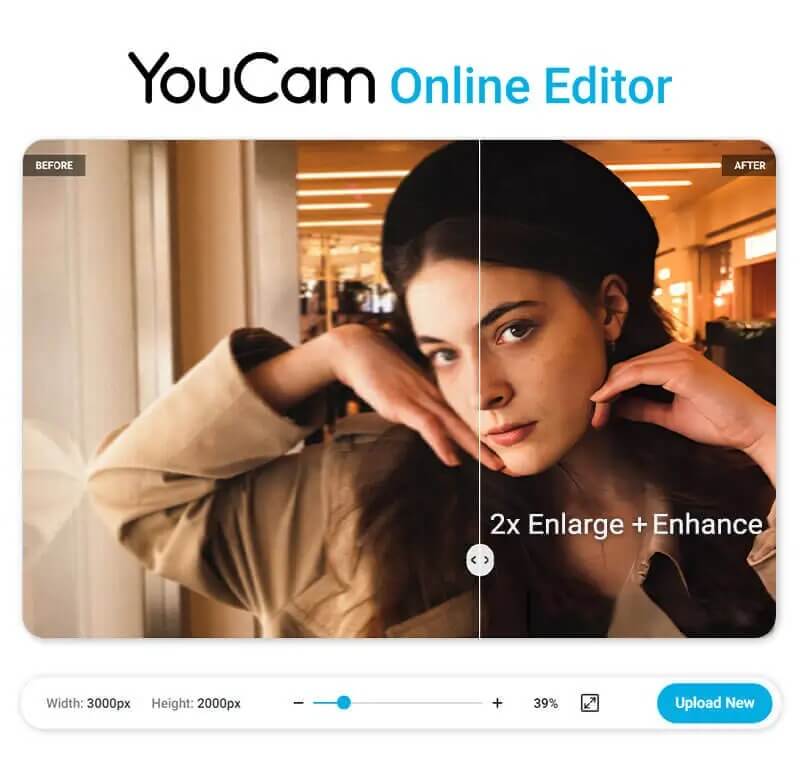
Navigate to the YouCam Online AI Photo Enhancer website in any modern browser.
Step 2. Upload Your Blurry Picture

Drag and drop your image file (JPEG, PNG, etc.) into the upload area.
Step 3. Use AI Enhance to Unblur Photo
Click the enhance button. The cloud-based AI will process the image, sharpening edges and reducing noise automatically.
Step 4. Save Enhanced Picture
Preview the result and download it in high resolution for professional use.
📊 AI Enhancement vs. Traditional Editing
| Feature | YouCam Enhance (AI) | Traditional Manual Editing |
|---|---|---|
| Speed | Instant (Seconds) | Slow (15+ Minutes) |
| Skill Required | None (One-tap) | High (Expert knowledge) |
| Detail Recovery | High (Reconstructs pixels) | Low (Sharpening only) |
Learn How to Fix Blurry Pictures Today
Shared Materials by Strapi
*Adjust the size of images ONLY. Please go to Strapi to edit the materials info.
Photography is about capturing moments. Don't let a technical glitch take that away. Whether you're on your phone or desktop, professional-quality clarity is just one tap away.
Download YouCam Enhance NowExperience the future of photo editing and leave the blur behind!
About the Editors

The PERFECT Corp. Editorial Team
We are a team of experts on photo and video editing apps. Our goal is to deliver engaging content on everything from stunning selfie edits to eye-catching video effects. We cover the latest trends and share niche tips to help you master digital creation.
FAQs: How to Fix Blurry Pictures
How to fix a blurry picture on iPhone?

The built-in iPhone editor has a "Sharpness" tool, but it often adds grain. To truly fix a blurry picture, it is best to use a dedicated AI app like YouCam Enhance. Simply upload the photo and tap "Enhance" for a clean, noise-free result.
How do I unblur a picture that is heavily damaged?
If a photo is extremely blurry or motion-blurred, standard sharpening won't work. You need an AI upscaler. These tools "hallucinate" (predict) the missing details based on millions of training images to reconstruct the face or object.
How to clear up a foggy photo?
Foggy or hazy photos usually suffer from low contrast. While you can adjust "Dehaze" settings in manual editors, an AI enhancer creates a better result by simultaneously sharpening edges and balancing contrast to cut through the fog.