Author:
We’ve all been there: the group chat is popping off, the perfect joke is made, and the standard "laughing" emoji just feels... empty. You need that one specific inside joke, a customized reaction, or a whatsapp meme that only your squad understands.
The good news? You don't need to be a graphic designer to create professional-grade stickers anymore. Whether you want to turn your dog into a masterpiece or generate a futuristic reaction from scratch, this guide will show you how to master the whatsapp sticker game using the latest AI tools of 2026.
Key Takeaways
- How to use the built-in WhatsApp "Create" tool.
- How to generate stickers with WhatsApp's native AI.
- The pro-secret: Creating high-end animated stickers with YouCam AI Pro.
3 Easy Ways to Create Your Own WhatsApp Sticker
The evolution of messaging has made sticker creation incredibly intuitive. Here are the top methods to turn your ideas into digital "sticky" reality.
1. The Built-in WhatsApp Sticker Maker (Fast & Simple)
If you have a photo on your phone that is already perfect, WhatsApp’s native tool is your best friend.
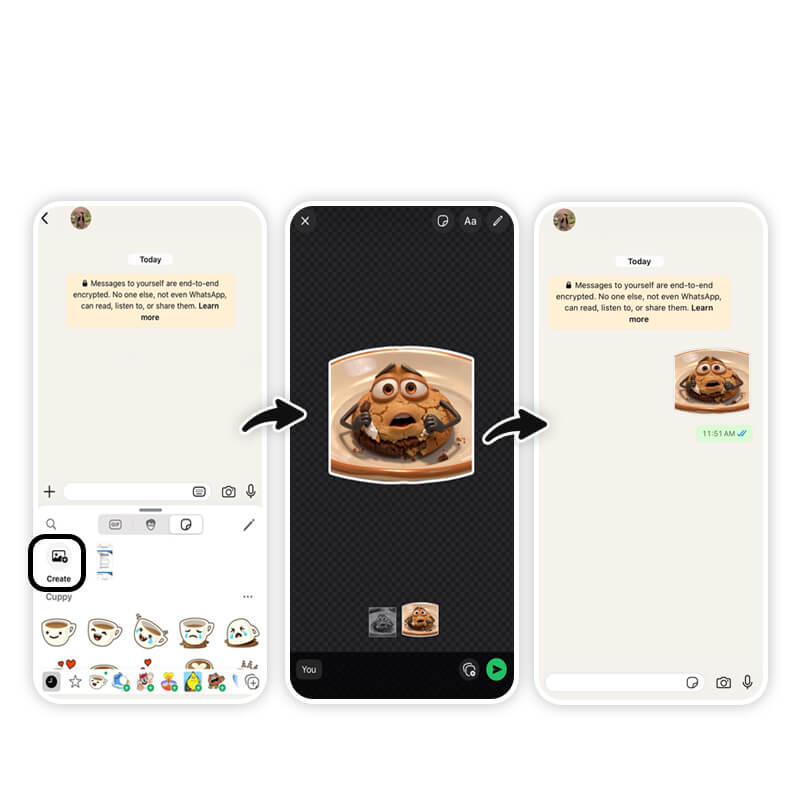
- Step 1: Open any chat and tap the Sticker icon.
- Step 2: Tap the "+" (Create) button.
- Step 3: Select a photo from your gallery.
- Step 4: The app automatically removes the background! You can then add text, doodle, or layer emojis over it before hitting send.
2. Native AI Sticker Generation (Inside the App)
As of 2026, WhatsApp’s built-in AI generation has expanded significantly. It is currently available to users in the United States, United Kingdom, India, Brazil, and select European markets.
- How it works: Tap the sticker icon > Create > Generate with AI.
- The Prompt: Enter a descriptive prompt like "A cool cat wearing neon sunglasses in a cyberpunk city" and watch the AI work its magic.
- Save: Once generated, tap to send and save it to your favorites.
3. The Pro Choice: YouCam AI Pro
When the built-in tools feel too basic, YouCam AI Pro takes your funny stickers for whatsapp to the next level. This is the go-to for content creators and those who want their stickers to look high-definition and unique.
Key Features:
- Text to Image: Create anything you can imagine.
- Image to Image: Turn a selfie into a 3D cartoon or an oil painting.
- Image to Video: The secret weapon for animated stickers.

AI Image & Video Generator
Turn text into custom Whatsapp Stickers instantly.
Supports Text-to-Image & Image-to-Video.
How to Make Custom Whatsapp Stickers with YouCam AI Pro
Ready to stunt on your friends with the best stickers in the chat? Follow these four simple steps:
Step 1. Download the Best Whatsapp Sticker Maker: YouCam AI Pro
AI Image & Video Generator
Turn text into custom Whatsapp Stickers instantly.
Supports Text-to-Image & Image-to-Video.
Grab the app from the App Store or Google Play. It’s the most versatile whatsapp sticker maker for AI-driven art.
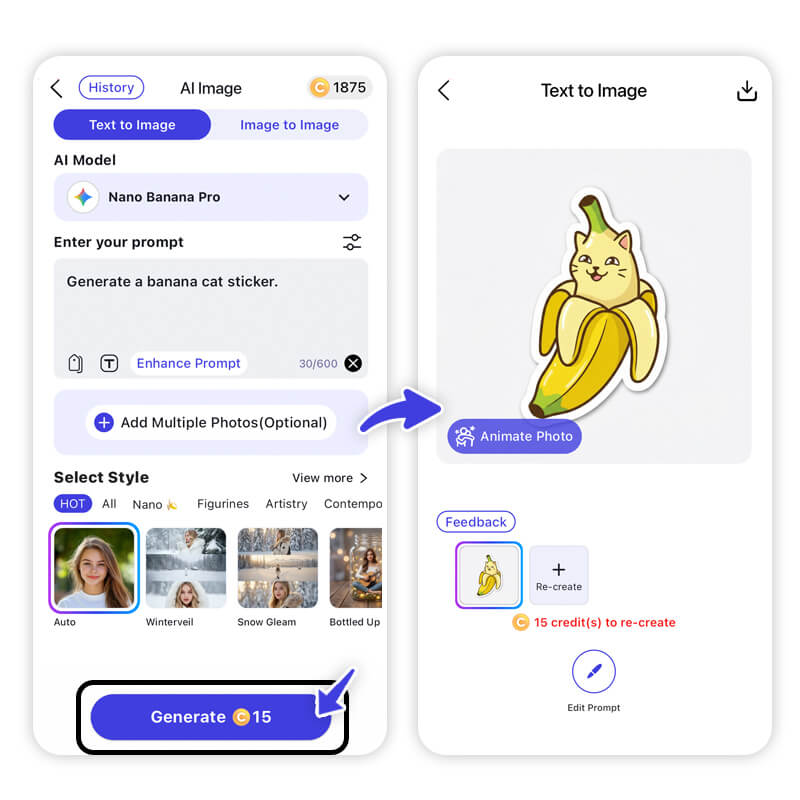
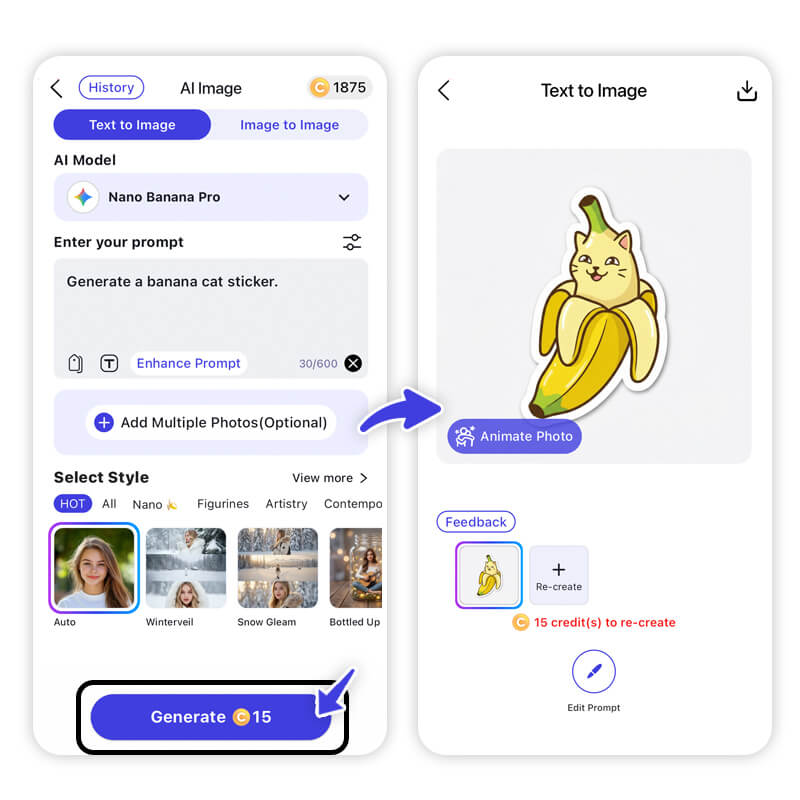
Step 2. Choose AI Image
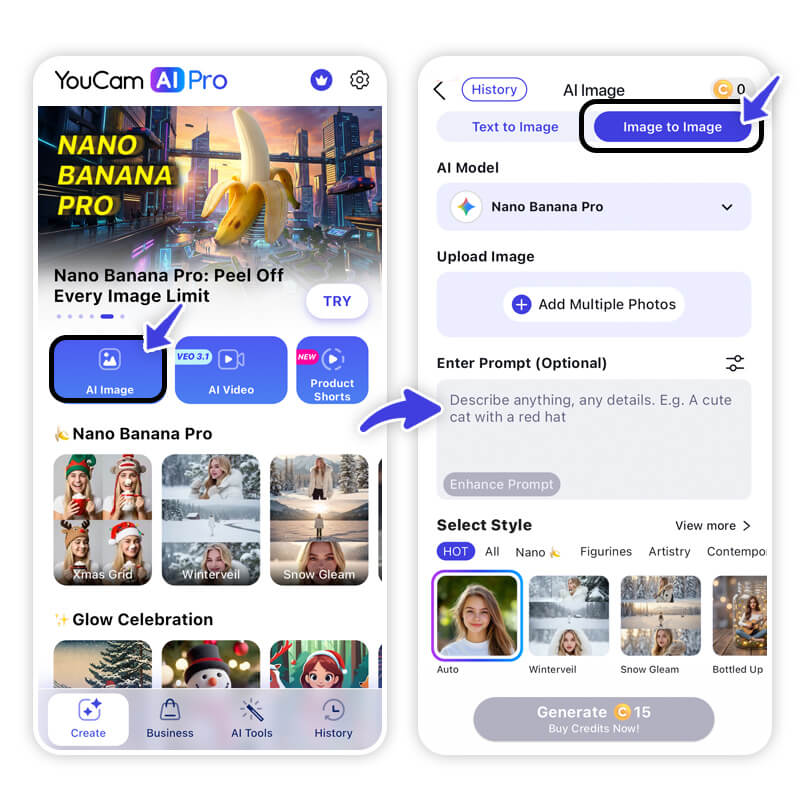
Tap on AI Image for a fresh start or Text to Image to bring a specific vision to life.
Step 3. Enter Your Prompts
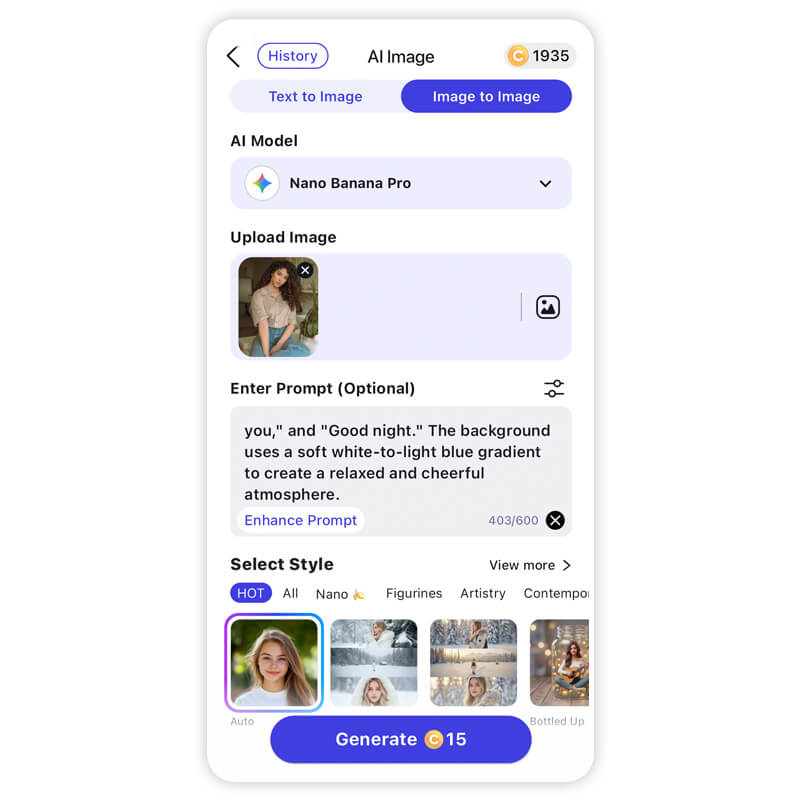
Describe your sticker. Want a whatsapp meme of a "Grumpy potato holding a coffee cup"? Type it in! Use styles like "3D Render," "Kawaii," or "Comic Book" for that professional finish.
Step 4. Generate & Save
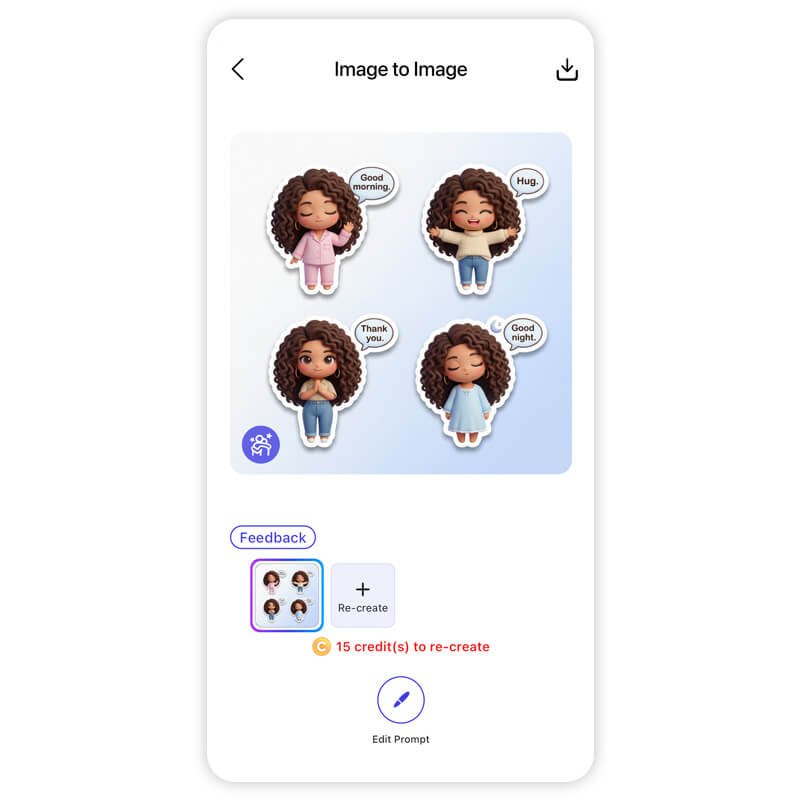
Hit generate, pick your favorite version, and save it to your gallery. Use the WhatsApp "Create" tool mentioned above to import your new masterpiece instantly.
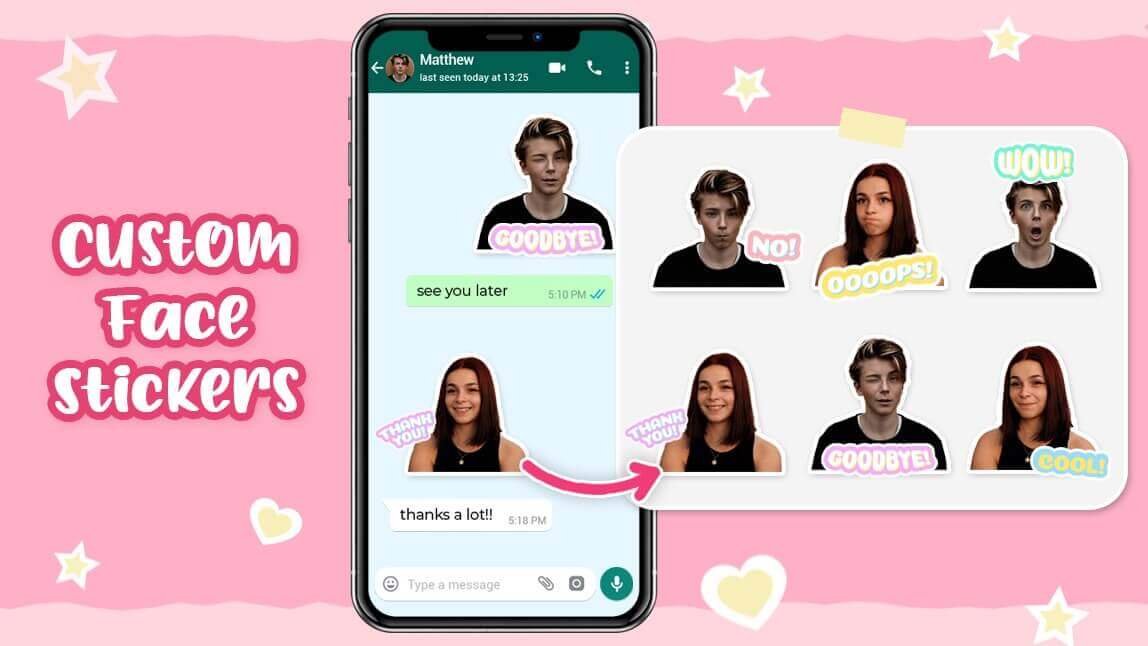
Bonus Tip: Level Up with Animated Stickers & Memes
Static images are great, but motion is better. Here is how to dominate the chat:
Create Whatsapp Animated Stickers
Motion stickers grab more attention. In YouCam AI Pro:
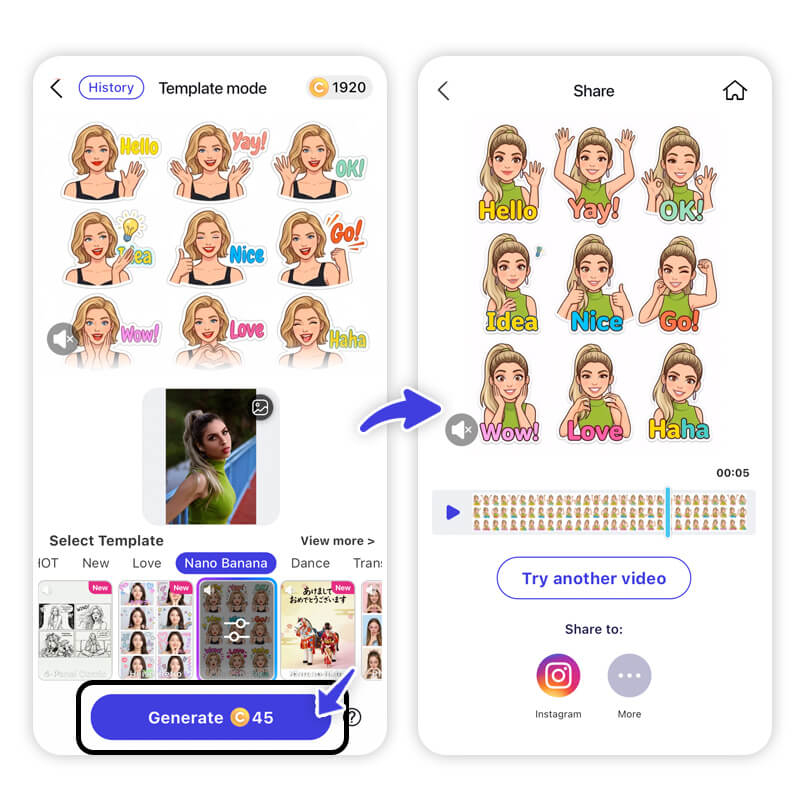
- Tap AI Video & Image to Video.
- Upload your sticker or enter a prompt for a short loop (e.g., "Dancing Shiba Inu").
- Generate, save, and upload it as an animated sticker file.
Crafting the Perfect WhatsApp Meme
To make a meme truly go viral in your social circles, focus on relatability. Use the Image to Image feature to take a famous meme format and "AI-replace" the face with your own or a friend's. It’s the ultimate way to create funny stickers for whatsapp that feel personal and hilarious.
Create Custom Whatsapp Stickers with AI
AI Image & Video Generator
Turn text into custom Whatsapp Stickers instantly.
Supports Text-to-Image & Image-to-Video.
Creating custom stickers isn't just about images; it's about expressing your personality and making your digital conversations feel more human. From quick background removals to complex AI-generated animations, the power to create is now in your pocket.
Ready to become the sticker king of your group chat?
Download YouCam AI Pro now and start creating!
Would you like me to generate some specific AI prompts you can use to create your first batch of funny stickers?
About the Editors
The PERFECT Corp. Editorial Team
We are a team of experts on photo and video editing apps. Our goal is to deliver engaging content on everything from stunning selfie edits to eye-catching video effects. We cover the latest trends and share niche tips to help you master digital creation.
Whatsapp Sticker Maker FAQs
What is the best WhatsApp sticker maker for AI?

While WhatsApp has a built-in generator, YouCam AI Pro is widely considered the best third-party whatsapp sticker maker due to its advanced Text-to-Image capabilities and the ability to create high-quality animated stickers.
Can I turn a photo into a WhatsApp sticker?
Yes! You can use the built-in WhatsApp "Create" tool by tapping the sticker icon in any chat and selecting a photo from your gallery. It will automatically remove the background for you.
Are AI-generated stickers available everywhere?
As of 2026, native AI sticker generation within WhatsApp is available in several countries, including the US, UK, Brazil, and India. If it isn't available in your region yet, you can use YouCam AI Pro to generate and upload stickers manually.
How do I make a WhatsApp meme sticker?
The easiest way to make a whatsapp meme is to use an AI image generator to add funny text or stylistic filters to a relatable photo. You can then save the image and import it into WhatsApp using the "Create" button.