 Author:


The viral social media prompt "What would I look like in the 80s?" has taken over feeds, with users turning to generative AI to test out high-volume feathered hair, vibrant color palettes, washed denim, and warm analog film grain.
While ChatGPT popularized the trend, creators looking for higher visual fidelity and dedicated photo editing workflows can achieve the exact same aesthetic using YouCam Online Editor (AI Agent) on desktop or the YouCam Perfect app on mobile.
Below is a breakdown of how the engine performs across different photo types, followed by step-by-step guides for both web and app users.
Testing the 80s Filter: 3 Image Scenarios
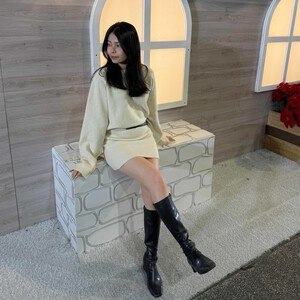
1. Solo Portrait Makeover
The baseline test focuses on whether the AI can apply classic 1980s styling without distorting the subject's natural face.
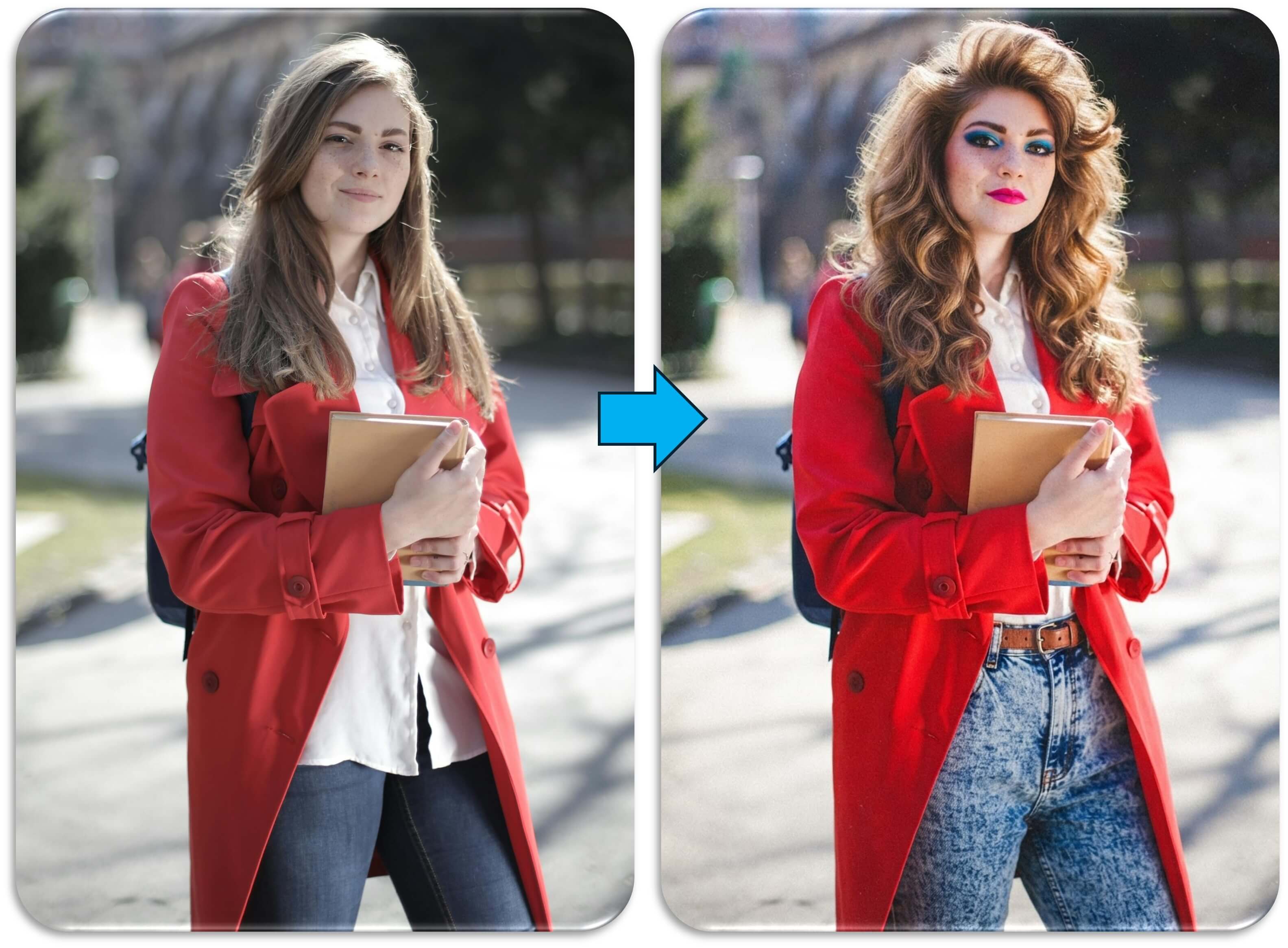
Prompt Used: "What would i look like in the 80s?"
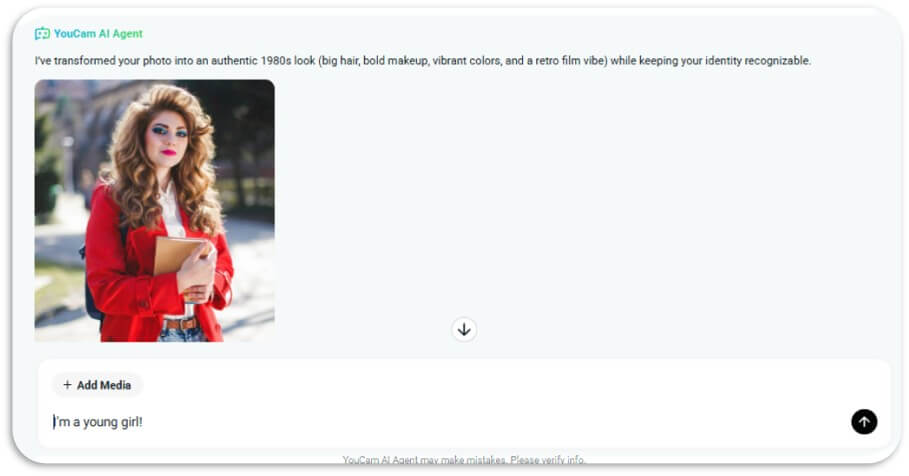
The Result: The model successfully adds voluminous, layered waves, vibrant eyeshadow, and signature bold lip tones. The clothing also updates accurately, replacing modern apparel with high-waisted acid-wash denim, a vintage belt, and period-accurate layering, while facial symmetry and identity remain intact.
2. Stylized Event & Sports Photo
This test evaluates how the engine processes already stylized content, such as a crowded baseball stadium portrait.
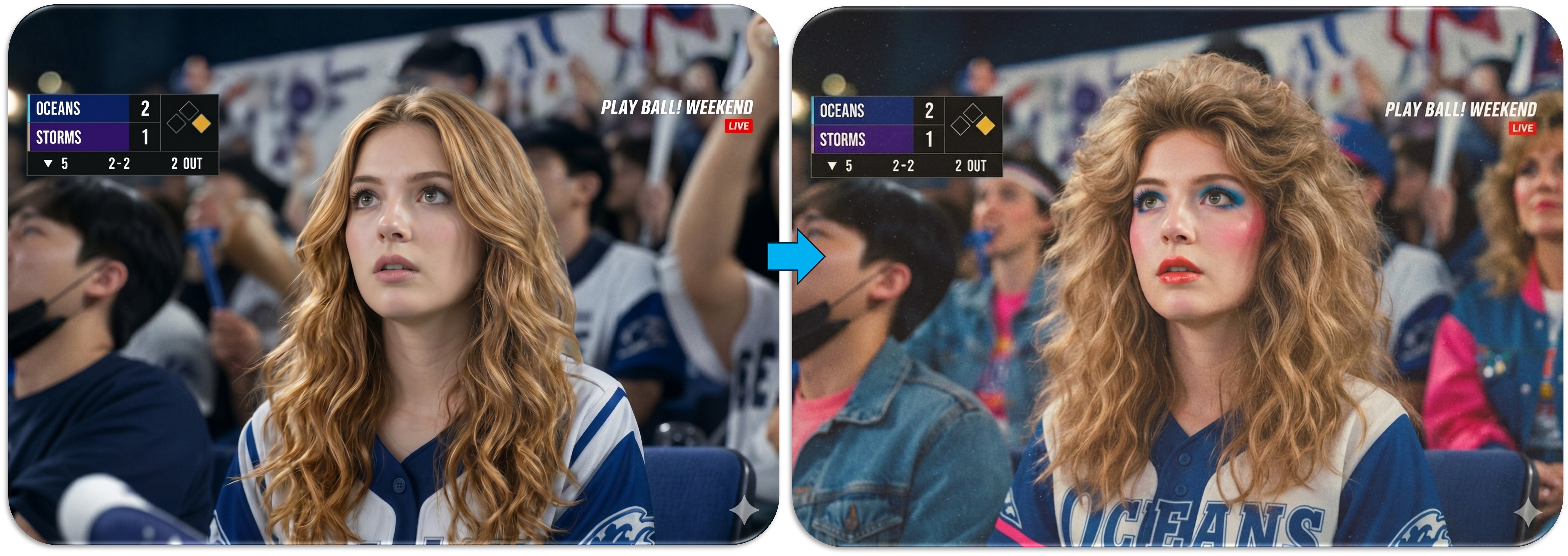
Prompt Used: "What would I look like in 80s?"
The Result: Rather than overhauling the background unnecessarily, the AI selectively targets the subject and foreground spectators. It adds crimped bangs and retro blush while adjusting team apparel tones to match the high-contrast, saturated look of classic 1980s sports broadcasts.
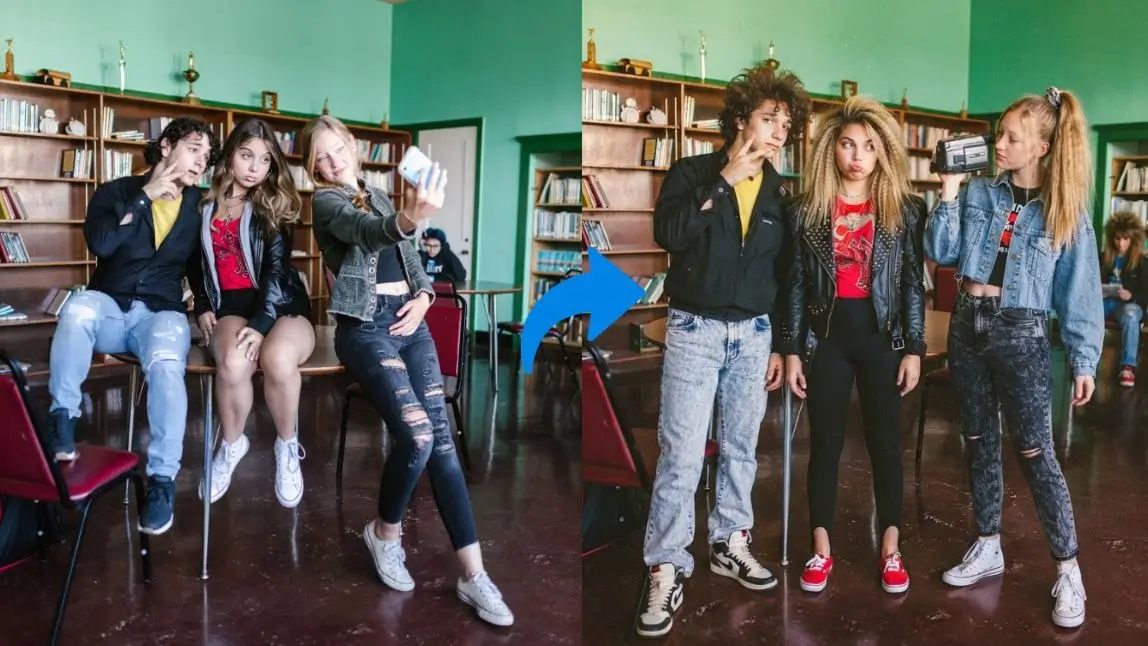
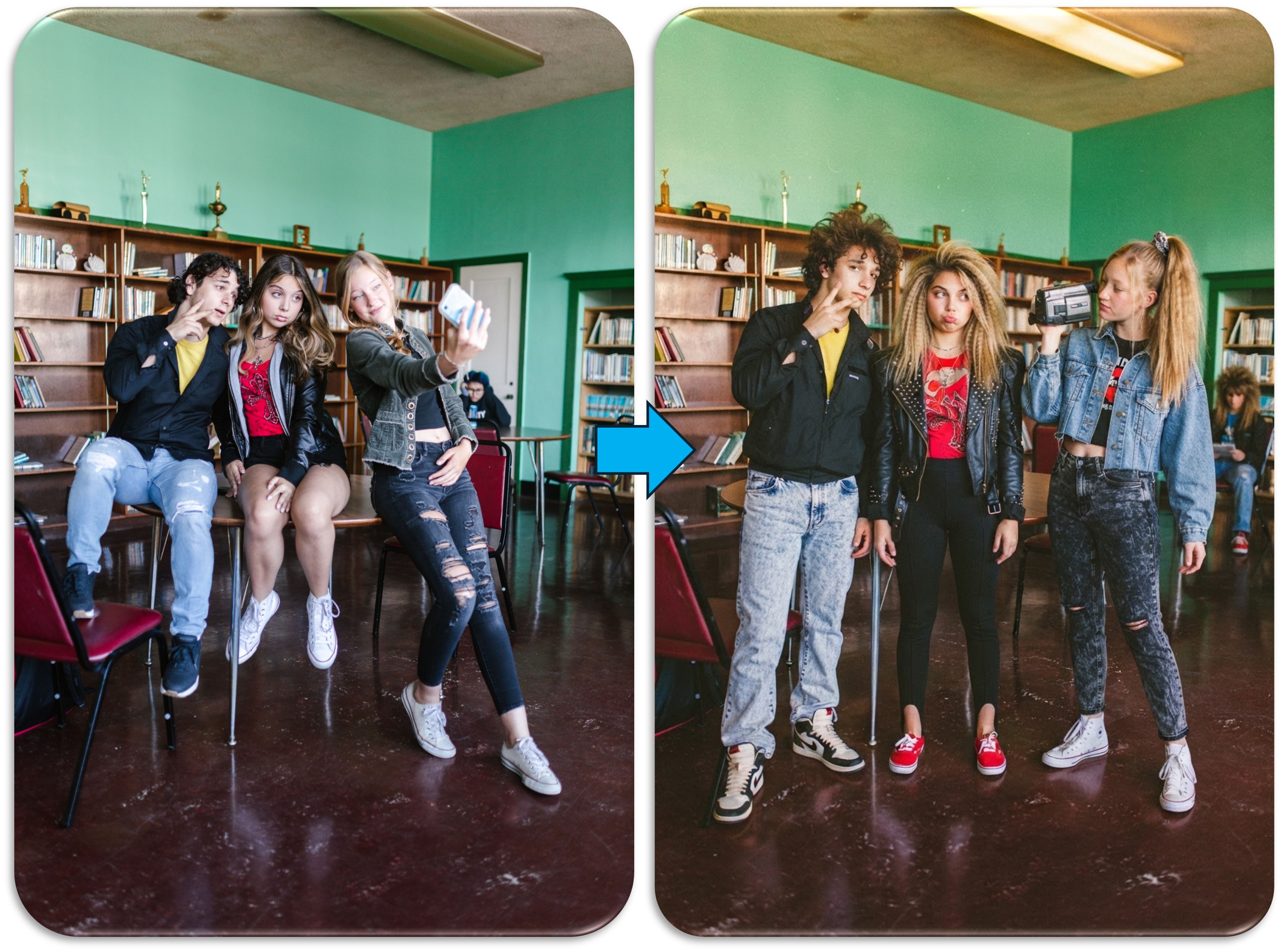
3. Multi-Person Group Photo
Multi-person transformations are typically challenging for generative AI due to identity blending or repetitive styling.
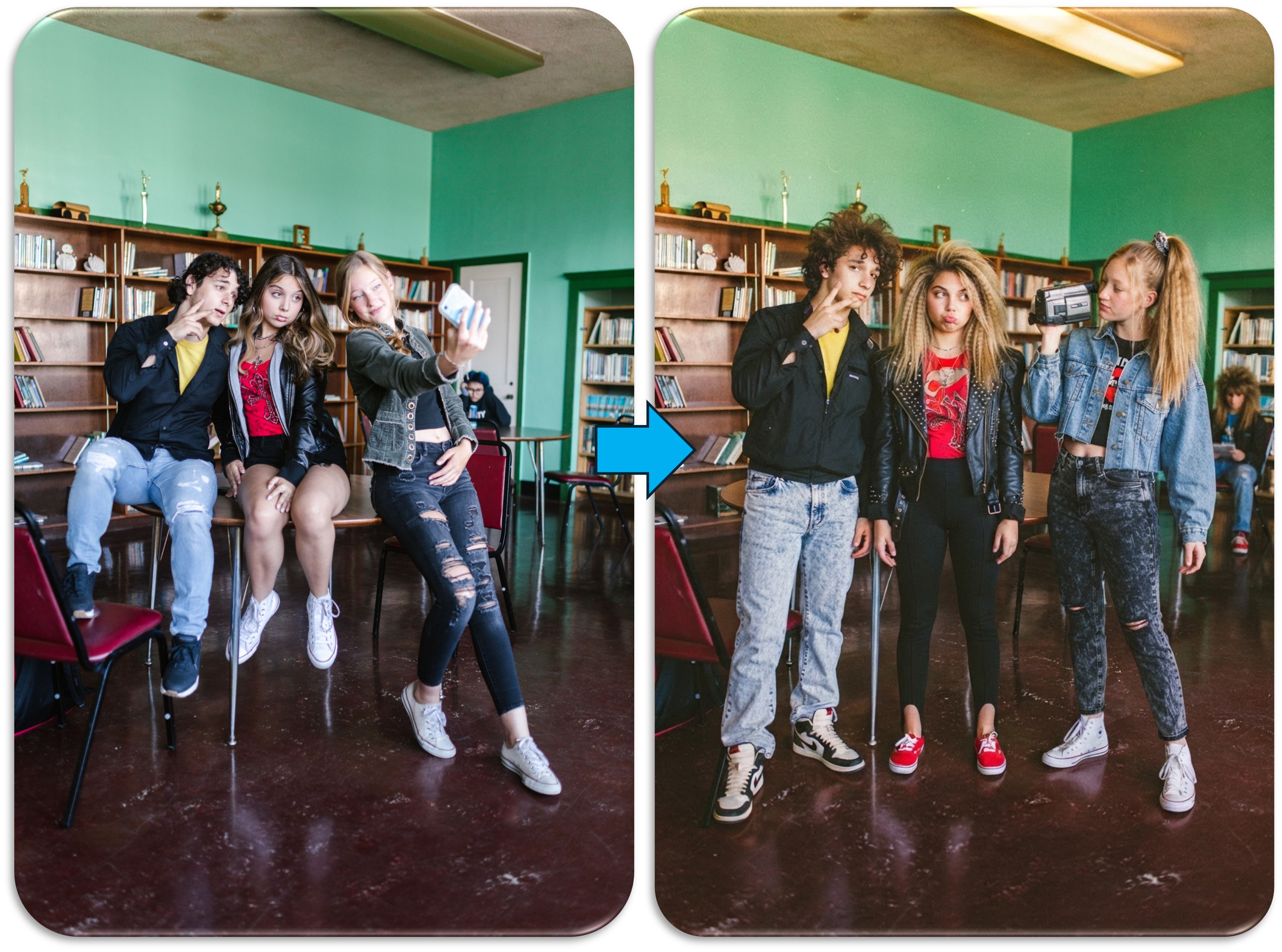
Prompt Used: "What would we look like in the 80s?"
The Result: The AI handles multiple subjects smoothly by assigning varied retro aesthetics to each individual—ranging from layered shags to side ponytails and cropped denim outerwear.
Key Detail: The model accurately identifies modern props, replacing a smartphone held in the original shot with a vintage compact camera to preserve temporal authenticity.
Step-by-Step Tutorial: How to Apply the 80s Filter (Online/ Mobile)
Combine the generative transformation power of YouCam AI Agent (Web) with the granular photo-finishing tools of the YouCam Perfect (App) for optimal results:
Step 1: Open YouCam AI Agent
Launch the YouCam AI Agent feature—available directly in your browser on YouCam Online Editor or within the YouCam Perfect mobile app.
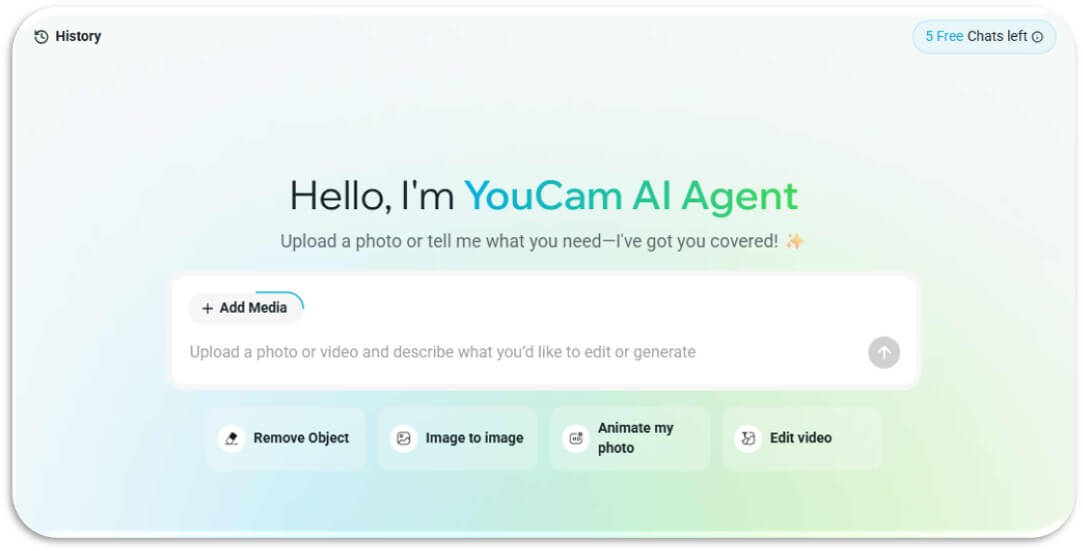
Step 2: Upload the Photo
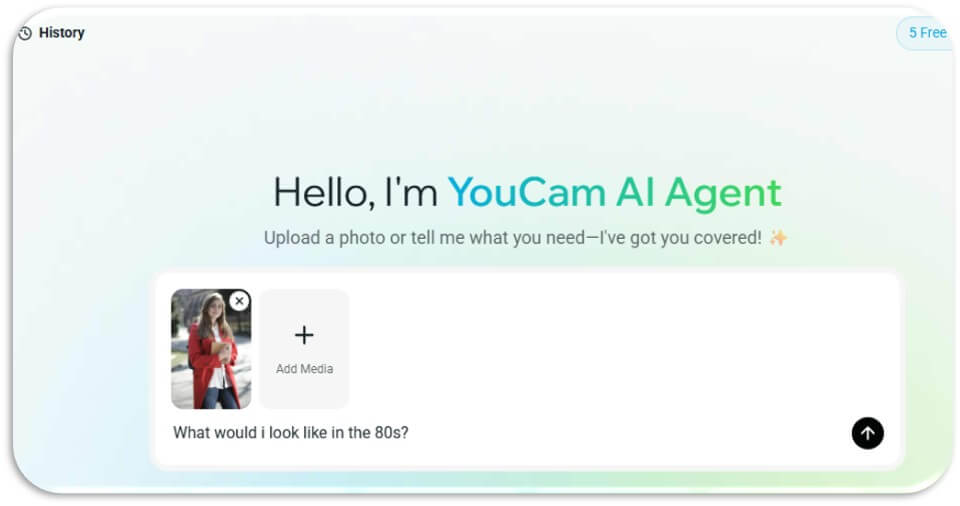
Inside the chat interface, tap or click + Add Media to select the picture you want to transform (solo portraits, action shots, or group photos).
Step 3: Enter the Transformation Prompt
Input a direct, natural-language prompt: "What would I look like in the 80s?"
(Or "What would we look like in the 80s?" for group shots).
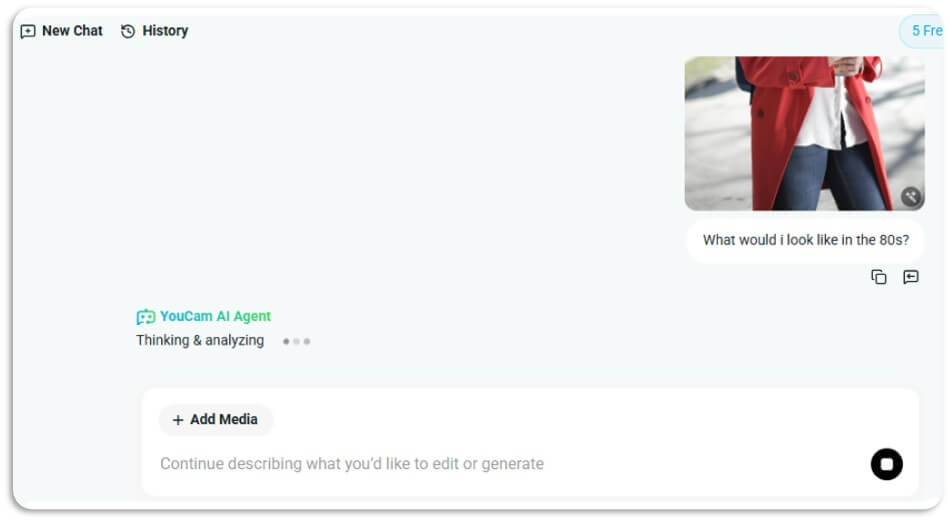
Click the send button to initiate the generation.
Step 4: Review and Refine
Preview the generated result right inside the conversation thread. Thanks to the agent's conversational memory, follow-up tweaks can be requested naturally (e.g., "Make my hair even bigger" or "Add more vintage film grain"). Once satisfied, download or save the photo directly.
Know-How & Pro Tips for Best Results
- Ensure Clear Facial Lighting: High-contrast, evenly lit source images allow the AI to retain exact facial geometry while applying heavy retro styling.
- Refine via Conversational Context: Because the agent retains conversational memory, specific elements like outfit colors, accessories, or makeup intensity can be adjusted in subsequent prompts without starting over.
- Take Advantage of Group Processing: Multi-subject photos yield diverse, period-accurate results without duplicating identical features across subjects.