
 Author: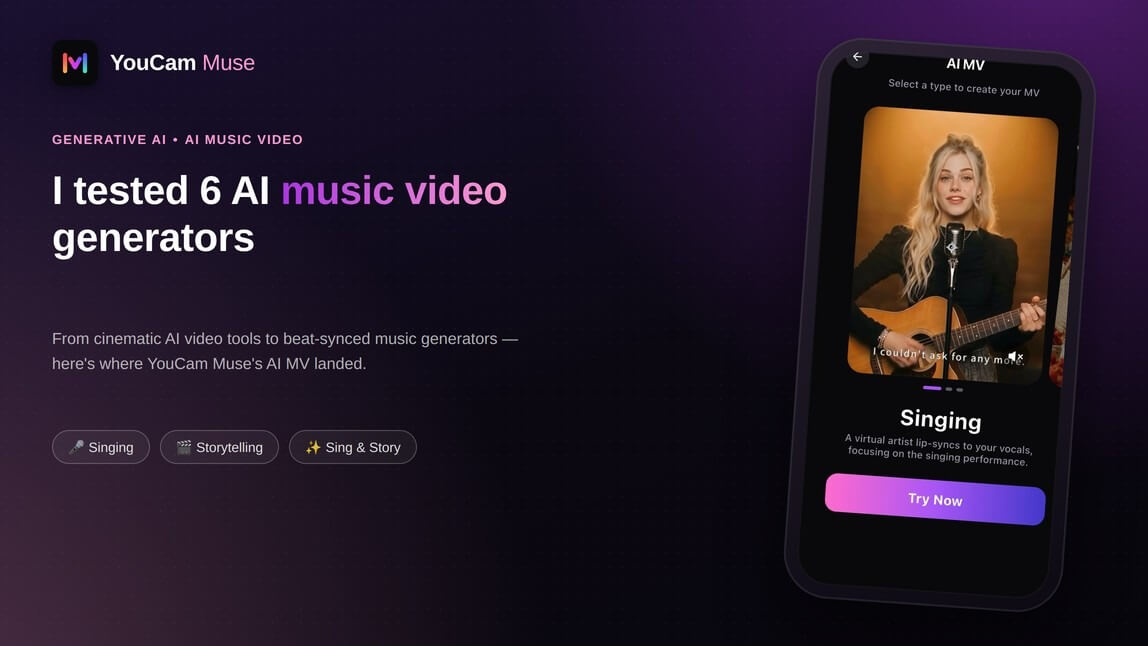
From cinematic AI video tools to beat-synced music generators, I ran a real song through YouCam Muse's own AI Music Video feature end to end, then lined it up against five other AI music video tools reviewers have already put through their paces.
"AI music video generator" is a crowded search term right now, and the tools behind it do genuinely different jobs. Some are general-purpose AI video generators that happen to look great set to music. Others are built specifically to listen to a song, catch the beat, and cut scenes to it. I wanted to know where YouCam Muse's AI MV — the feature that turns an AI Song (or any imported track) straight into a finished video — actually sits on that spectrum, so I ran a full song through it myself, start to finish, and compared notes against how independent reviewers rate the rest of the field.
1. YouCam Muse: The Storyboard-First Music Video Creator
Most AI video generators start with a visual prompt. YouCam Muse starts with the song. Its AI Music Video feature is designed to take an existing track, analyze it as part of the generation process, and turn it into a complete music video rather than a collection of disconnected AI clips.
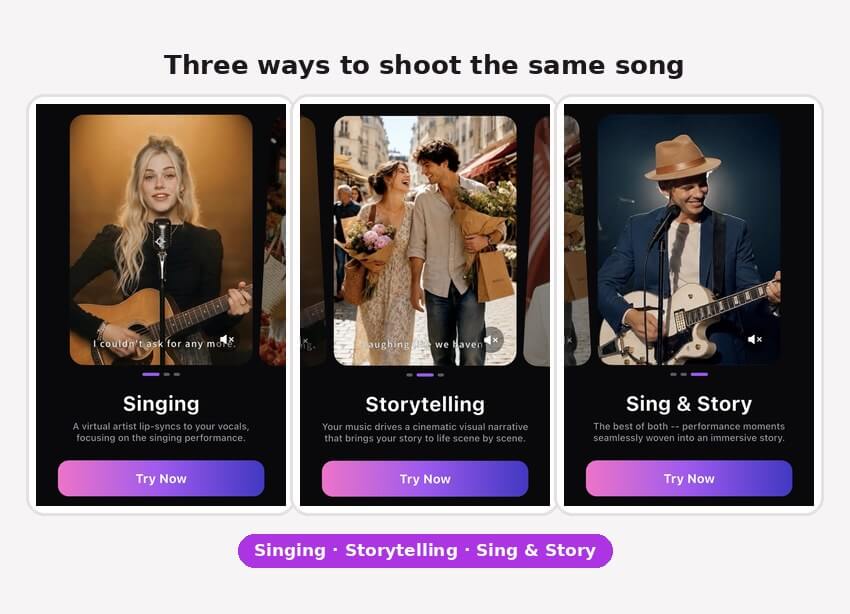
The workflow is deliberately simple: choose a song from your library or import your own audio, describe the video you want, and optionally upload up to two character photos. From there, you can choose between three formats: Singing, which centers on an AI performer; Storytelling, which turns the track into a cinematic narrative; or Sing & Story, which combines performance and storytelling.
The part that makes the workflow different is the storyboard step. Instead of immediately spending credits on a full render, Create Storyboard First generates a scene-by-scene plan that you can review before creating the final video. You can see how the AI interpreted your concept and make adjustments before committing to the more expensive generation step.
YouCam Muse also keeps the production process in one place. You can choose 9:16 or 16:9, adjust resolution, add title cards and subtitles, then edit or recreate the finished MV before sharing it directly to social platforms.
Creator verdict: A structured, end-to-end AI music video workflow for creators who want to go from song → concept → storyboard → finished MV without manually assembling dozens of AI-generated clips.
AI Music Video & Song Maker
Turn any song into a music video.
No filming, no editing timeline.
2. Freebeat: The Music-First AI Director
Freebeat is one of the closest comparisons to YouCam Muse because it is designed specifically around turning a finished song into a music video. Instead of treating the audio as something you add after generating your visuals, Freebeat analyzes the track itself, including elements such as BPM, beat patterns, energy, spectral information, and song sections. It then uses that analysis to plan the visual sequence around the music.
Its workflow is built around full-song generation. Freebeat can create a storyboard before rendering, maintain character consistency across multiple scenes, and generate performance-oriented videos with lip-sync. Its published workflow also supports longer music videos rather than limiting creators to a handful of short AI clips.
That's the main difference from a general AI video generator: the song isn't just the soundtrack. It's part of the input that determines how the video is structured.
The tradeoff is that Freebeat's workflow is heavily optimized around automated music-video production. Creators looking for a more flexible combination of performance, storytelling, character references, and pre-render storyboard review may prefer a different workflow.
Creator verdict: A strong fit for musicians who want AI to handle the heavy lifting of turning a finished track into a complete, beat-aware music video with minimal manual editing.
3. Neural Frames: The Audio-Reactive Visualizer
Neural Frames takes a more experimental approach. Rather than trying to recreate a traditional filmed music video, it focuses on making AI-generated visuals react directly to the music.
The platform analyzes audio across multiple dimensions and is designed around audio-reactive generation, giving creators detailed control over how visual elements respond to different parts of a track. Its current positioning emphasizes music-first workflows, multi-stem audio analysis, and detailed creative control.
That makes it particularly interesting for electronic, ambient, psychedelic, and experimental music. If the goal is to make the bass trigger one visual treatment, the vocals drive another, and the overall energy of the track shape the animation, Neural Frames is built around that kind of workflow.
The limitation is the type of video it naturally produces. Audio-reactive visuals are very different from a conventional narrative music video with a recurring singer, characters, dialogue, and a beginning-to-end storyline. Neural Frames is strongest when the music itself becomes the visual direction.
Creator verdict: A strong choice for artists who want highly music-responsive, abstract, or experimental visuals and more granular control over how the audio drives the video.
4. Kaiber: The Stylized Music Visualizer
Kaiber sits somewhere between an AI music-video tool and a creative visual playground. Its strength is turning music into stylized, atmospheric, and artistic visuals, rather than automatically constructing a traditional narrative music video.
You can start with a track and use AI-generated visuals, animation, and style transformations to create a distinctive visual identity. Kaiber is particularly suited to projects where the aesthetic itself is the main attraction — think illustrated worlds, surreal animation, dreamlike sequences, or music-reactive effects. Recent comparisons continue to position Kaiber around artistic and audio-reactive visual creation rather than full structured music-video production.
The tradeoff is control over a longer narrative. If your concept depends on the same character appearing consistently across dozens of scenes or requires a tightly structured story following the song from verse to chorus, Kaiber's more visual-first approach can require additional creative work.
It's also a different proposition from a tool that starts with a song and builds a storyboard around it. Kaiber gives you more of a visual canvas; you decide how those visuals become the final music video.
Creator verdict: A good fit for artists who want their music turned into distinctive, stylized visuals, especially for short-form content, visualizers, and experimental music projects.
5. Runway: The Cinematic AI Video Studio
Runway is the major wildcard in any AI music video comparison because it isn't really a music video generator first. It's a general-purpose AI video platform — and that's exactly why its strength is different.
Runway is designed around generating high-quality individual video shots, giving creators control over visual concepts, camera movement, characters, environments, and cinematic direction. Recent comparisons consistently distinguish Runway from music-first platforms: its visual generation can be strong, but the music itself isn't what drives the generation workflow.
For a musician, that means you can create an impressive collection of cinematic scenes around your song. Want a performer walking through a futuristic city? A surreal landscape for the second verse? A dramatic close-up for the chorus? A general-purpose video generator gives you a lot of freedom to build those individual moments.
But there's another side to that freedom: you become the director and editor. You need to plan the scenes, generate the individual clips, maintain character continuity, arrange the footage, and synchronize the finished sequence to your track.
That's not necessarily a weakness — it's simply a different workflow.
Creator verdict: A strong choice when individual cinematic shots and visual control matter more than having AI automatically turn an entire song into a finished music video.
6. Kling AI: The Motion-Focused Video Generator
Kling AI is another general-purpose AI video generator that becomes relevant to music videos because of its focus on realistic motion, characters, and dynamic video generation.
Rather than starting with the song and building a complete music-video structure around it, Kling is better thought of as a source of individual AI-generated scenes. You can use it to create performance shots, cinematic environments, movement-heavy sequences, and other footage that can later be edited around your music.
This makes Kling useful when you already have a clear idea of the shots you want. You can generate a performer dancing, a character moving through a scene, or a cinematic sequence and then combine those clips in an editor.
The difference becomes obvious when you move from one clip to an entire song. A general video generator doesn't automatically give you the same end-to-end workflow as a music-focused platform. The creator still needs to think about the song structure, scene order, transitions, timing, and final edit.
How to turn a song into an AI music video?
This is the method I use now. I make these in YouCam Muse, an AI music video and song app, because the whole flow lives on one setup screen: pick the song, describe the video, add a face, generate. No timeline, no filming.
Step 1: Open Music Video from the home screen
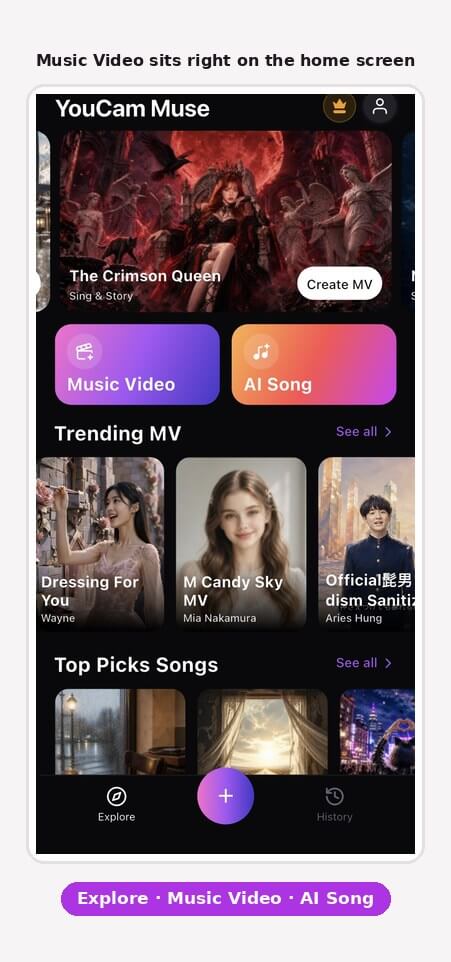
On the YouCam Muse home screen there are two big buttons, Music Video and AI Song. Tap Music Video. Below them, the Trending MV and Top Picks Songs rails are worth scrolling once, just to see what styles other creators are getting.
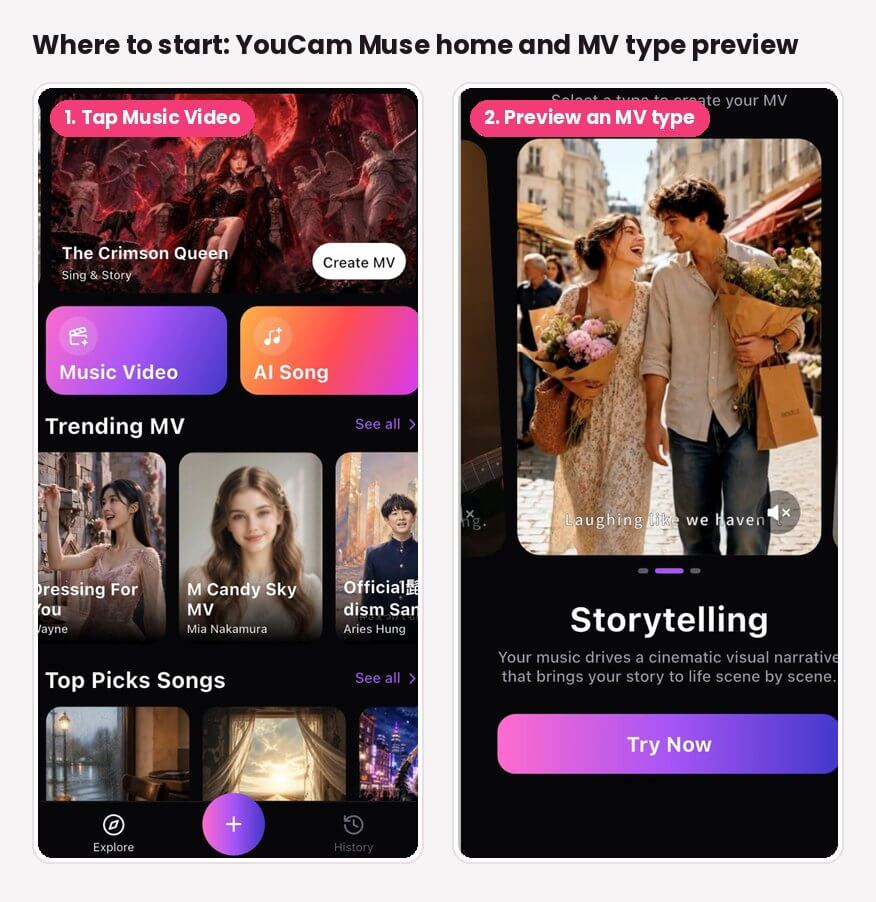
Step 2: Choose the MV type that fits your song
Under Select MV Type you get three options, each with a short preview so you can see what it produces before you commit:
- Singing: a performer front and center, singing the track. Good for ballads, acoustic songs and anything where the vocal is the star.
- Storytelling: in the app's own words, "your music drives a cinematic visual narrative that brings your story to life scene by scene." This is my pick for love songs and anything with lyrics that tell a story.
- Sing & Story: a mix of the two, cutting between performance and narrative scenes, like most official music videos do.
Step 3: Choose your song
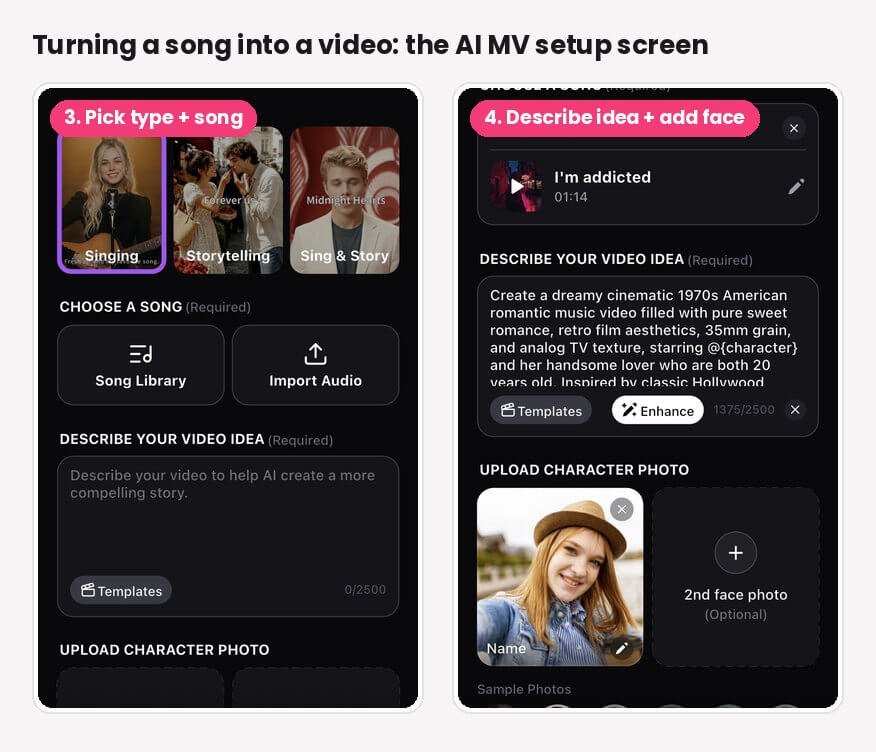
Under Choose a Song, tap Import Audio to upload your own track, or Song Library to pick one that's already available in the app, including songs you've made with YouCam Muse's AI Song feature. Once a song is selected it shows as a card with its title and length, and you can tap the pencil icon to swap it.
Step 4: Describe your video idea
This field is required, and it's the single biggest lever on how good the video turns out. You get up to 2,500 characters. Tap Templates if you want a starting point, write your own idea, then tap Enhance to have the AI expand a short idea into a fuller, more cinematic description. Here's the idea I used for a retro love song:
"Create a dreamy cinematic 1970s American romantic music video filled with pure sweet romance, retro film aesthetics, 35mm grain, and analog TV texture, starring @{character} and her handsome lover who are both 20 years old. Inspired by classic Hollywood..."
Notice the @{character} tag. That's how you tell the AI where the person from your uploaded photo should appear in the story.
Step 5: Upload a character photo (optional)
Under Upload Character Photo, add a clear photo of yourself or whoever should star in the video, and give them a name. You can add a 2nd face photo for a duet or a couple story, or skip photos entirely and tap one of the Sample Photos instead.
Step 6: Tap Create Music Video, then share
Tap Create Music Video. YouCam Muse supports two creation paths: a storyboard-first path, where the AI drafts the video scene by scene for you to review before it renders the final MV, and a direct path that generates the complete video from your track in one step. When it's done, you can share it to the YouCam Muse community feed or export it for your other social platforms.
AI Music Video & Song Maker
Turn any song into a music video.
No filming, no editing timeline.
FAQ
Do I need to upload my own photo?
No. Character photos are optional in both modes — you can pick from the sample photos provided, or generate a video with no on-screen character at all if your MV type and prompt don't call for one.
What's the difference between Create Storyboard First and Create MV Directly?
Create Storyboard First writes and shows you every scene synopsis before the full video renders, so you can catch and fix problems early for a small credit cost. Create MV Directly skips that review step and renders the full video in one pass.
What happens if I import my own audio instead of using a song from the library?
If the file runs longer than the MV needs, you'll trim it on a waveform screen first — the selected clip has to be at least 30 seconds, and supported formats are MP3, AAC, WAV, and M4A up to 50 MB.
Can I change the resolution and aspect ratio?
Yes. 9:16 portrait or 16:9 landscape, and 720p on the free plan or 1080p with a Muse Pro subscription — along with optional title card, author name, subtitles, and watermark toggles.
What if I don't like the finished video?
Tap Recreate to regenerate with the same prompt, material, and settings, or Edit MV to adjust the cover, title, or individual scenes without starting over.
Can I share it directly from the app?
Yes — the result screen has direct share options for Instagram, TikTok, WhatsApp, and X, plus a download-to-camera-roll option.