Author:
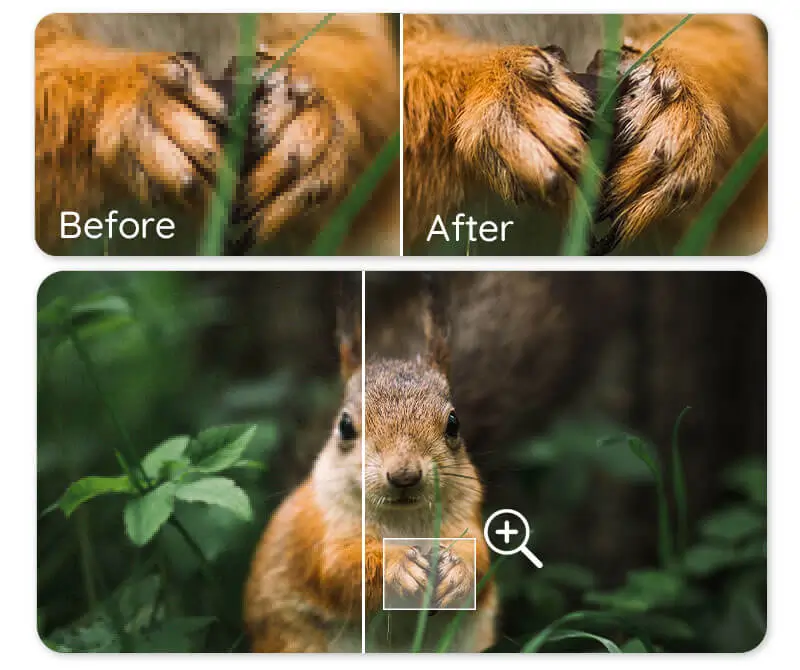
 The fastest way to make a blurry picture clear is with an AI photo enhancer like YouCam Enhance: upload the photo, let the AI sharpen it and reduce noise, and download a clearer version in seconds - no editing skills needed. For milder blur, your iPhone’s built-in Photos editor can also help.
This easy guide shows you how to fix blurry pictures, especially on iPhone, using built in tools, AI photo enhancers, and simple shooting tips. Whether you want to unblur photos on iPhone or sharpen images online, these methods actually work.
Why Your iPhone Photos Are Blurry
Blurry photos are not always a camera problem. Most of the time, they happen because of everyday shooting conditions or small habits you might not notice in the moment.
Camera Shake
Camera shake is one of the most common reasons iPhone photos turn out blurry. In low light situations, your iPhone automatically slows down the shutter speed to let in more light. Even tiny hand movements while pressing the shutter can cause blur, especially in night mode, indoor lighting, or zoomed in shots.
This is why photos taken at concerts, restaurants, or nighttime settings often look soft instead of sharp.
Subject Movement
If your subject is moving, such as kids, pets, cars, or people walking, motion blur can occur. This happens when the camera cannot freeze the movement fast enough, which is more likely in darker environments where the shutter speed is slower.
Even slight movements like blinking, turning your head, or waving can make faces appear blurry.
Focus Issues
Your iPhone relies on contrast to decide what to focus on. In scenes with low contrast, busy backgrounds, or multiple subjects, the camera may focus on the wrong area. This can make the main subject look soft while the background appears sharper.
This issue often happens during group photos, selfies, or when shooting through glass.
Dirty or Smudged Camera Lens
A dirty lens is an easy but often overlooked cause of blurry photos. Fingerprints, makeup residue, dust, or pocket lint can soften details and reduce clarity, especially in bright lighting where smudges scatter light.
Even a small smudge can noticeably impact image sharpness.
Other Common Factors
Several smaller issues can also contribute to blurry photos. Poor lighting forces your camera to compensate, digital zoom reduces image quality, and bulky phone cases can partially block the lens. In rare cases, software bugs or outdated iOS versions may affect camera performance.
How to Make Blurry Picture Clear on iPhone with Photos App
If the blur is mild, your iPhone’s built-in editor may be enough.
Step 1: Open the Photos App
Find the blurry image you want to fix.
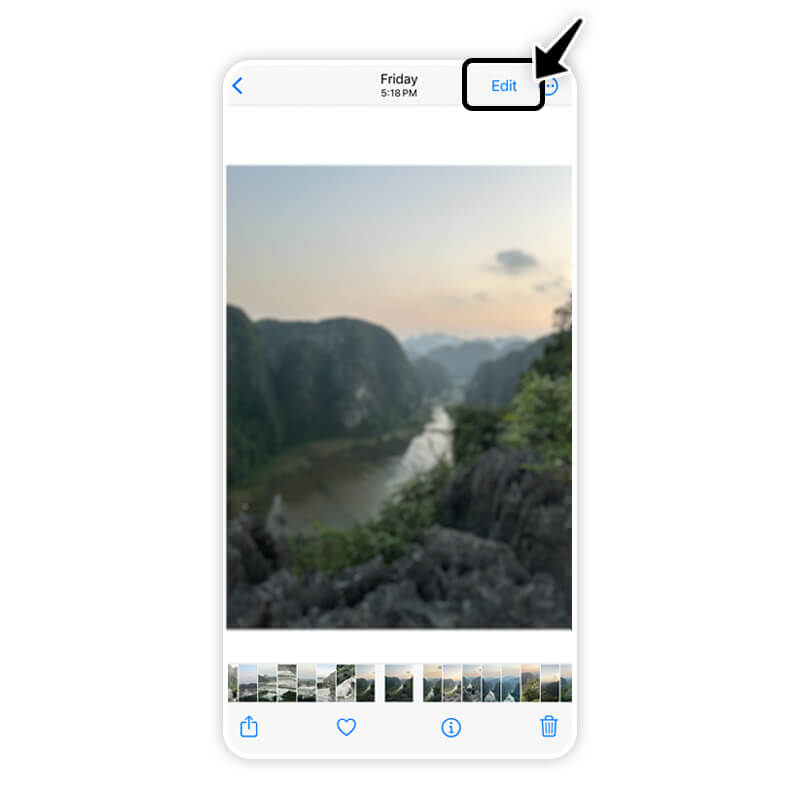
Step 2: Tap Edit
Tap on the “Edit” icon.
Step 3: Adjust Sharpness
Swipe through the editing tools and increase sharpness slightly. You can also adjust contrast and brightness for better clarity.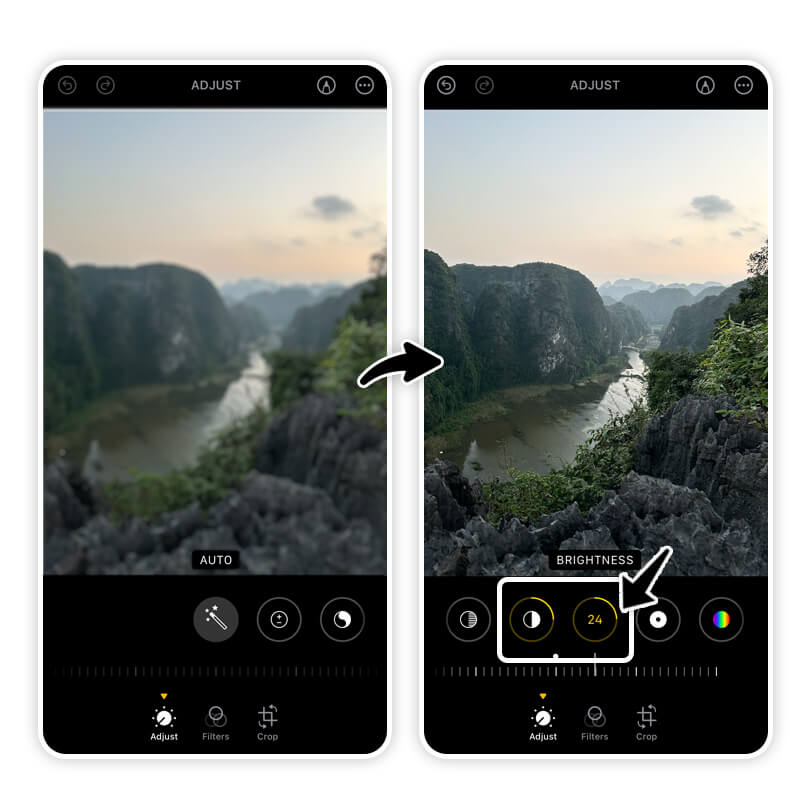
Step 4: Save Your Photo
Tap “Done” when you are happy with the result. This method works best for lightly blurry images but struggles with motion blur or low resolution photos.
How to Fix Blurry Pictures with AI Photo Enhancer
For noticeably blurry photos, AI is your best option. YouCam Enhance uses advanced AI to automatically sharpen images, reduce noise, and improve overall clarity with just one tap.
Why Use YouCam Enhance
- AI powered photo sharpening
- Noise reduction for low light images
- Photo upscaling without losing detail
- One tap results with no editing skills needed
Simply upload your photo, let the AI analyze it, and download a clearer version in seconds.

How to Unblur Photos Online with YouCam Online Editor

Step 1: Go to YouCam Online Editor’s Photo Enhancer tool
Step 2: Upload your blurry photos
Step 3: Let AI sharpen and refine the image
Step 4: Select your preferred settings
Step 5: Download and save your clear photo
Best Practices to Prevent Blurry Photos on iPhone
While AI tools like YouCam Enhance can fix blurry images, preventing blur at the source will give you consistently better results.
Keep Your Phone Steady
Stability is key to sharp photos. Hold your phone with both hands and tuck your elbows close to your body to reduce movement. In low light or long exposure shots, using a tripod or resting your phone on a solid surface can dramatically improve sharpness.
This is especially helpful for night photography or zoomed in shots.
Tap to Focus Before Shooting
Always tap on your screen to tell your iPhone exactly where to focus. This locks the focus on your subject and reduces the chance of the camera choosing the wrong focal point. For moving subjects, tapping just before shooting helps maintain clarity.
You can also tap and hold to lock focus and exposure.
Improve Lighting Whenever Possible
Good lighting allows your iPhone to use faster shutter speeds, which reduces blur. Try to shoot in natural light, face your subject toward the light source, or move to brighter areas when indoors.
Avoid relying solely on digital zoom in low light, as it increases blur.
Clean Your Camera Lens Regularly
Wipe your camera lens with a microfiber cloth or soft fabric before taking photos. This quick step can instantly improve photo clarity and sharpness, especially for selfies and close up shots.
Make it a habit, especially if you use your phone frequently.
Avoid Excessive Digital Zoom
Digital zoom crops into your image, which reduces resolution and magnifies blur. Instead of zooming in, move closer to your subject whenever possible. If you need to zoom, use optical zoom if your iPhone model supports it.
Check for Software or Hardware Issues
If blurry photos happen frequently, restart your camera app or iPhone. Make sure your iOS is up to date, and check that your phone case is not interfering with the lens. Persistent blur could also indicate hardware issues that need professional support.
Unblur Pictures with YouCam Enhance
Blurry photos do not have to stay blurry. Whether you are fixing everyday iPhone shots or improving important memories, knowing how to make a blurry picture clear makes a big difference.
From quick edits in the Photos app to powerful AI tools like YouCam Enhance and YouCam Online Editor, you now have multiple ways to sharpen images, restore detail, and improve photo quality in seconds.
How to Make Blurry Picture Clear FAQs
How do I unblur a blurred image?

You can unblur a blurred image using an AI photo enhancer that sharpens details and reduces noise automatically. Tools like YouCam Enhance’s Photo Enhance feature analyze the image and restore clarity with one tap, even if the blur is caused by motion or low light. For light blur, basic sharpening tools may help, but AI enhancement delivers more natural looking results.
How can I make blurry photos clear?
To make blurry photos clear, start by adjusting sharpness and clarity in a photo editor. For better results, use an AI powered enhancer that improves focus, reduces grain, and enhances edges at the same time. YouCam Enhance is designed to fix blurry pictures quickly without over sharpening, making photos look crisp while staying realistic.
How can I make a blurry picture clear on my iPhone?
If you want to unblur photos on an iPhone, you have a few options. You can use the built in Photos app to slightly adjust sharpness, but for noticeable blur, an AI tool works better. YouCam Enhance lets you upload your iPhone photos and instantly improve clarity, while YouCam Online Editor works directly in your browser without installing anything.
How to make a picture clearer for free?
You can make a picture clearer for free by using online AI photo enhancement tools. YouCam Online Editor offers free photo sharpening and enhancement features that help fix blurry images in just a few clicks. Simply upload your photo, apply Photo Enhance, and download a clearer version instantly.
How do you make a blurry picture readable?
To make a blurry picture readable, focus on improving sharpness and contrast, especially around text or important details. AI enhancers are especially helpful for this because they can restore edges and improve clarity without distorting the image. Using YouCam Enhance, you can sharpen blurry text in photos like screenshots, documents, or signs while keeping the image natural.