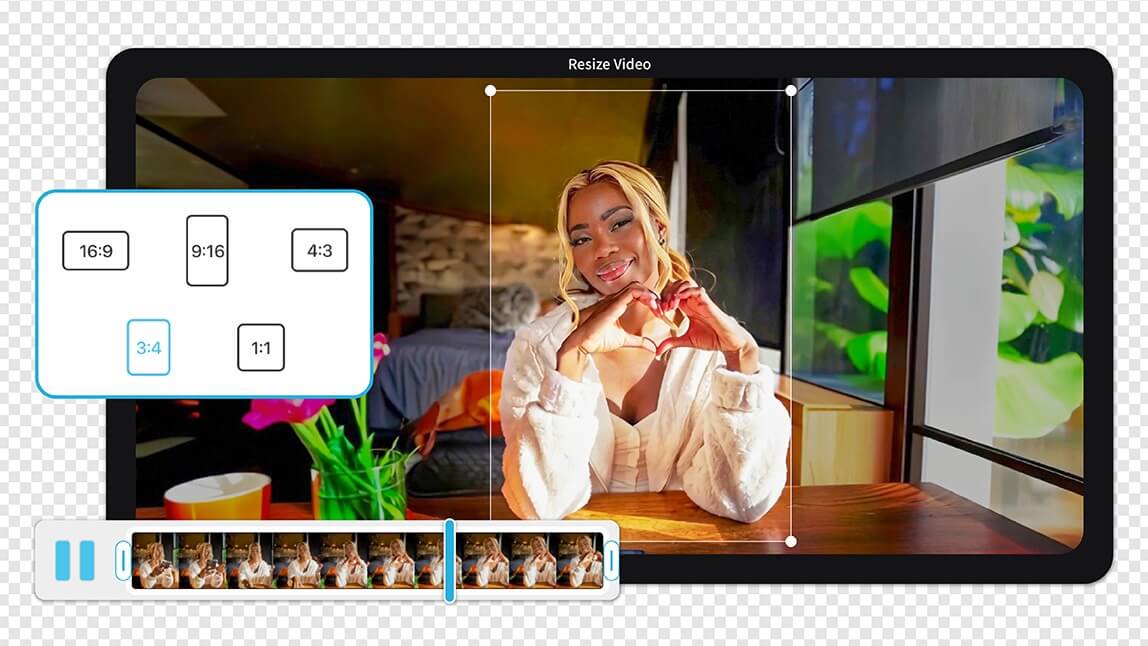
Author:


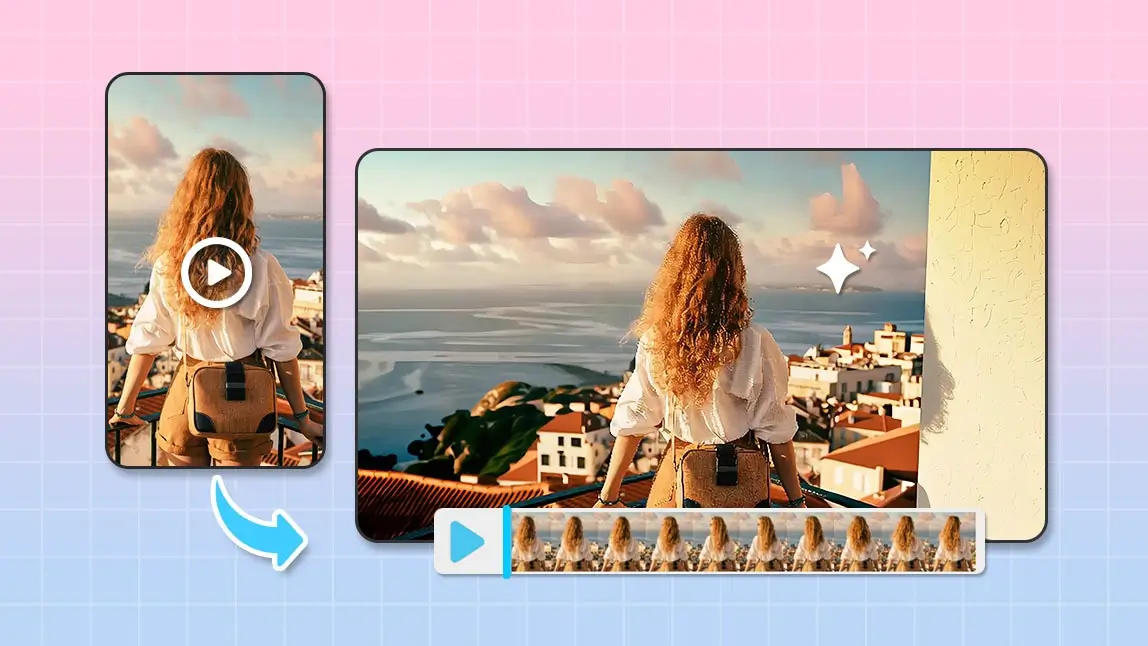
To make a vertical video horizontal without cropping, you should use video expansion tools to fill the empty side space. This professional technique allows you to repurpose vertical content for YouTube or widescreen displays while keeping your original footage fully intact.
You have a great vertical video, but now you need it to work in a horizontal format. Whether it is for a YouTube upload, a professional slideshow, or a wide screen display, the struggle is real. The standard problem is that cropping usually cuts off the most important parts of your shot. No one wants to lose the top of their head or that perfect background scenery just to fit a new frame.
Here is the good news: you do not need to crop at all. With modern video expansion techniques, you can turn vertical videos into horizontal format without cutting anything out. It is easier than you think and it looks incredibly polished when done correctly in 2026.
Why Expand Instead of Crop?
When you crop a vertical video to fit a horizontal frame, you are forced to zoom in significantly. This leads to a loss of resolution and often cuts out vital context from your scene. With video expansion, you keep the full frame and simply fill the sides.
This is a major trend that creators use to keep their content looking intentional and platform ready. It ensures your video looks like it was made for the screen it is playing on.
Video Expansion Comparison
| Cropping | Expansion (Recommended) |
|---|---|
| Zooms in and loses up to 60 percent of the original image. | Keeps 100 percent of the original footage visible. |
| Results in grainy, pixelated, or blurry visuals. | Maintains high resolution and crisp detail. |
| Cuts off heads, feet, or important background elements. | Uses the extra space for branding or aesthetic atmosphere. |
How to Make a Vertical Video Horizontal Using Expansion
1. Use YouCam Video for One-Click Video Expansion

If you are editing on your mobile device, YouCam Video is the ultimate choice for expanding vertical videos without any cropping. It uses smart technology to fill the frame beautifully.
How to do it:

- Open YouCam Video and tap "video expansion" in the menu.
- Select your vertical video.
- Select the horizontal aspect ratio (16:9).
- Click on "expand" and wait for few seconds.
- Save the video

Why it works: This method keeps your original video fully intact while expanding the background that blends perfectly with your footage. It transforms a mobile video into a cinematic experience.
Why Creators are Using Expansion Over Cropping
This technique has become a standard for YouTube compilations and cross platform sharing. It is no longer just about fitting the screen. It is about maintaining the vibe of your original content while making it versatile across different social media landscapes. This works perfectly for vlogs, makeup tutorials, fitness videos, and reaction content where every detail matters.
Final Thoughts: Don’t Crop It, Expand It
You do not need to sacrifice half of your video just to fit a horizontal frame. With video expansion, you can keep your full vertical footage and make it look amazing on YouTube, personal websites, or widescreen presentations. Whether you are using YouCam Video or another high quality tool, the key is to add a creative background that complements your content. Next time you need to switch formats, skip the crop and elevate your content by expanding it instead.
Ready to transform your vertical videos into horizontal masterpieces without losing a single pixel? Try YouCam Video for stylish and easy video expansion today. It is perfect for creators, vloggers, and anyone repurposing content across platforms.
About the Editors

The PERFECT Corp. Editorial Team
We are a team of experts on photo and video editing apps. Our goal is to deliver engaging content on everything from stunning selfie edits to eye-catching video effects. We cover the latest trends and share niche tips to help you master digital creation.
Discover more about us:
![AI Video Extender: How to Expand Your Video with AI in 2026 [Easy Tutorial]](https://plugins-media.makeupar.com/smb/blog/post/2026-01-15/webp_bc92d1f7-70e8-4abe-9f69-14006143044f.jpg)