Author:
No camera, no crew, no editing timeline — pick a track, describe the story you want, and let AI direct the music video for you.
Making a real music video used to mean a location, a crew, a wardrobe, and hours in an editor. Most people with a song they love — or one they just made — never get past that wall, so the track sits in a folder instead of becoming something they can actually share.
AI Music Video & Song Generator
Turn any song into a cinematic AI music video.
Pick a style, describe your story, and let AI direct it.
YouCam Muse's AI Music Video Generator removes the wall entirely. Pick a song, tell it the mood and story you're going for, and the AI handles everything else: casting a virtual performer, building the scenes, syncing the cuts to the beat, and rendering a finished, share-ready video. You can let it run start to finish, or stop at the storyboard stage and adjust the story scene by scene before anything renders.
How AI Music Video Generator works
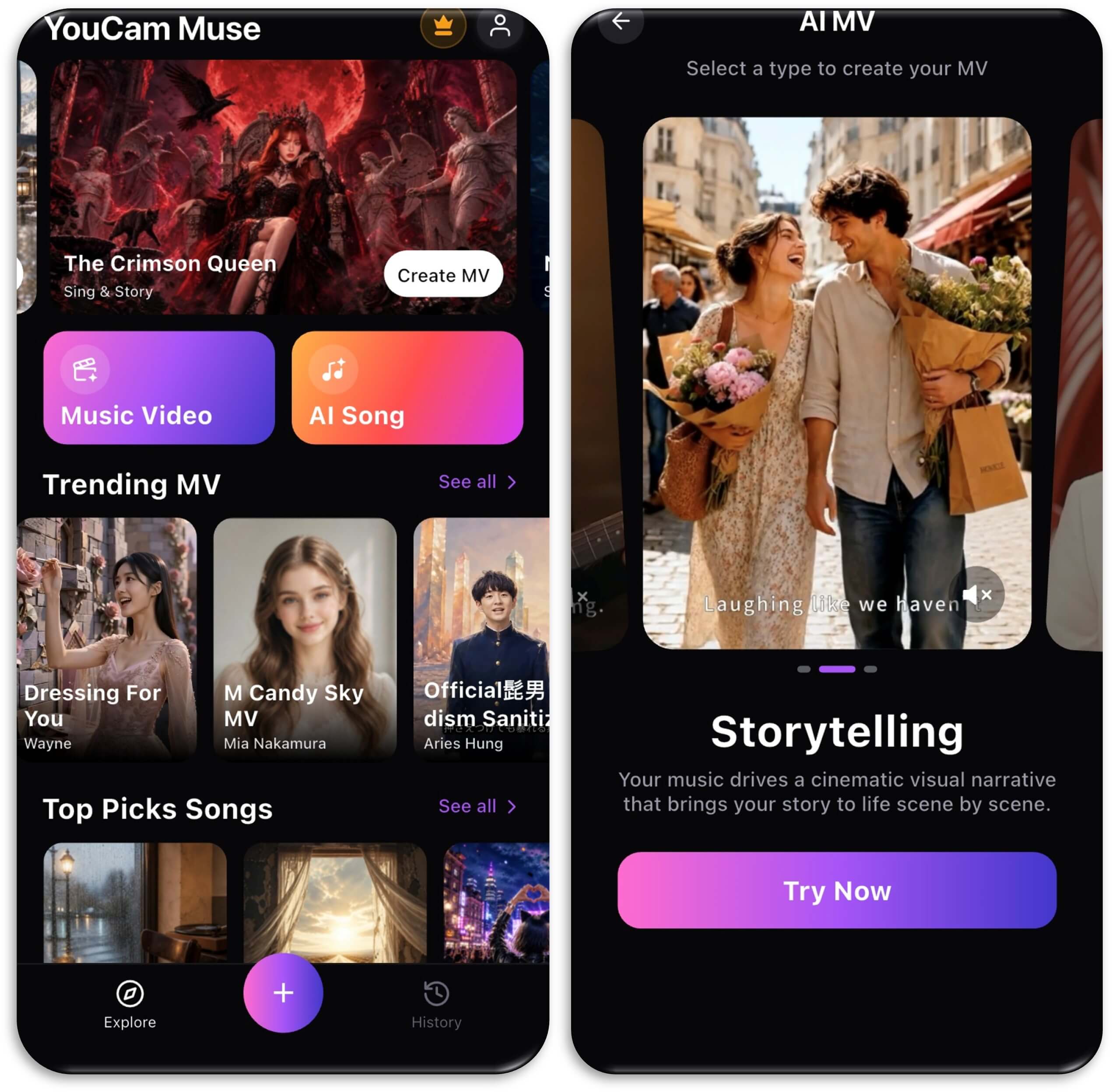
- Pick your track. Choose a song from your library or import audio, or generate an original song with AI Song Generation first.
- Choose your MV type. Pick Singing, Storytelling, or Sing & Story to set the overall feel of the video.
- Describe your video idea. Write a short description of the story, mood, or aesthetic you want — the more specific, the more the AI has to work with.
- Upload a character photo (optional). Add up to two face photos to cast the video's performer; if a photo has more than one face, you'll be asked to pick which one.
- Choose how you want to create. Go with Create Storyboard First to review and edit each scene before anything renders, or Create MV Directly to generate the finished video in one step.
- Let AI do the work. It analyzes the track's rhythm and mood, builds the visual narrative scene by scene, and renders the final cut — you can back out of the app and it keeps working, with a notification when it's done.
- Share it. Publish straight to the YouCam Muse Community Feed, download it, or send it to Instagram, TikTok, WhatsApp, or X.
Two ways to create: hands-off or hands-on
Not every video needs the same amount of control. After you've picked a track and a style, YouCam Muse asks how you'd like to create:
Create MV Directly is built for speed — the AI writes the full storyboard and renders the finished music video in one pass, with no review step. It's the right call when you trust the AI's read on your track and just want the result.
Create Storyboard First is the recommended path for anyone who wants a say in how the story unfolds. The AI still writes the scene-by-scene storyboard automatically, but it stops there: you can open Edit Storyboard, read the AI-written scene synopses and lyrics, tweak the visual style prompt, and rewrite any scene before a single frame renders.
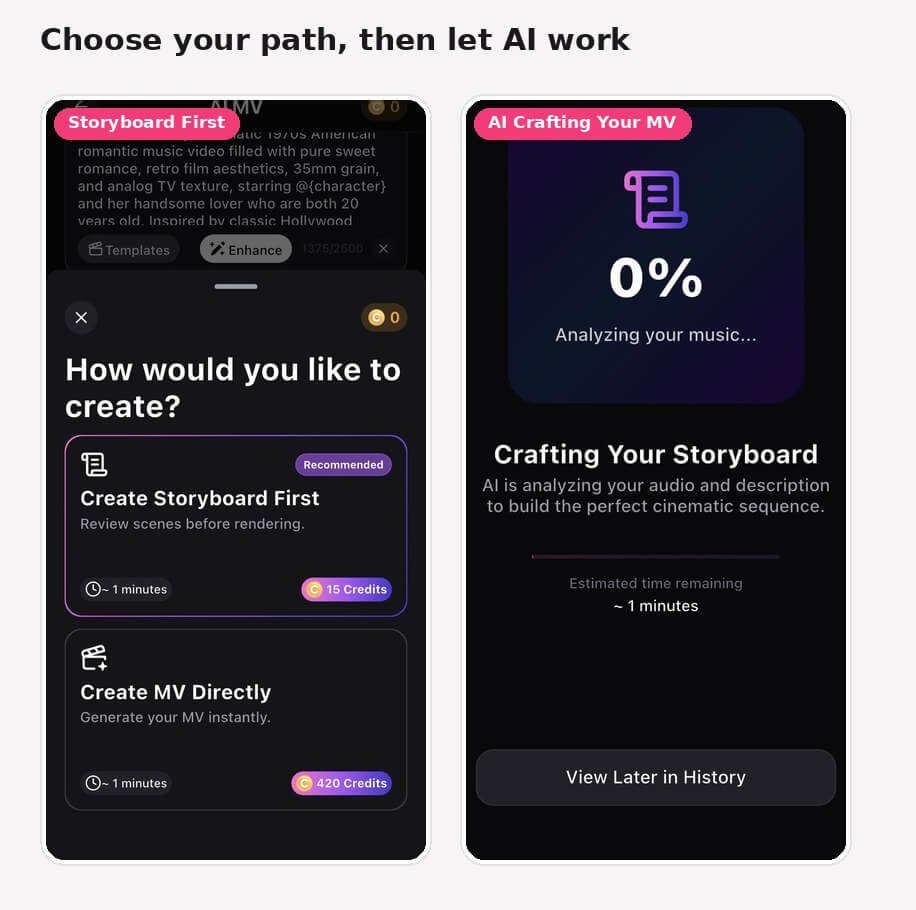
Storyboard First puts a review step between the AI's first draft and the final render, so you can catch and fix a scene before it's rendered.
One track, endless looks
The same song can become a completely different video depending on the MV type you choose:
- Singing casts a virtual artist who lip-syncs to your vocals — the focus stays on the performance.
- Storytelling lets the music drive a cinematic visual narrative that unfolds scene by scene, with no performer on screen at all.
- Sing & Story blends the two, cutting between performance moments and story beats for a video that feels like a real music video, not just a lyric visualizer.
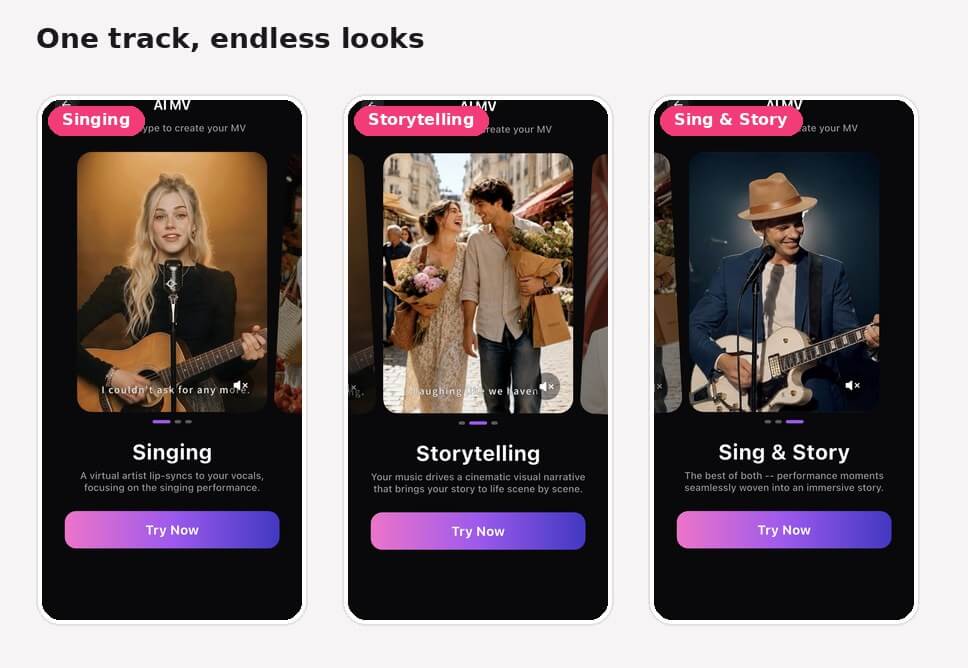
Singing, Storytelling, and Sing & Story — three distinct video treatments from the same creation flow.
AI Music Video & Song Generator
Turn any song into a cinematic AI music video.
Pick a style, describe your story, and let AI direct it.
Why try before you buy
- You see the storyboard before it renders. Create Storyboard First means you're never stuck waiting on a full render just to find out the AI misread your track.
- Your face is optional, not required. Skip the character photo entirely and AI casts a virtual performer, or upload your own photo to star in it yourself.
- It doesn't stop at the video. A built-in Community Feed means a finished MV can find an audience — Trending MVs, Top Picks Songs, and a public Community Profile — without leaving the app.
Try it now
Whether you've got a track sitting untouched on your phone or you're starting from nothing but a mood, YouCam Muse turns it into a music video without a single hour of editing. Open the app, pick Music Video from the create screen, and see what AI does with your song.
AI Music Video & Song Generator
Turn any song into a cinematic AI music video.
Pick a style, describe your story, and let AI direct it.
FAQ
Do I need to know how to sing, play an instrument, or edit video?
No. AI Music Video Generator only needs an audio track — the AI handles the performance, the visuals, and the edit.
What's the difference between the three MV types?
Singing casts a virtual artist who lip-syncs your vocals and keeps the focus on performance. Storytelling turns your music into a cinematic narrative with no performer on screen. Sing & Story combines both, cutting between performance and story.
Do I have to upload my own photo?
No — the character photo is optional. Skip it and the AI casts its own virtual performer; upload one or two face photos if you want to appear in the video yourself.
What if my uploaded photo has more than one person in it?
The app detects every face in the photo (up to six) and asks you to tap the one you want to use as the character before continuing.
I don't have a song ready — can I still make an MV?
Yes. Use AI Song Generation to describe a mood or paste in lyrics and get an original track in under 60 seconds, then use it directly in the MV creation flow.
Which creation path should I pick, Storyboard First or Create MV Directly?
Create Storyboard First is the recommended default — it lets you review and edit the AI's scene-by-scene storyboard before rendering. Create MV Directly skips that review step and renders the finished video immediately, which is faster if you're comfortable letting AI make every call.