
 Author: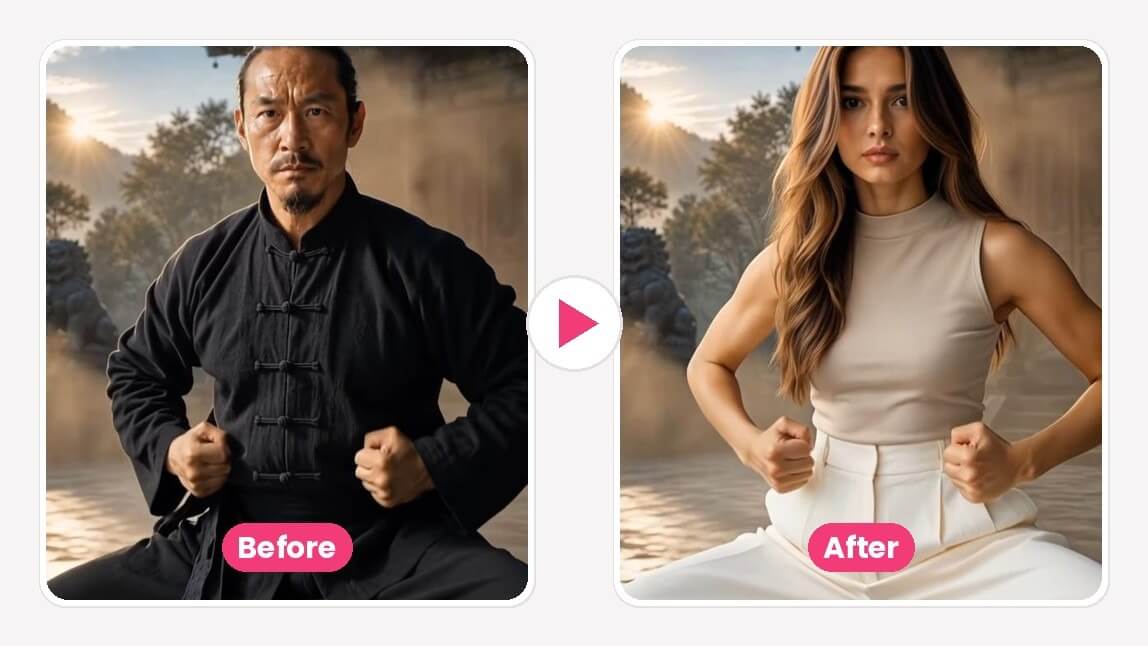
A new kind of video edit has taken over For You pages this fall: someone films a short clip, then swaps themselves out for a completely different character — a stylized avatar, an anime figure, a cartoon pet — while every gesture, step and camera move stays exactly the same. Search interest in "AI character replacement" broke out sharply in late September 2026, and most of the tools ranking for it are built for full-time AI-influencer studios rather than someone who just wants to try the trend on their phone.
This guide walks through how AI character replacement actually works, how to do it with Character Motion Swap in YouCam Video (and on the web in YouCam Online Editor), what makes a swap look convincing instead of uncanny, and how it compares with face swap, manual VFX and plain text-to-video.
What is AI character replacement?
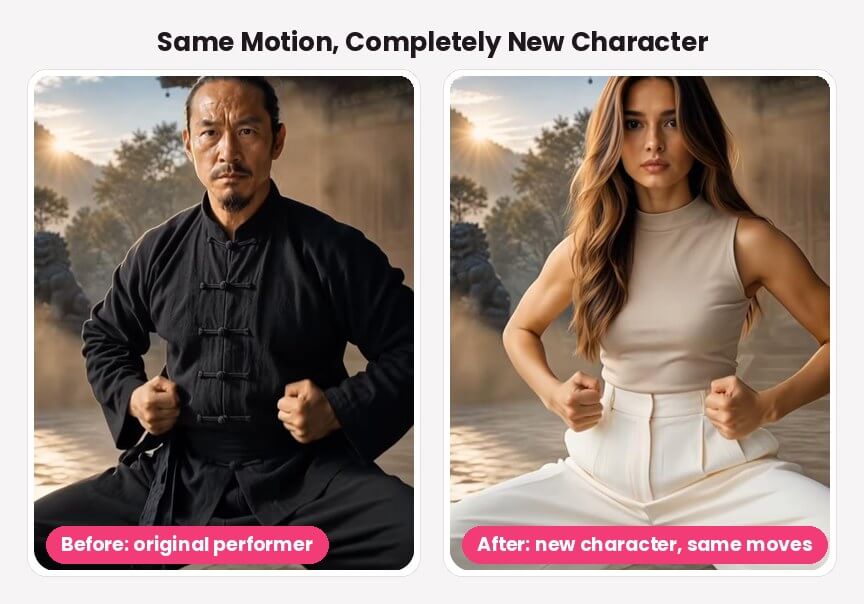
AI character replacement means taking an existing video and swapping the person in it for a different character — while the AI keeps the original performance. The timing, body movement, hand positions and camera work all come from the source clip; only the "who" changes.
That's the key difference from a face swap. A face swap pastes a new face onto the original body, so the outfit, build and hair of the original performer stay. Character replacement rebuilds the whole figure, which is why it works for turning yourself into a cartoon cat or a 3D avatar, not just into another person.
My take: the easiest way to judge a character replacement result is to look at the hands and feet, not the face. In YouCam's kung fu demo above, the stance width and both fists land in the same spots as the original performer's — the character was rebuilt, but the choreography wasn't touched. That's the part face swap tools can't do.
How to replace a character in a video with Character Motion Swap
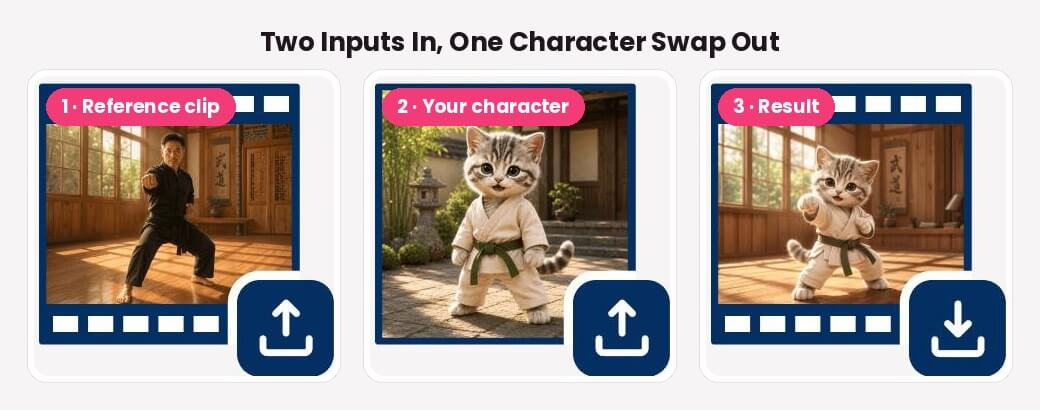
- Open Character Motion Swap. In the YouCam Video app, find Character Motion Swap among the AI video tools; on the web, open AI Character Motion Swap in YouCam Online Editor.
- Choose a mode. Pick the one built for your goal: Replace the Character in a Video (keeps the reference clip's scene and camera work — the one you want for the character-replacement trend), Character Motion Control, or Apply Video Motion to an Image (keeps your photo's own background instead).
- Upload a motion reference video. Add the clip with the movement you want — a dance, a gesture, a performance. If you don't have one, use the Template tab to apply a ready-made motion.
- Upload your character. Add one photo of the character you want to appear: a portrait, an illustration or an AI-generated character with a clear, visible subject.
- Generate. Tap Generate and keep working while it renders — your result shows up in your history when it's ready.
- Preview and save. Watch the result, download it in HD, or try a different character against the same reference clip.
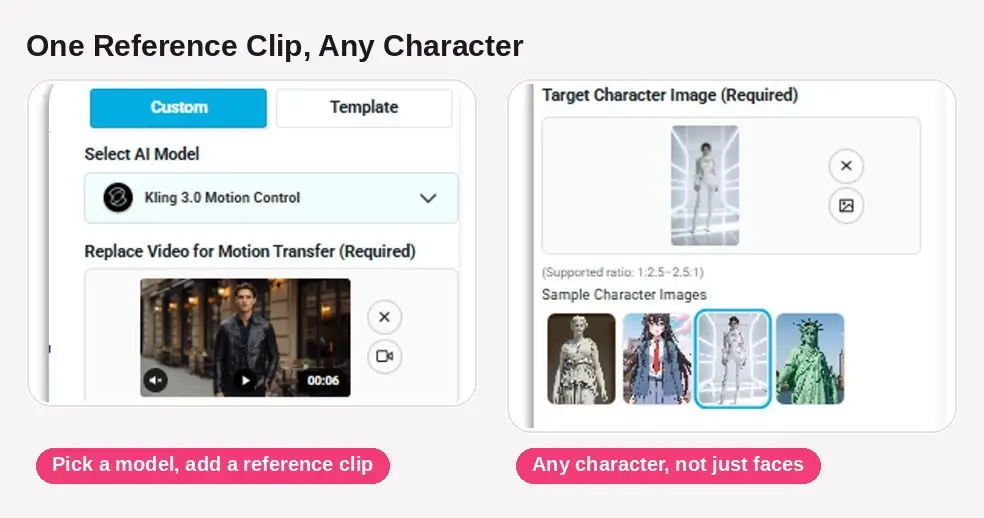
A peek inside the app
The whole flow fits on one screen: choose a model at the top, drop in the reference clip, then add your character image — or start from one of the sample characters if you just want to see how it behaves first.

AI Character Motion Swap
Replace the character in any video, right in your browser.
No download needed.
See it in action
Here's the kung fu clip from the top of this article as a full video — the original performer first, then the replaced character holding the same stance and strikes.
And it doesn't have to be a person. This clip takes a dance reference and hands the choreography to a stylized 3D character — a good example of the "AI persona" side of the trend.

AI Character Motion Swap
Film yourself once, become anyone.
Swap any character into your video with AI.
One reference clip, any character
Because the motion lives in the reference video, you can run the same clip through as many characters as you like. YouCam's own demo below uses one street-dance reference for a cat mascot, a live-action boy and an animated princess — all three pick up the same choreography.
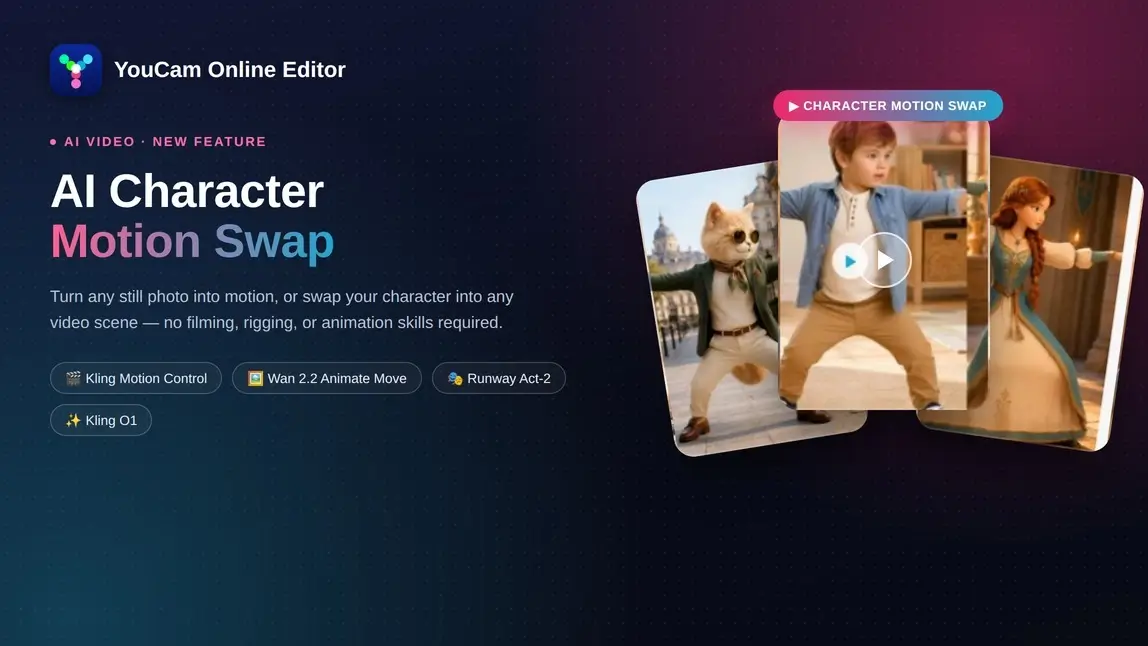
My take: this is the most useful habit for AI-influencer style content. Lock in one reference clip you like, then swap characters against it — you get a consistent "series" of videos without refilming anything.
Tips for a convincing character swap
- Pick a clean reference clip. Clear, unobstructed full-body motion works best. Fast cuts, heavy motion blur, or a performer half-hidden behind objects give the AI less to follow.
- Trim to the key moment. Reference videos have a maximum supported length, so cut your clip down to the few seconds of movement that matter before uploading.
- Use a well-lit, clear character image. One subject, in focus, facing the camera. A front-facing pose gives the AI the most information about your character.
- Match the framing. A full-body character image pairs best with a full-body dance clip; a waist-up portrait suits a waist-up gesture or talking clip.
- Choose the mode for your background. Want your character inside the original scene? Use Replace the Character in a Video. Want the motion applied to your photo's own setting? Use Apply Video Motion to an Image.
My take: most of the swaps that look "off" come from mismatched framing — a tight headshot dropped into a full-body dance clip. Matching the crop of your character photo to the crop of the reference clip is the single easiest fix.
AI character replacement vs. face swap, VFX and text-to-video
| Method | What changes | Best for |
|---|---|---|
| AI character replacement (Character Motion Swap) | The entire performer is replaced; motion and camera work stay from the original clip | Trend videos, AI personas, turning yourself into a cartoon or avatar |
| Video face swap | Only the face; the original body, outfit and hair stay | Quick face-only swaps and reaction memes |
| Manual VFX (rotoscoping, compositing, 3D rigging) | Anything, frame by frame, by hand | Professional productions with time, budget and skills |
| Text-to-video / image-to-video | The AI invents the motion from a prompt | Brand-new scenes when you don't need specific choreography |
Verdict: if the point of the video is a specific move — a dance, a gesture, a trend format — character replacement is the only one of these that keeps that exact motion without hours of manual work. Face swap is faster when you only need a new face; text-to-video is better when you don't care exactly how the character moves.
Use it responsibly
Character replacement is powerful enough to put anyone into any clip, so a few ground rules matter. Use reference videos and character images you have the rights to, get permission before putting a real person's likeness into a video, and don't present a swapped video as real footage of someone. Original characters, your own photos and fully AI-generated personas are the safest — and most creative — starting points.
Why try AI character replacement
- No reshoots. Film a move once, then cast as many characters into it as you want.
- No animation skills. The AI handles the rigging and motion transfer — you just pick a clip and a character.
- Not limited to people. Illustrations, mascots and AI-generated characters work as well as portraits.
Try it now
Pick a trending clip, upload the character you want to become, and let Character Motion Swap handle the rest — in the YouCam Video app or right in your browser.

AI Character Motion Swap
Film yourself once, become anyone.
Swap any character into your video with AI.
FAQ
What is AI character replacement in video?
It's an AI edit that replaces the person in a video with a different character — real, illustrated or AI-generated — while keeping the original clip's motion, gestures and camera movement.
How is it different from a face swap?
A face swap changes only the face and keeps the original body. Character replacement rebuilds the whole figure, so your character's own outfit, body and style appear in the clip.
Can I use a cartoon or AI-generated character?
Yes. Illustrated and AI-generated character images are supported alongside real photos.
Do I need my own reference video?
No. If you don't have a clip, choose a ready-made motion template and apply it to your character instantly.
Is it free?
YouCam Online Editor includes a limited number of free generations; higher-resolution exports and additional models require a paid plan. Plans and free usage in the YouCam Video app can differ — check in-app for current details.
Is there a limit on reference video length?
Yes, reference videos have a maximum supported length. Trim longer clips down to the key motion segment before uploading.
Can I do this on my phone?
Yes. Character Motion Swap is in the YouCam Video app, and YouCam Online Editor's version works in mobile browsers as well as on desktop.