
 Author: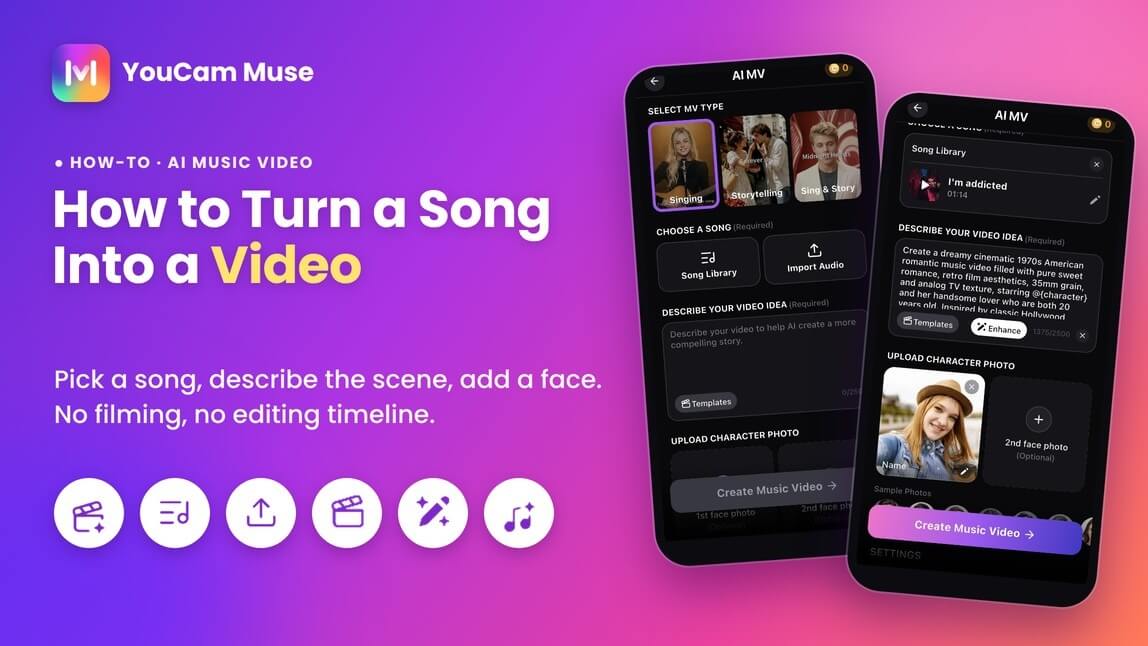
I've had a song sitting in my phone's voice memos for months that I kept meaning to post. The problem was never the song. It was that every platform I wanted to share it on (TikTok, Reels, YouTube Shorts) wants a video, and I don't have a camera crew, a location, or the patience to learn a video editor just to get one clip out.
So I went looking for the fastest honest way to turn a song into a video. What I found is that there are really three kinds of "song videos," and picking the right one first saves you more time than any tool does. Below I walk through all three, then show the exact steps I use to turn a track into a full AI music video on my phone with YouCam Muse, plus the prompt formula that made the biggest difference in how the video came out.
Some images may be AI-generated for illustration purposes.
Table of Contents
- Quick answer: how to turn a song into a video
- 3 ways to turn a song into a video (and which one you need)
- Prep your song before you make anything
- Option 1 and 2: static visualizer or lyric video
- Option 3: turn a song into an AI music video, step by step
- The prompt formula that makes the video match the song
- Pro tips for posting your song video
- Mistakes I'd avoid
- FAQ
Quick answer: how to turn a song into a video
To turn a song into a video, choose the format first: a static visualizer (cover art plus the audio), a lyric video (words timed to the track), or a full music video with scenes and characters. For the first two, any video editor works: add your audio, add an image or text, and export an MP4. For a full music video without filming, use an AI music video app: upload or pick the song, describe the video idea, optionally add a face photo, and let the AI generate the scenes to the track.
3 ways to turn a song into a video (and which one you need)
Most "song to video" pages you'll find are tool landing pages that jump straight to "upload your MP3." Before you do that, it's worth deciding what the video is actually for, because each format has a very different effort level and a very different payoff.
| Format | What it looks like | Best for | Effort |
|---|---|---|---|
| Static visualizer | One image (cover art or a photo), sometimes with a waveform, playing over the full song | Uploading a full track to YouTube so it exists as a video; releases where the audio is the point | Low: a few minutes in any editor |
| Lyric video | Lyrics appear on screen in time with the vocals, over a background or simple motion | Songs with a strong hook or sing-along chorus; helping people learn the words | Medium: timing every line takes the longest |
| AI music video | Generated scenes, a story or a performer, and your own face if you want, edited to the track | Short-form clips for TikTok, Reels and Shorts; artists who want a "real" MV without filming | Low to medium: mostly writing a good video idea |
My rule of thumb: if you just need the song to exist on a video platform, do a static visualizer. If people already sing along, do a lyric video. If you want people to stop scrolling, you need moving scenes, and that's where an AI music video is now the realistic option for most of us.
Prep your song before you make anything
This is the part none of the ranking tool pages really cover, and it's where most of my early attempts went wrong. Five minutes of prep here saves a lot of regenerating later.
- Make sure you have the rights. Use a song you wrote, one you generated yourself, or one you're licensed to use. Uploading someone else's hit to make "your" music video can get the post muted or taken down.
- Export a clean audio file. Bounce the final mix, not a phone recording of speakers. If you made the track in an AI song app, download the finished version rather than a preview.
- Decide how much of the song you need. For TikTok, Reels and Shorts, the chorus or the strongest 30 to 60 seconds usually performs better than the whole track. Save the full version for YouTube.
- Write down three mood words. "Warm, nostalgic, slow" or "dark, fast, neon." You'll use these in the video prompt, and they keep the visuals from fighting the music.
- Pick your "star." If you want to appear in the video, choose a clear, front-facing photo with good light. If not, decide who the main character should be instead.
Option 1 and 2: static visualizer or lyric video
How to make a static visualizer
- Open any video editor (desktop or mobile) and start a project in the ratio you need: 16:9 for YouTube, 9:16 for TikTok, Reels and Shorts.
- Drop in your cover art or a photo and stretch it to the full length of the song.
- Add the audio file on the audio track.
- Optionally add a waveform or subtle zoom so the frame isn't completely still.
- Export as MP4 and upload.
How to make a lyric video
- Paste your lyrics into a doc, one line per row.
- Play the song and note the timestamp where each line starts.
- In your editor, add a text layer per line and set it to those timestamps.
- Keep the font large and high-contrast; most people will watch on a phone with the sound off at first.
- Export and put the full lyrics in the video description too, which helps people find it by searching a line they remember.
Both work, but they're mostly "audio with something on screen." If you want an actual music video with scenes, a story and a performer, keep going.
Option 3: how to turn a song into an AI music video, step by step
This is the method I use now. I make these in YouCam Muse, an AI music video and song app on iPhone, because the whole flow lives on one setup screen: pick the song, describe the video, add a face, generate. No timeline, no filming.
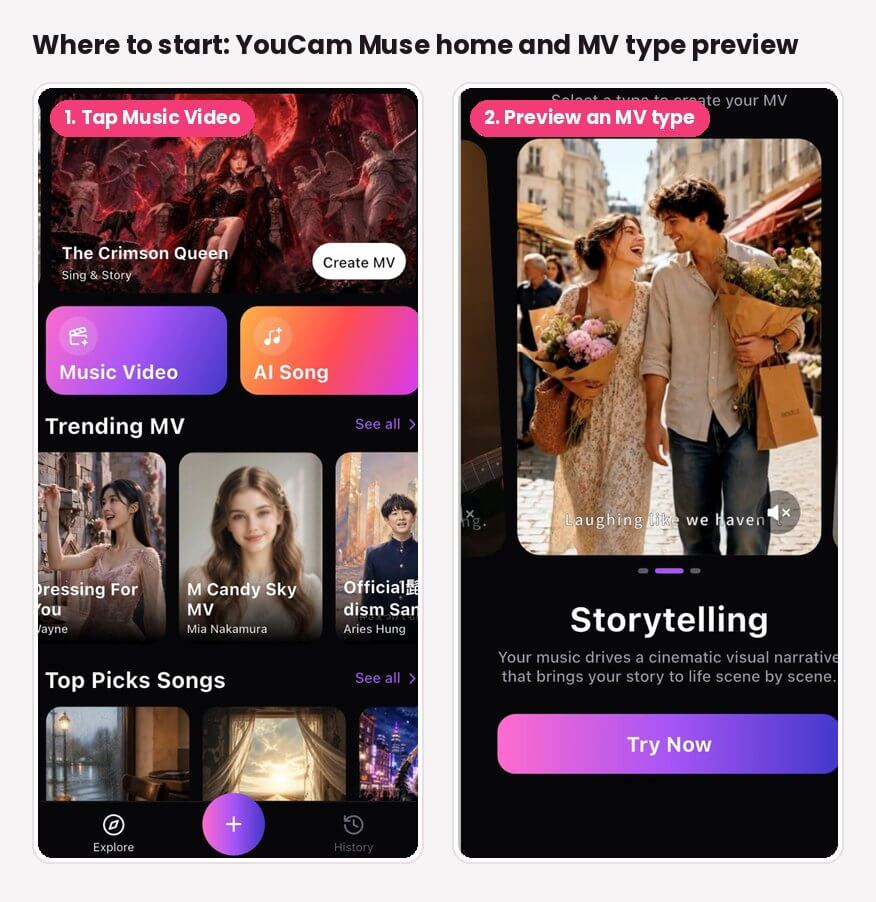
Step 1: Open Music Video from the home screen
On the YouCam Muse home screen there are two big buttons, Music Video and AI Song. Tap Music Video. Below them, the Trending MV and Top Picks Songs rails are worth scrolling once, just to see what styles other creators are getting.
Step 2: Choose the MV type that fits your song
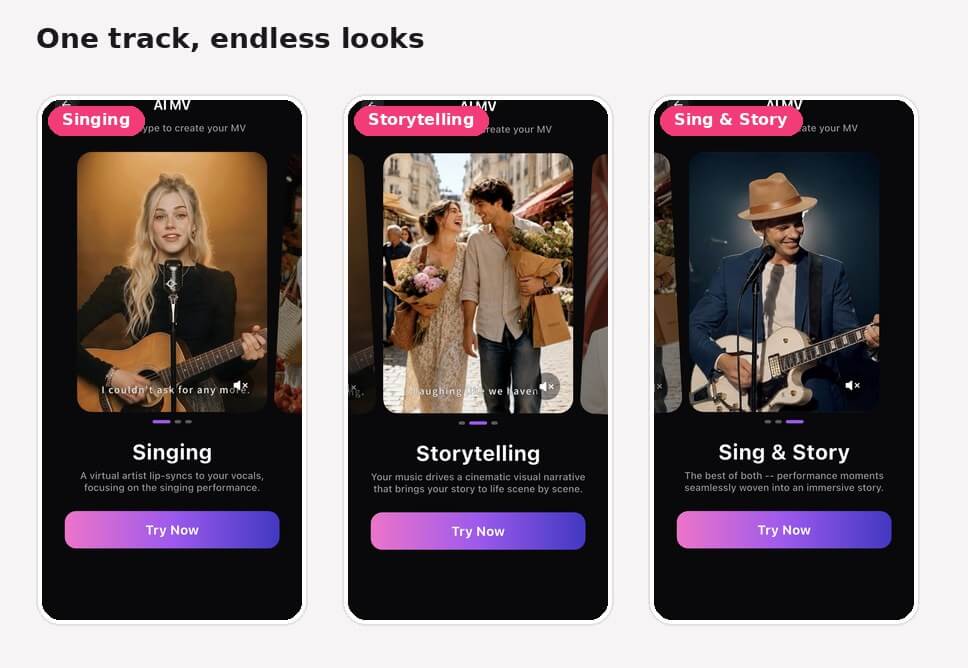
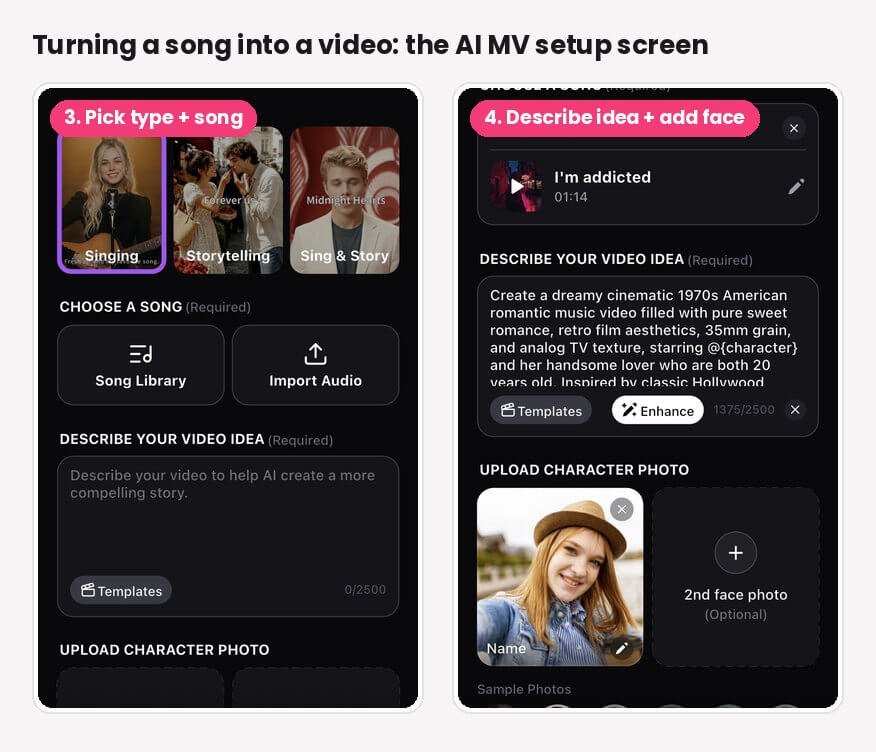
Under Select MV Type you get three options, each with a short preview so you can see what it produces before you commit:
- Singing: a performer front and center, singing the track. Good for ballads, acoustic songs and anything where the vocal is the star.
- Storytelling: in the app's own words, "your music drives a cinematic visual narrative that brings your story to life scene by scene." This is my pick for love songs and anything with lyrics that tell a story.
- Sing & Story: a mix of the two, cutting between performance and narrative scenes, like most official music videos do.
Step 3: Choose your song
Under Choose a Song, tap Import Audio to upload your own track, or Song Library to pick one that's already available in the app, including songs you've made with YouCam Muse's AI Song feature. Once a song is selected it shows as a card with its title and length, and you can tap the pencil icon to swap it.
Step 4: Describe your video idea
This field is required, and it's the single biggest lever on how good the video turns out. You get up to 2,500 characters. Tap Templates if you want a starting point, write your own idea, then tap Enhance to have the AI expand a short idea into a fuller, more cinematic description. Here's the idea I used for a retro love song:
"Create a dreamy cinematic 1970s American romantic music video filled with pure sweet romance, retro film aesthetics, 35mm grain, and analog TV texture, starring @{character} and her handsome lover who are both 20 years old. Inspired by classic Hollywood..."
Notice the @{character} tag. That's how you tell the AI where the person from your uploaded photo should appear in the story.
Step 5: Upload a character photo (optional)
Under Upload Character Photo, add a clear photo of yourself or whoever should star in the video, and give them a name. You can add a 2nd face photo for a duet or a couple story, or skip photos entirely and tap one of the Sample Photos instead.
Step 6: Tap Create Music Video, then share
Tap Create Music Video. YouCam Muse supports two creation paths: a storyboard-first path, where the AI drafts the video scene by scene for you to review before it renders the final MV, and a direct path that generates the complete video from your track in one step. When it's done, you can share it to the YouCam Muse community feed or export it for your other social platforms.

AI Music Video & Song Maker
Turn any song into a music video.
No filming, no editing timeline.
What the result can look like
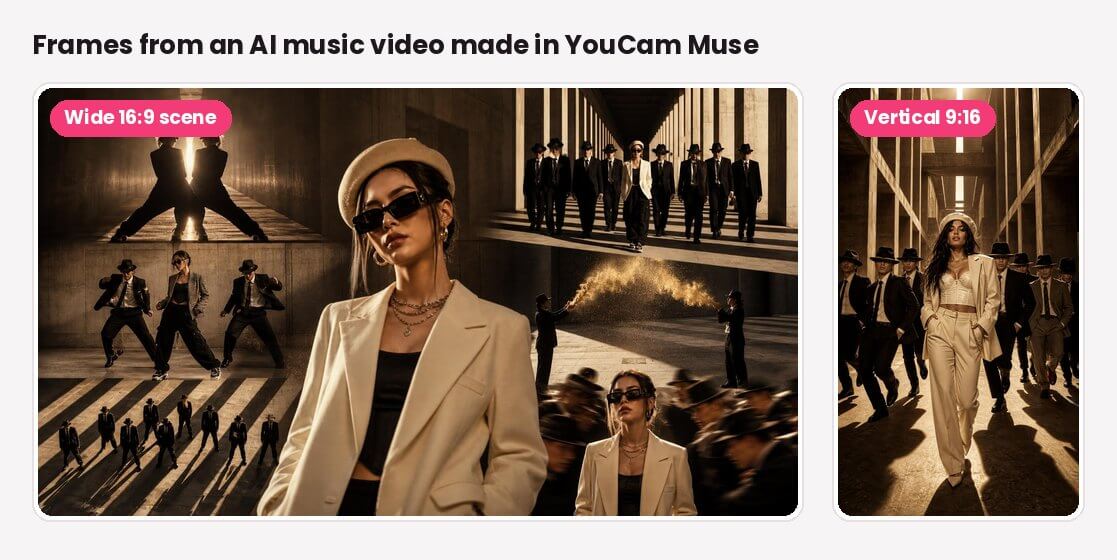
Here are frames from a music video made in YouCam Muse, with a moody, golden-hour, film-noir look: a lead character in a cream suit, a crew of dancers in black suits and fedoras, and dramatic light and shadow through concrete architecture. The same look carries across both a wide scene and a vertical frame for short-form.
The prompt formula that makes the video match the song
When my videos felt "off," it was almost always because the visuals ignored the song's tempo or mood. This formula fixed it for me. Fill in each part and you'll have a solid video idea in a couple of minutes:
[Era or visual style] + [mood words from your prep] + [setting] + [who's in it, with @{character}] + [camera and texture] + [how the story changes by the chorus]
A few ideas you can copy and tweak:
- Slow ballad: "Soft, rainy-night city story. @{character} walks alone under streetlights, reflections on wet pavement, slow camera push-ins, warm window light. By the chorus, she reaches a lit café window and smiles."
- Upbeat pop: "Bright Y2K summer music video. @{character} and friends on a rooftop party, candy colors, fisheye close-ups, quick cuts on the beat, confetti at the chorus."
- Hip-hop: "Gritty film-noir look, golden-hour light through concrete columns. @{character} in a cream suit leads a crew of dancers in black suits and fedoras, low-angle shots, synchronized moves on every drop."
- Indie folk: "Hand-held 16mm road-trip story, dusty backroads, golden fields. @{character} with an acoustic guitar in the back of a pickup truck, lens flares, freeze-frame on the last line."
- EDM: "Neon cyber-city at night, laser grids and fog. @{character} on a glowing stage, strobing lights synced to the kick, crowd hands in the air at the drop."
If a prompt feels too thin, write the first two parts yourself and let Enhance fill in camera and texture details.
Pro tips for posting your song video
- Hook in the first two seconds. On TikTok and Reels, start the clip at the strongest line or the beat drop, not the intro.
- Make one video per platform shape. Vertical 9:16 for TikTok, Reels and Shorts; widescreen 16:9 for a full YouTube upload.
- Keep the character consistent. Use the same face photo and character name across videos for the same song or artist project, so your audience recognizes the "star."
- Post the lyrics in the caption or description. People often search a line they heard, not the song title.
- Stagger your posts. Post the full video first, then cut short clips of the chorus and bridge over the next few days to keep the song in front of people.
Mistakes I'd avoid
- Mismatched mood. A cyberpunk neon look on a soft acoustic song is jarring. Go back to your three mood words.
- A vague one-line idea. "Cool music video" gives you generic scenes. Name the era, setting and who's in it.
- A low-quality face photo. Side angles, sunglasses or heavy shadows make it harder to get a recognizable character.
- Using a song you don't have rights to. It's the fastest way to have a great video muted.
AI Music Video & Song Maker
Turn any song into a music video.
No filming, no editing timeline.
FAQs
How can I convert audio to video?
The simplest way is to put the audio file in any video editor with a still image (like your cover art) stretched to the song's length, then export as MP4. That gives you a static visualizer. If you want moving scenes instead of a still image, use an AI music video app that generates visuals from the track.
Can AI turn music into a video?
Yes. AI music video apps can take a song and generate scenes to go with it. In YouCam Muse, for example, you choose an MV type (Singing, Storytelling, or Sing & Story), pick or import the song, describe your video idea, optionally add a face photo, and the app generates the music video. You don't need to film or edit anything.
How do I make a video with background music?
If you already have footage, add your clips to a video editor, put the song on the audio track, and trim the clips to the beat. If you don't have footage, an AI music video app can generate the visuals for you from the song and a short description of what you want to see.
Can ChatGPT create a music video?
General chat assistants are useful for brainstorming the concept, writing the storyline, or drafting the video-idea prompt. To get a finished video that's actually timed to your song, you'll still want a dedicated music video tool. A good workflow is to draft the idea in a chat assistant, then paste it into the "Describe your video idea" field in YouCam Muse.
Do I need my own photo to make an AI music video?
No. In YouCam Muse the character photo is optional. You can upload one or two face photos to star in the video, pick from the app's sample photos, or skip it and describe the characters in your video idea.
Can I use any song I like?
You can technically import audio, but you should only use songs you own, created, or are licensed to use, especially if you plan to post publicly. Songs you make yourself, including ones you create with an AI song generator, are the safest choice.