 Author:
Looking for smarter ways to edit multiple photos at once? With nano banana prompts and the powerful Editing Agent in YouCam Perfect, you can transform, combine, and restyle photos using simple text instructions.
In this guide, you’ll learn how to use nano banana prompts effectively, explore real-world multi-photo use cases, and discover 100+ Nano Banana Pro prompt ideas to upgrade your photo editing workflow.
What Are Nano Banana Prompts?
Nano banana prompts are natural-language instructions used with Nano Banana Pro, allowing AI to understand what you want to edit, how you want it styled, and how multiple images should work together.
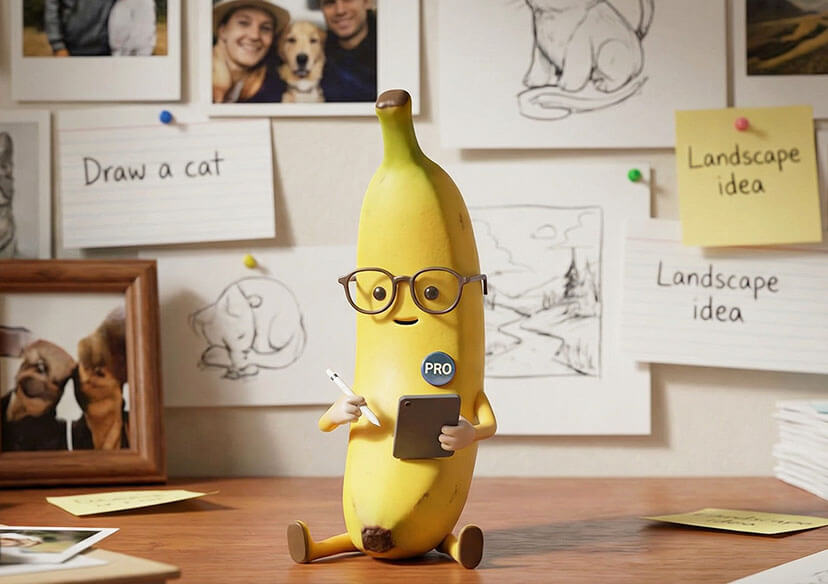
Instead of editing photos one by one, you can simply tell the AI what to do—saving time while achieving professional results.
📒 Read More:
YouCam Online Editor Text-to-Image Prompt Guide & Tips
Guide: Mastering Hyper-Realism with Nano Banana Pro & YouCam Online Editor
Why Use Nano Banana Prompts in YouCam Perfect?
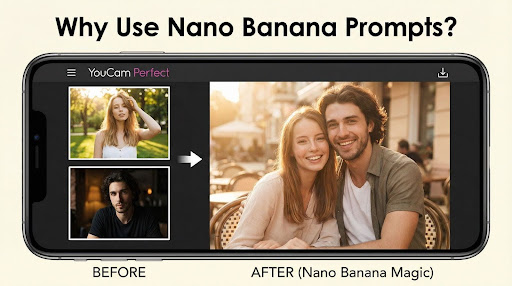
With the YouCam Perfect's Editing Agent, nano banana prompts unlock advanced multi-image editing that traditional tools can’t easily handle.
🔔 Key Benefits
- Edit multiple photos at once
- Merge people from different photos into one
- Match styles, lighting, and mood automatically
- Create group photos, lifestyle shots, and creative composites effortlessly
How to Use Nano Banana Prompts in YouCam Perfect?
YouCam Perfect's AI Agent does the heavy lifting so you can focus on the fun—no technical skills needed. Follow the steps below!
Step 1. Download YouCam Perfect
Shared Materials by Strapi
*Adjust the size of images ONLY. Please go to Strapi to edit the materials info.
Search for YouCam Perfect on your app store and download the application.
Step 2. Select "Editing Agent"
Open the app and navigate to the "Editing Agent" feature.
Step 3. Upload Photo & Enter Prompts
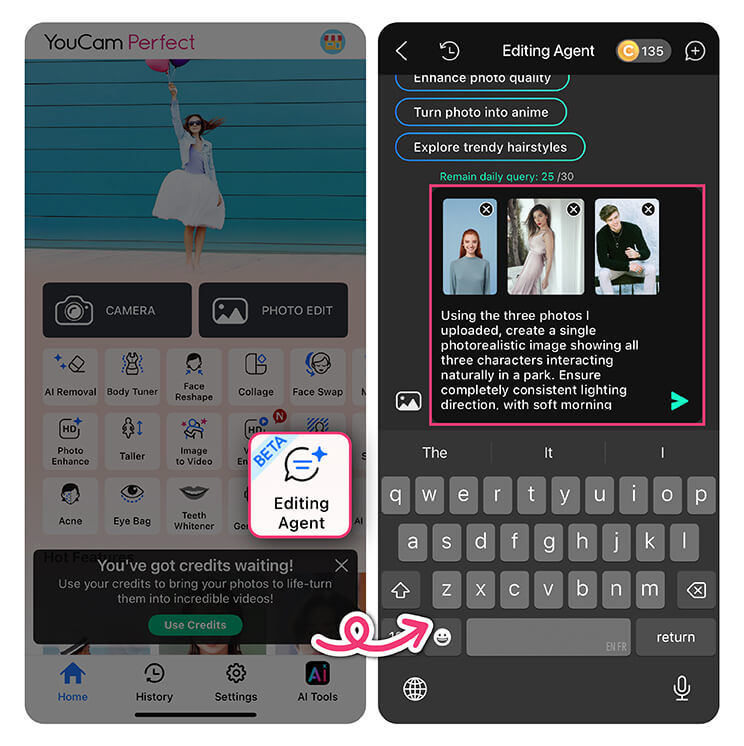
Tap to upload multiple photos, and enter your creative Nano Banana prompt!
Describe clearly what should happen to each image and the final style, mood, or composition.
🪶Try prompts like: "Combine the people from both uploaded photos into one realistic group photo. Match lighting, shadows, and perspective so they look naturally photographed together."
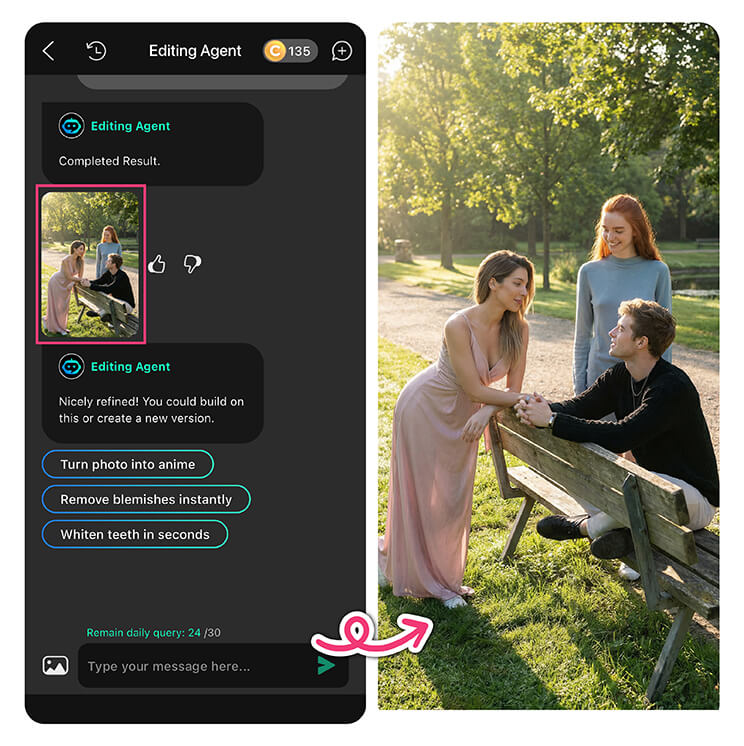
Step 4. Save & Download
Select your favorite generated image and save the final high-resolution Christmas picture to share, print, or post!
📒 Read More:
Best Nano Banana Pro Prompts & How to Use it [Ultimate Guide]
How to Create Typography with Nano Banana Pro [Ultimate Guide & Prompts]
How to Create Thumbnails with Nano Banana AI Thumbnail Maker
100+ Copy-Paste Nano Banana Prompts
Here are 100+ Nano Banana Prompts for you to copy-paste, enter YouCam Perfect's Editing Agent and create your masterpiece in seconds!
A. Group Photo Creation

1. Combine the people from both uploaded photos into one realistic group photo. Match lighting, shadows, and perspective so they look naturally photographed together.
2. Merge the two subjects from separate images into a single group portrait with consistent lighting and skin tones.
3. Place both people side by side in one image, adjusting scale and position to look natural and balanced.
4. Create a group photo by combining individuals from each image with realistic spacing and eye level alignment.
5. Merge all uploaded portraits into one group photo with a clean, neutral background.
6. Combine the people into a casual group photo style, maintaining natural facial features and proportions.
7. Create a realistic group selfie by merging the subjects from both images.
8. Align poses and body proportions so both people look like they were photographed together.
9. Merge the portraits into a studio-style group photo with soft, even lighting.
10. Combine all subjects into one image with realistic shadows and consistent color tone.
📒 Read More: 15 Gemini Nano Banana Pro AI Prompts for Couple Photos (Copy Paste)
B. Match Style Across Photos
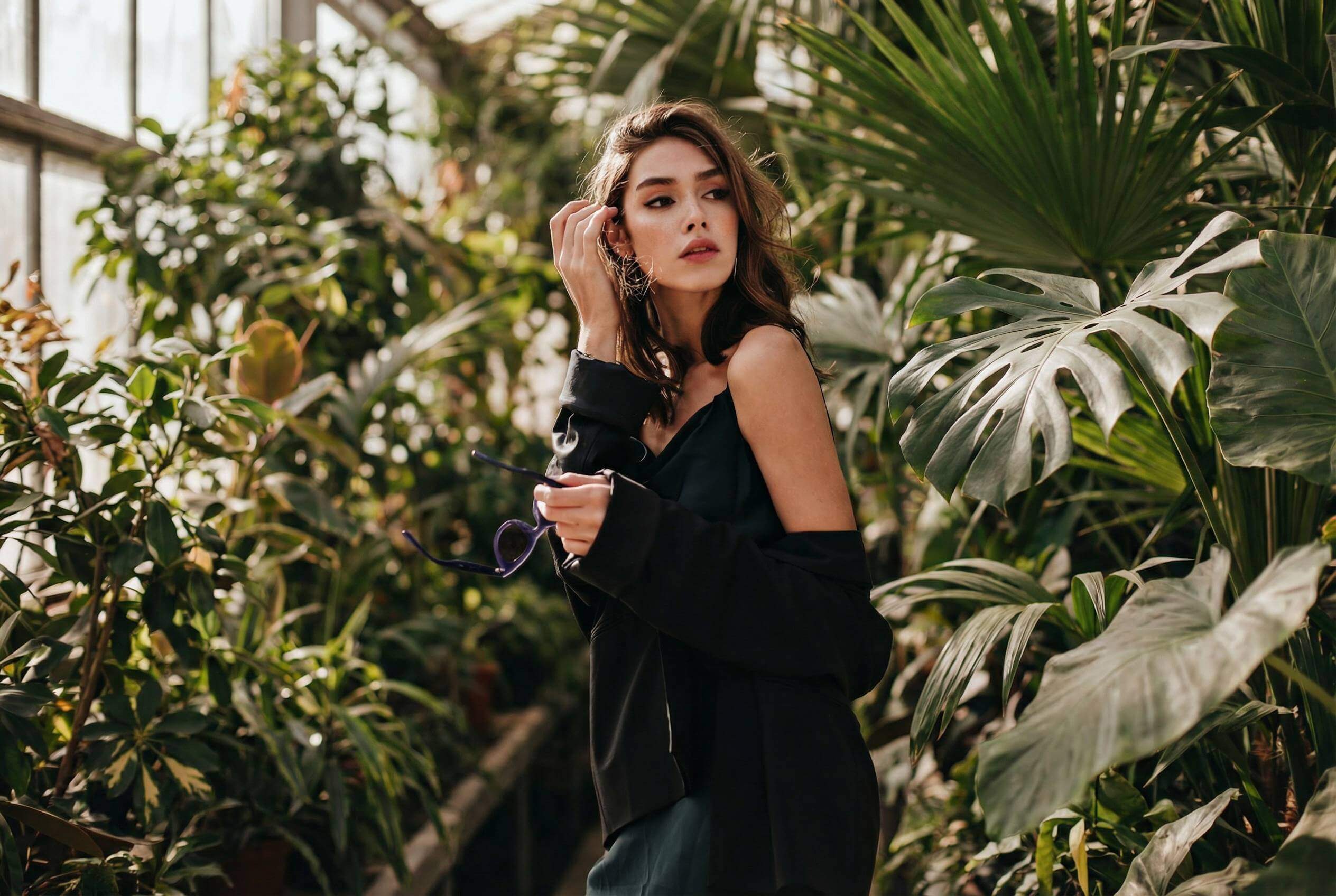
1. Apply the lighting, color tone, and contrast from the first image to the second image for a consistent look.
2. Make both photos look like they were taken in the same photoshoot by matching exposure and color grading.
3. Match skin tone, brightness, and shadows across all uploaded images.
4. Apply a soft, warm aesthetic consistently to every image.
5. Convert all images to the same cinematic color style.
6. Match background blur and depth of field between photos.
7. Adjust highlights and shadows so all photos share the same lighting style.
8. Apply the same editing style from image one to image two.
9. Make the photos visually cohesive with consistent color balance.
10. Create a unified visual style across all uploaded images.
📒 Read More: 100+ Copy-Paste Nano Banana Pro Prompts Examples for Every Scenario
C. Team / Family Creation
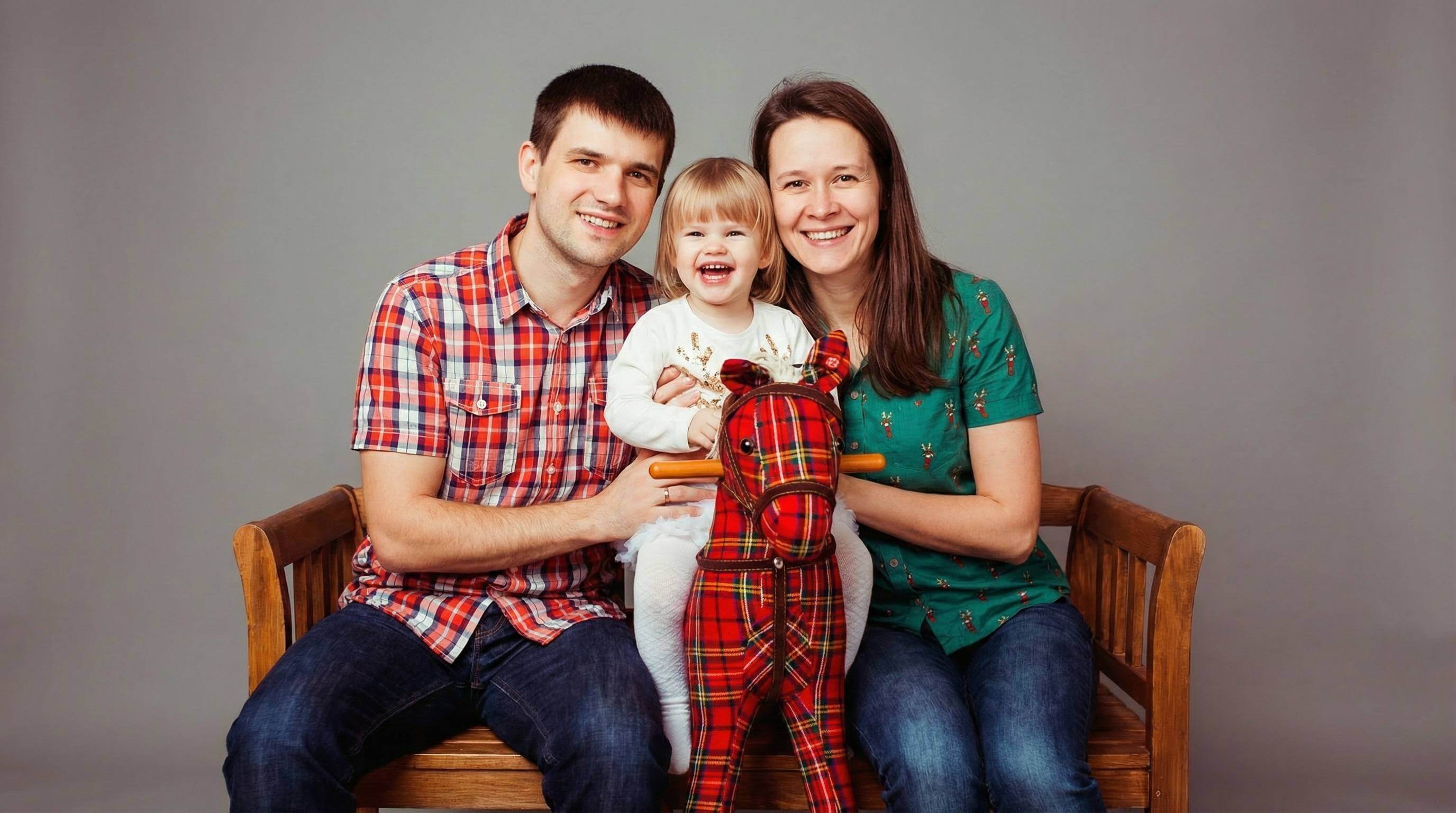
1. Turn the individual portraits into one professional team photo with realistic spacing and lighting.
2. Combine separate portraits into a natural-looking family group photo.
3. Create a company team photo using the uploaded individual headshots.
4. Arrange all of the people into a balanced group composition with studio lighting.
5. Generate a holiday-style family photo from individual images.
6. Merge solo portraits into a clean, professional team banner image.
7. Create a friendly group photo by combining all uploaded portraits.
8. Place all individuals into one shared background with natural proportions.
9. Create a polished group image suitable for social media.
10. Combine portraits into a realistic group photo with consistent color tone.
📒 Read More: 20+ ChatGPT Christmas Prompts To Make Your Holiday Creations Shine
D. Before & After / Comparison
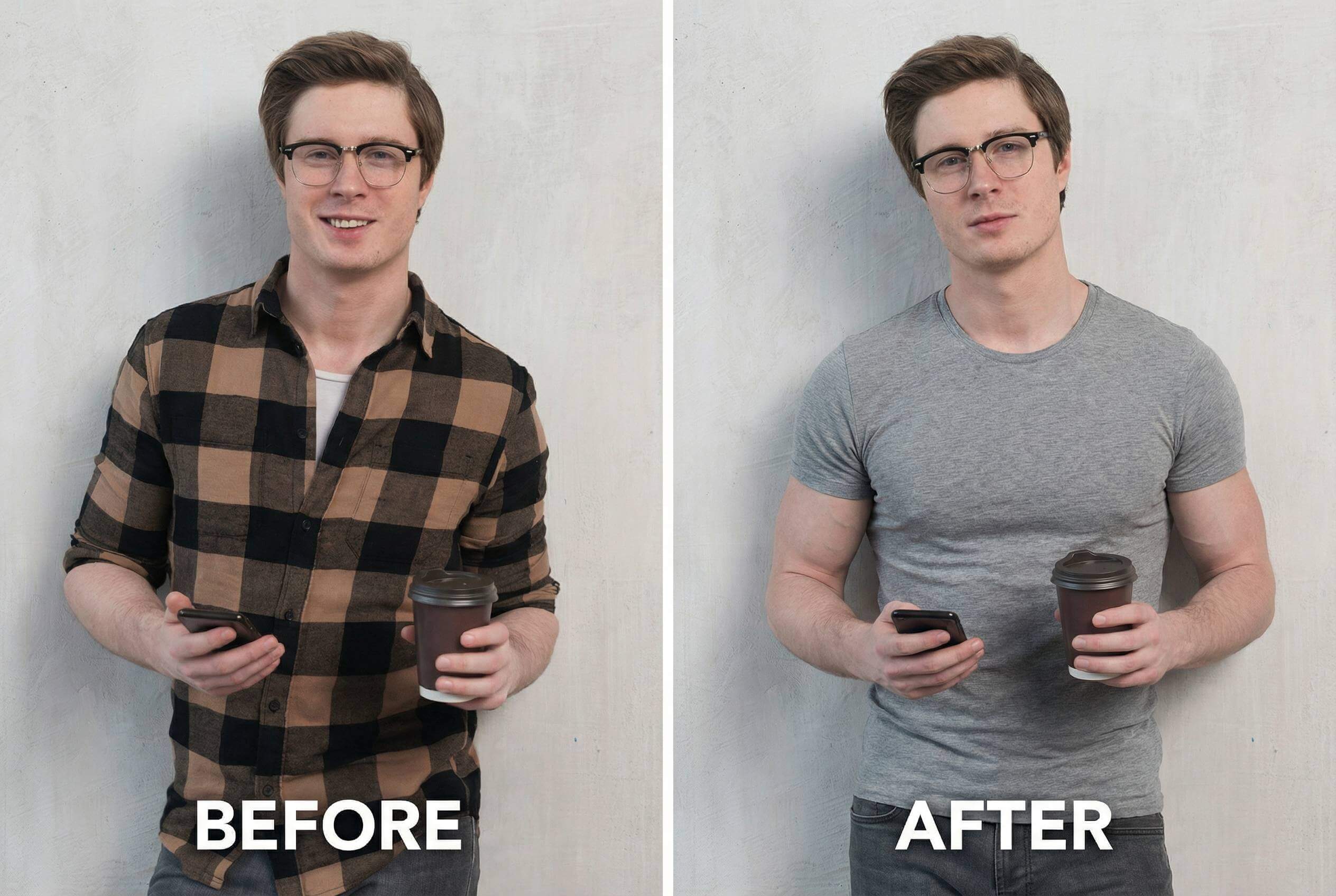
1. Create a before-and-after comparison using the two uploaded photos, placed side by side.
2. Align both images for a clean transformation comparison with matching framing.
3. Generate a professional before-and-after layout with consistent lighting.
4. Match background and camera angle for accurate comparison.
5. Create a split-screen image clearly showing the transformation.
6. Produce a fitness progress before-and-after image using both photos.
7. Create a makeover comparison with clean lighting and neutral background.
8. Align facial position and scale for a clear comparison result.
9. Enhance clarity while keeping the comparison realistic.
10. Create a simple, professional comparison image.
📒 Read More: 15 Best ChatGPT Photo Prompts for Natural Looking Portraits (Copy Paste)
E. Person into Scene
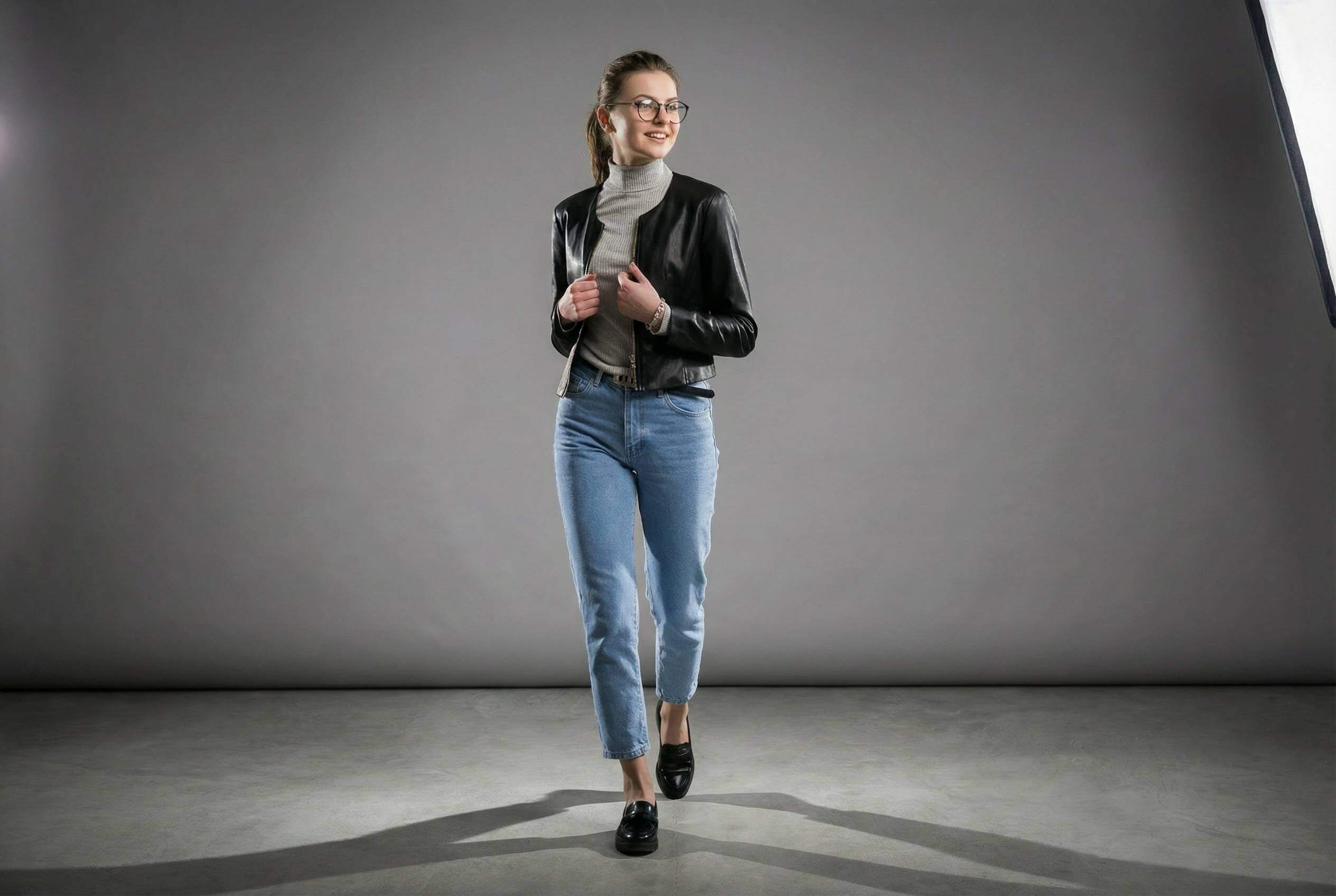
1. Place the person from the first image into the background of the second image naturally.
2. Insert the subject into the new scene while matching lighting and shadows.
3. Blend the person into the environment so it looks realistic.
4. Match color tone between the subject and the background scene.
5. Place the person into an outdoor lifestyle scene naturally.
6. Insert the subject into a travel photo background with a realistic perspective.
7. Blend edges smoothly for a seamless composite image.
8. Adjust lighting so the subject matches the scene environment.
9. Place the person into a studio scene with realistic shadows.
10. Create a natural-looking composite image using both photos.
📒 Read More: How to Change the Color of an Image with AI Prompt
F. Social Media Ready
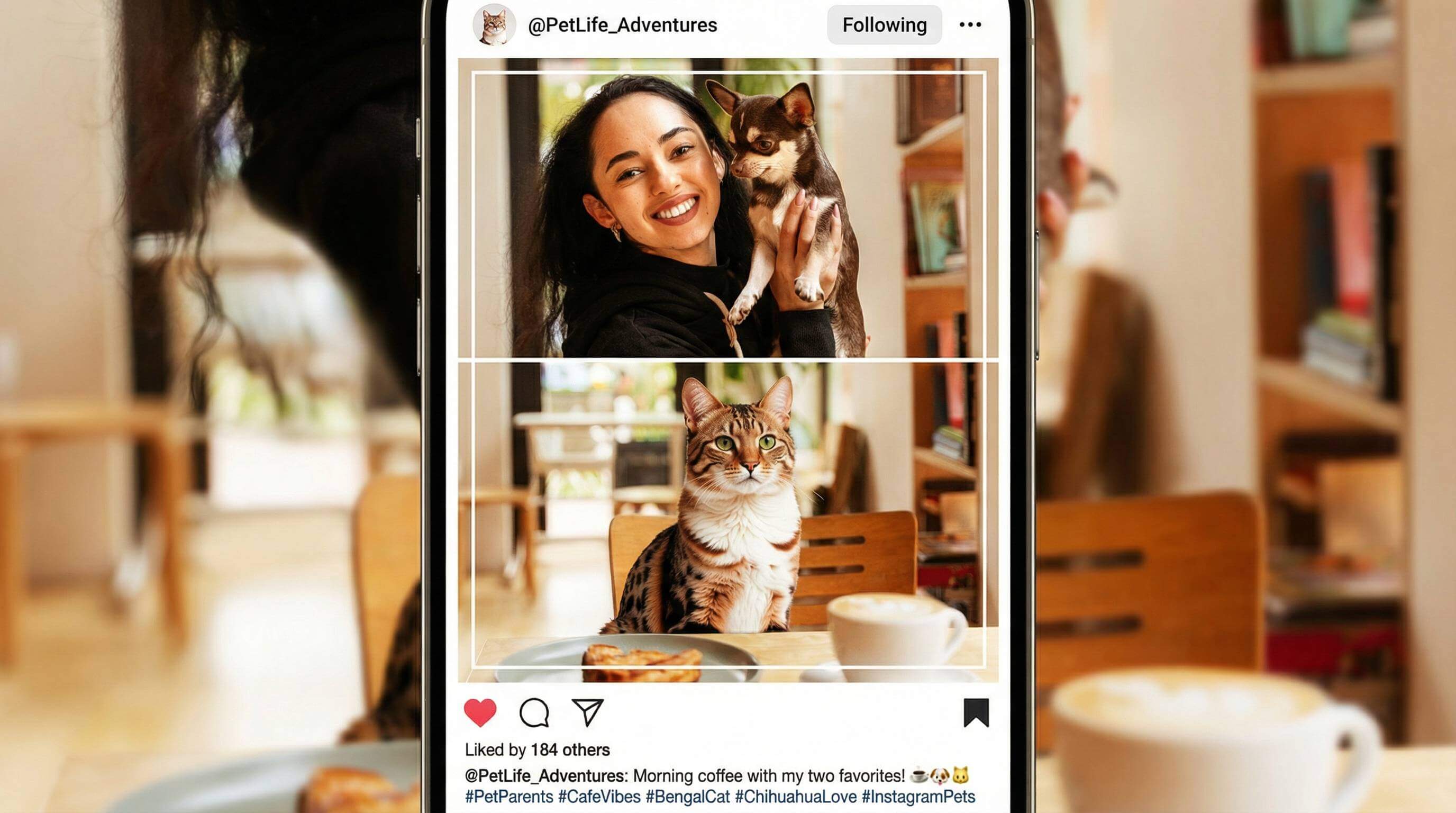
1. Create a social-media-ready group photo with clean lighting and modern style.
2. Generate a trendy Instagram-style portrait layout from the uploaded images.
3. Create a casual lifestyle photo optimized for social media.
4. Design a clean, shareable group image for online posting.
5. Enhance lighting and colors for mobile viewing.
6. Create a profile-photo-friendly composition.
7. Generate a modern, polished image suitable for social platforms.
8. Make the photo look natural, bright, and engaging.
9. Optimize the image for social media aesthetics.
10. Create a visually appealing image ready to post online.
📒 Read More: Nano Banana Pro Prompts for the All-in-One AI Beauty Agent
G. Business & Profile Photos

1. Create a professional team photo suitable for LinkedIn.
2. Merge portraits into a clean corporate group photo.
3. Apply professional studio lighting to all subjects.
4. Create a polished business headshot style image.
5. Match background and lighting for a corporate look.
6. Generate a professional profile photo set.
7. Align facial angles and proportions naturally.
8. Create a formal group image with neutral tones.
9. Enhance clarity while maintaining realistic details.
10. Produce a business-ready team image.
📒 Read More: 20 Gemini Nano Banana Prompts for Professional Photos (Copy-Paste)
H. Creative & Lifestyle
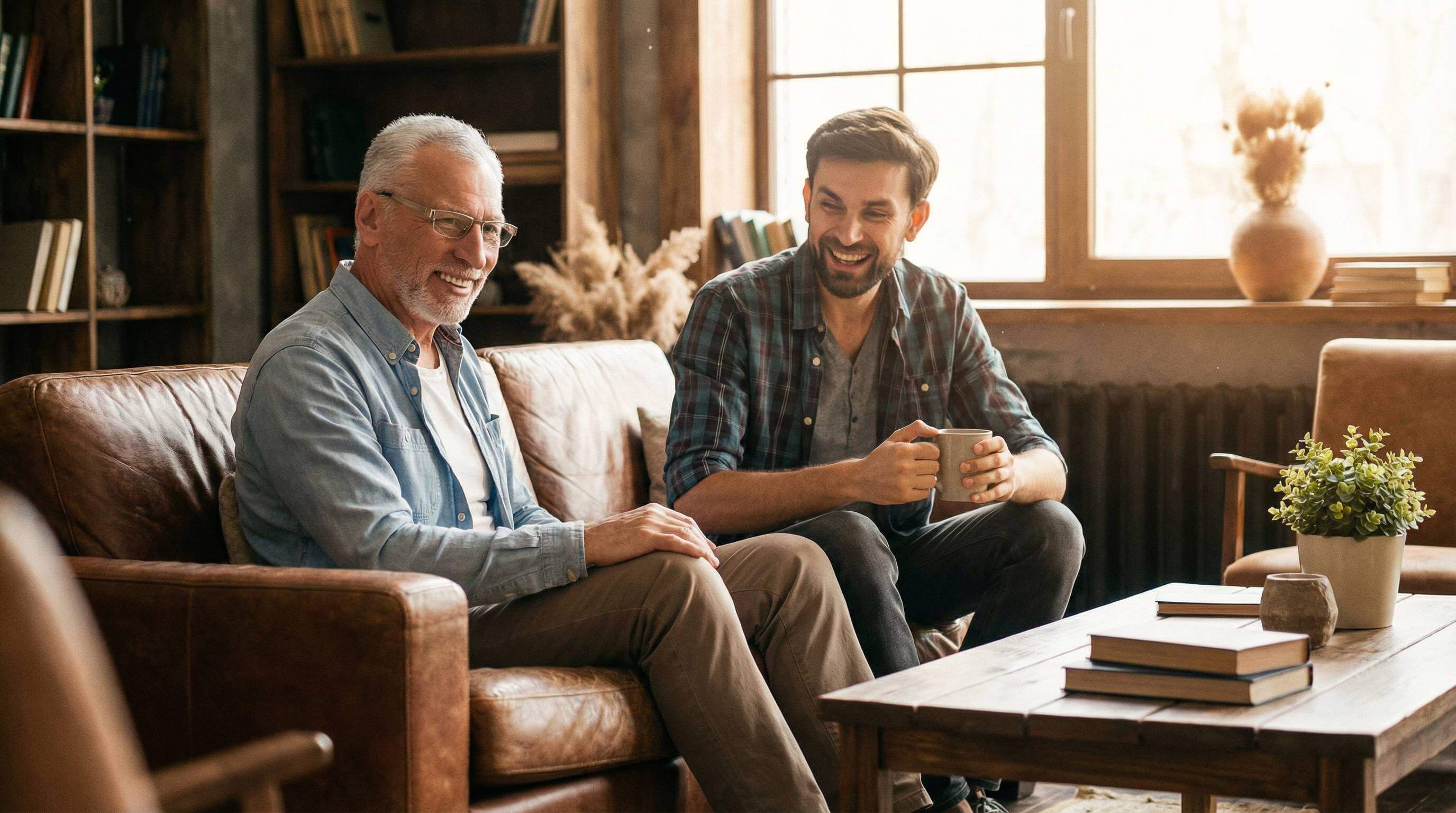
1. Turn portraits into a lifestyle-style photo with natural lighting.
2. Create a travel-inspired group image from the uploaded photos.
3. Apply a cinematic lifestyle aesthetic.
4. Add artistic lighting and mood to the image.
5. Create a casual everyday scene.
6. Blend people into a creative environment naturally.
7. Apply a modern editorial look.
8. Use soft, natural lighting for a lifestyle feel.
9. Create a storytelling-style image.
10. Generate a magazine-style photo composition.
📒 Read More: 24 Creative Family Photo Poses with AI Prompts for Perfect Shots
I. Background Editing
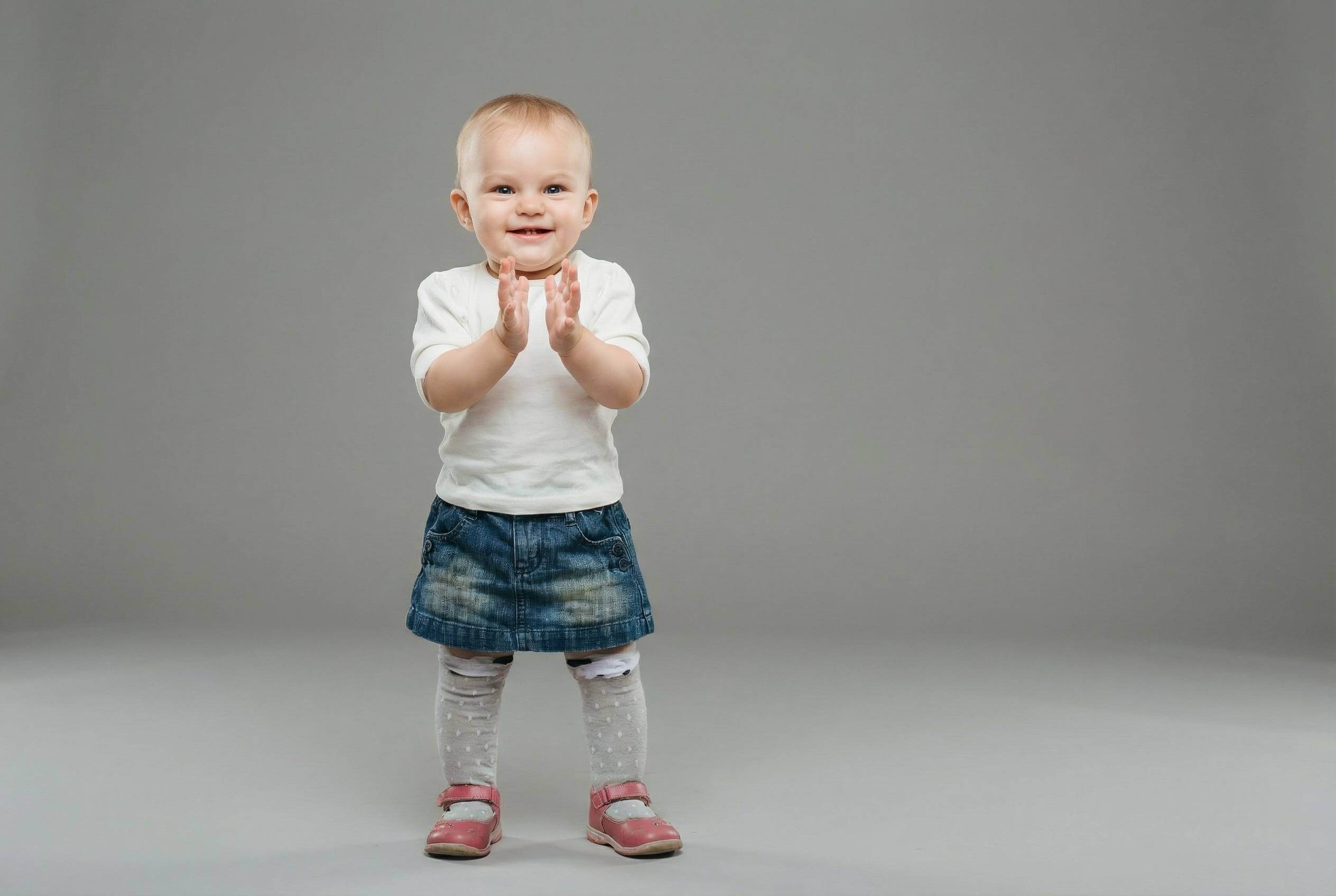
1. Replace the background while keeping the subject realistic.
2. Match background color and lighting across images.
3. Create a clean studio background.
4. Add a soft blurred background effect.
5. Adjust background lighting for consistency.
6. Create a neutral background for portraits.
7. Enhance depth between subject and background.
8. Align background perspective naturally.
9. Remove distracting background elements.
10. Create a unified background style.
📒 Read More: 2026 New Year Background Images: 40+ Happy New Year Photo Backgrounds
J. Advanced Editing Agent Tasks

1. Combine multiple images into one cohesive scene.
2. Automatically balance lighting across all subjects.
3. Create a realistic composite using all uploaded photos.
4. Adjust proportions naturally for every person.
5. Enhance realism while merging images.
6. Maintain facial accuracy for all subjects.
7. Create a clean, polished final composition.
8. Align poses and spacing automatically.
9. Blend images smoothly with minimal artifacts.
10. Generate a high-quality final image.
📒 Read More: Vision Board App: How to Create New Years Virtual Vision Board
Try YouCam Perfect’s Editing Agent Now
Ready to mix and recreate photos with Nano Banana Pro?
With nano banana prompts and the Editing Agent in YouCam Perfect, advanced photo editing becomes simple, fast, and creative!
Shared Materials by Strapi
*Adjust the size of images ONLY. Please go to Strapi to edit the materials info.
If you’re ready to explore smarter photo editing, start experimenting with Nano Banana Pro prompts today with YouCam Perfect—and see how far a single sentence can take your creativity.