
 Author: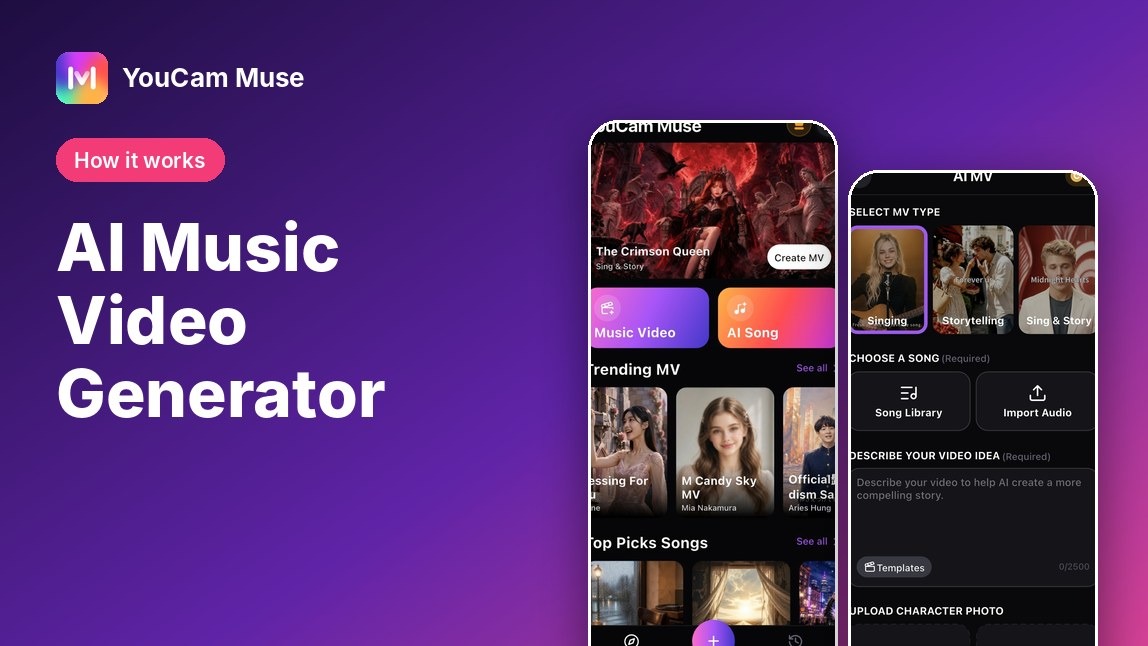
How the tools work, which music video type fits your song, and how to set one up in YouCam Muse.
You have a finished song and no camera, no crew and no editing software. An AI music video generator closes that gap: you give it the track and a short idea, and it builds the scenes for you.
This guide explains what these tools do, walks through the exact steps in YouCam Muse, and shows how to choose between its three music video types so your first result looks the way you pictured it.
Key Takeaways
- 🎵 Start with a song: pick one from the Song Library or import your own audio (MP3, AAC, WAV or M4A).
- 🎬 Pick a type: Singing, Storytelling, or Sing & Story decides whether a virtual artist performs, a story plays out, or both.
- 📝 Describe the idea: up to 2,500 characters, with Templates and an Enhance button to tighten the prompt.
- 🧩 Choose your path: Storyboard First lets you review scenes before rendering; Direct generates the video in one step.
- 📲 Share it: download the result or share it to Instagram, TikTok, WhatsApp and X from the result screen.
What is an AI music video generator?
An AI music video generator turns an audio track and a text description into a finished video: it plans scenes that fit the song, generates the visuals, and syncs them to the beat. You describe the mood and look; the tool handles the filming-and-editing work that used to take a team.
That is different from a simple visualizer, which only animates a waveform. If you want the full comparison of tools, see our tested roundup of AI music video generators; for the complete beginner walkthrough, start with how to make an AI music video.
How to make a music video in YouCam Muse
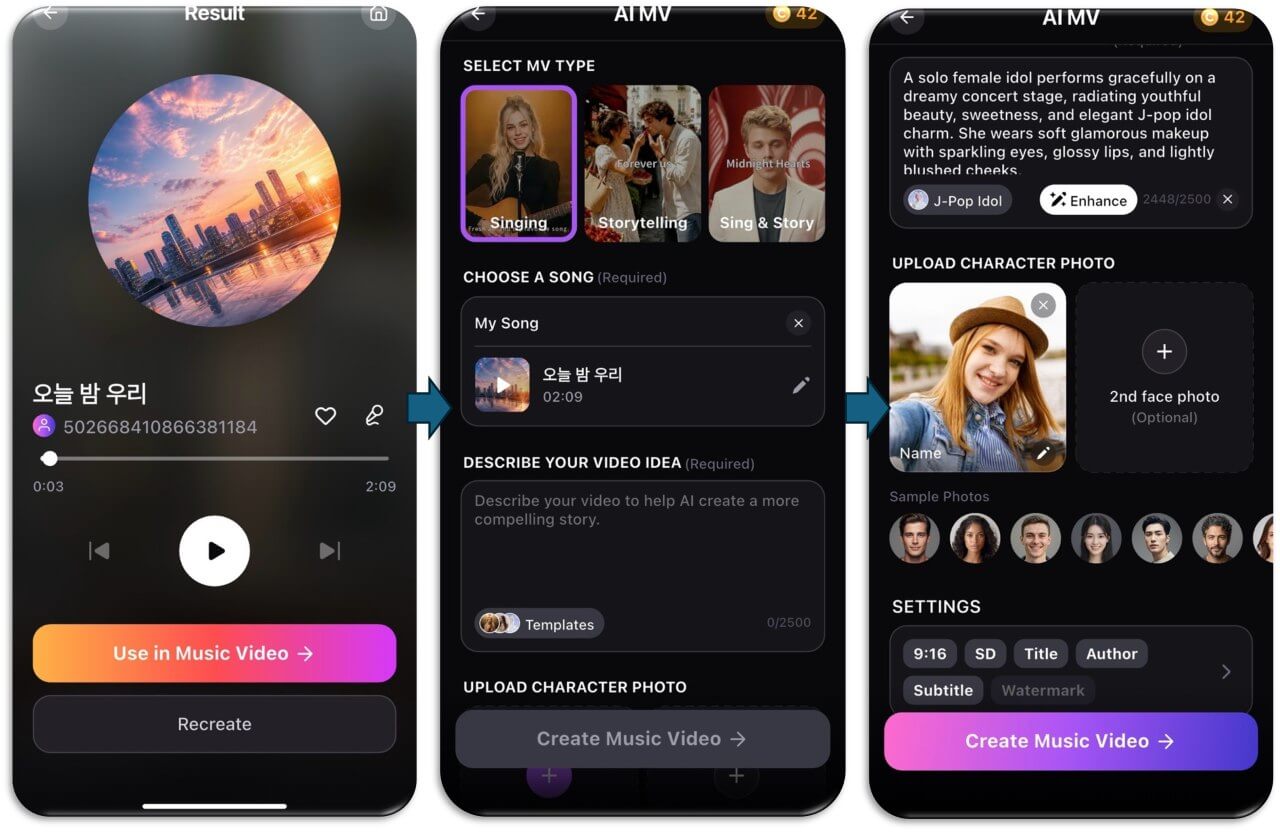
- Open YouCam Muse and tap Music Video on the Explore home screen.
- Pick an MV type: Singing, Storytelling, or Sing & Story.
- Choose your song from the Song Library or tap Import Audio. If the file is longer than the video needs, trim it to the part you want (the minimum is 30 seconds).
- Write your video idea. Tap Templates for a starting point, then Enhance to polish the wording.
- Optionally add up to two face photos so a character looks like you or your artist.
- Check the settings row (aspect ratio, resolution, title, author, subtitle, watermark), then tap Create Music Video and choose Storyboard First or Direct.
A peek inside the app
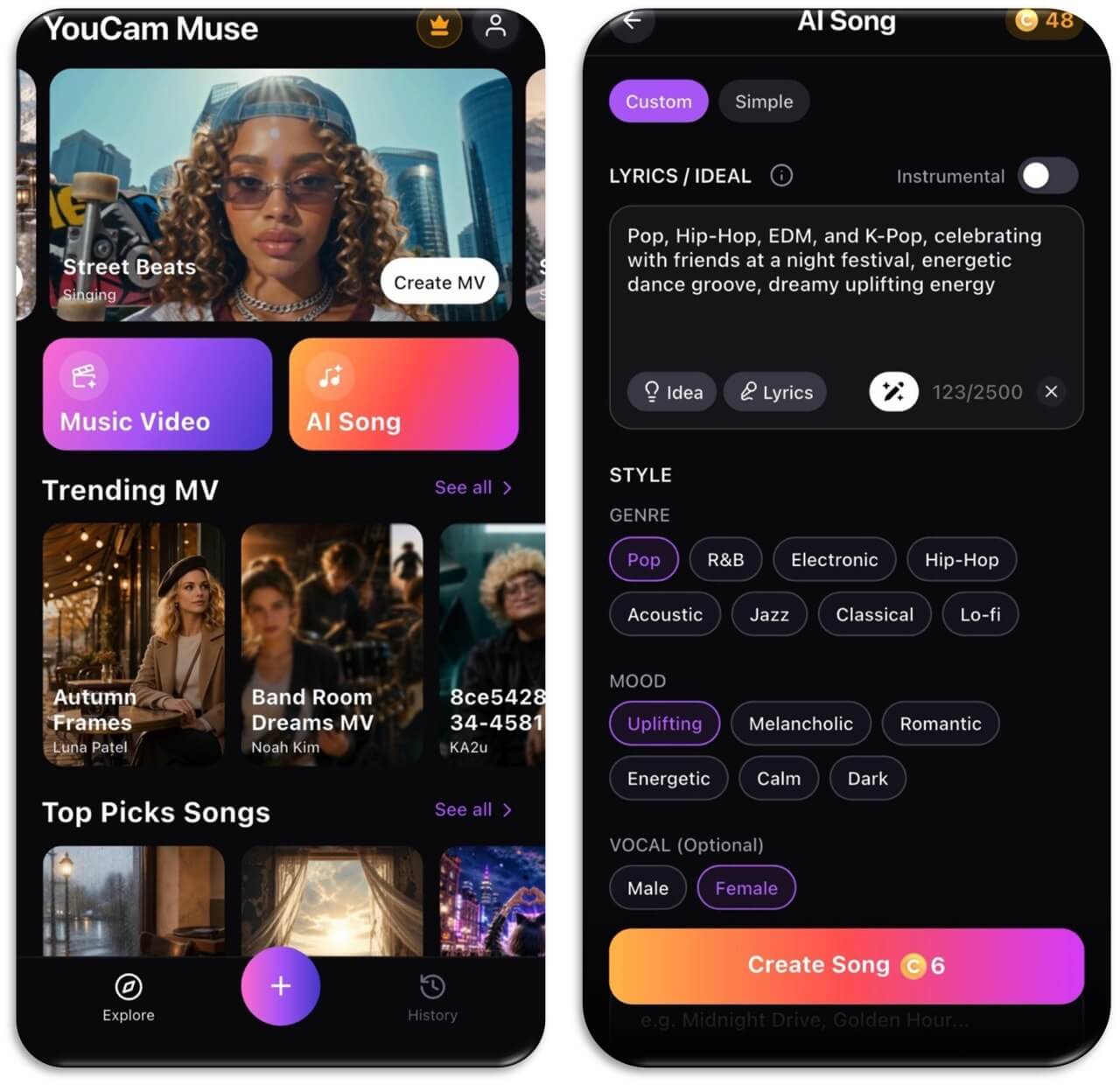
The Explore home screen puts Music Video and AI Song one tap away, with community videos below for inspiration. Tapping Music Video opens the feature room where the whole setup lives on one scrolling screen.
Which music video type should you pick?
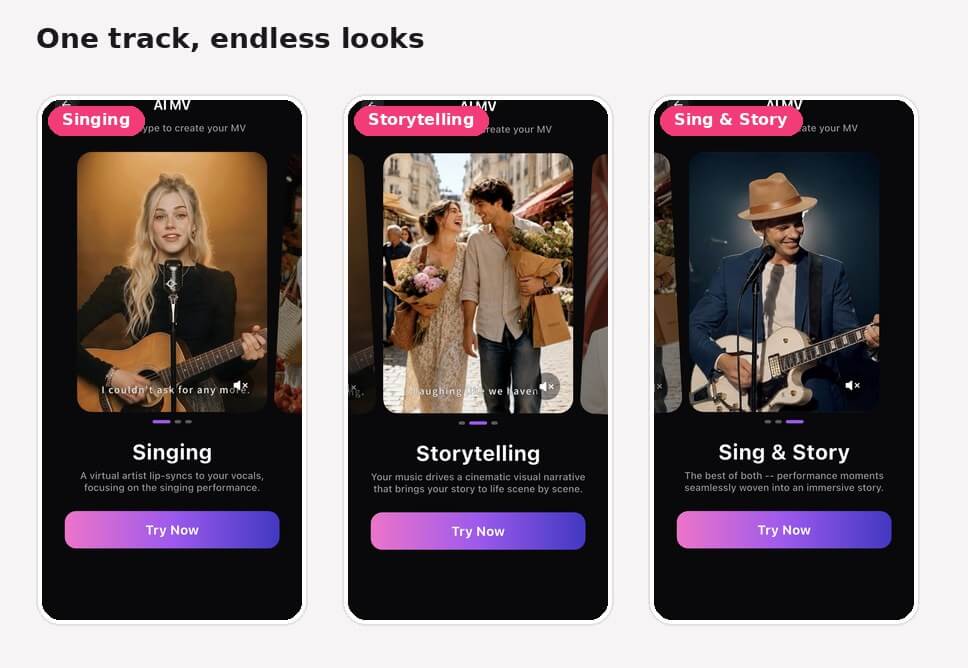
The type you choose sets the whole feel of the video, so decide it before you write your idea.
| MV type | What you see | Best for |
|---|---|---|
| Singing | A virtual artist lip-syncs to your vocals | Songs with strong vocals and a performance feel |
| Storytelling | Your music drives a cinematic story, scene by scene | Narrative songs, instrumentals, lyric-driven ideas |
| Sing & Story | Performance moments woven into a story | Singles that need both a face and a plot |

AI Music Video & Song Maker
Turn any song into a music video.
No filming, no editing timeline.
Storyboard First or Direct: which path is better?
After you tap Create Music Video, a sheet asks how you want to create. Create Storyboard First is marked Recommended: the AI drafts a scene-by-scene storyboard you can review and edit before the video renders. Create MV Directly skips that step and generates the video in one go.
- Choose Storyboard First when the story matters, when you want a specific look, or when it is your first video and you want to catch problems early.
- Choose Direct when you are experimenting, already know the idea works, or want a quick draft.
How do you get a better result?
- Be specific about the look. “Dreamy 1970s film grain, warm sunset city streets” gives the generator more to work with than “nice video”.
- Describe the story, not just the mood. One sentence per chorus is enough for Storytelling and Sing & Story.
- Use clear character photos. A front-facing, well-lit face photo gives the character a better starting point.
- Edit the storyboard. You can change the visual style and each scene’s synopsis before you spend credits on rendering.
What happens while it generates?
YouCam Muse shows a progress screen while it analyzes your audio and builds the storyboard or video. You can leave the screen and tap View Later in History; generation continues in the background, and a notification arrives when it is done. Generating uses credits. If a generation fails, the app marks it Failed in your creations and refunds the credits automatically.
How to choose an AI music video generator
Whichever tool you try, compare these five things before you commit:
| Check | Why it matters |
|---|---|
| Can you control the story? | Storyboard editing means fewer surprises after rendering |
| Does it work from your own song? | You want your track, not a stock one |
| How long and what format is the result? | Aspect ratio and length decide where you can post it |
| What does generating cost? | Look for how credits or plans are charged before you start |
| Can you share it directly? | One-tap sharing saves a download-and-upload step |
Once your video exists, our guide to turning a song into a video covers other formats, and cover song video ideas has concept starters. If you are not sure about rights for the song you use, read is AI music legal? first.
Try it now
Pick a song you already have, choose Storyboard First, and write one specific sentence about the look you want. Your first storyboard will tell you quickly whether the idea works.
AI Music Video & Song Maker
Turn any song into a music video.
No filming, no editing timeline.
FAQ
What is an AI music video generator?
It is a tool that turns a song and a short text description into a finished video, planning the scenes and generating the visuals for you.
Do I need filming or editing skills?
No. You choose a song, pick a type, describe the idea, and the app generates the video. You can edit the storyboard if you want more control.
Can I use my own song?
Yes. Tap Import Audio to use your own file (MP3, AAC, WAV or M4A, up to 50 MB), or choose a track from the Song Library.
Can I use my own face or character?
You can add up to two face photos so the video features a character based on them. The photos are optional.
Does it cost anything to generate?
Generating a video uses credits, and the cost is shown on the create sheet before you confirm. Check the app for current pricing.
Where can I share the video?
From the result screen you can download it or share it to Instagram, TikTok, WhatsApp and X, or publish it to the YouCam Muse community.
Which devices does YouCam Muse run on?
It is available on iPhone now. Android is listed as coming soon, and a web version is also offered.