Author:


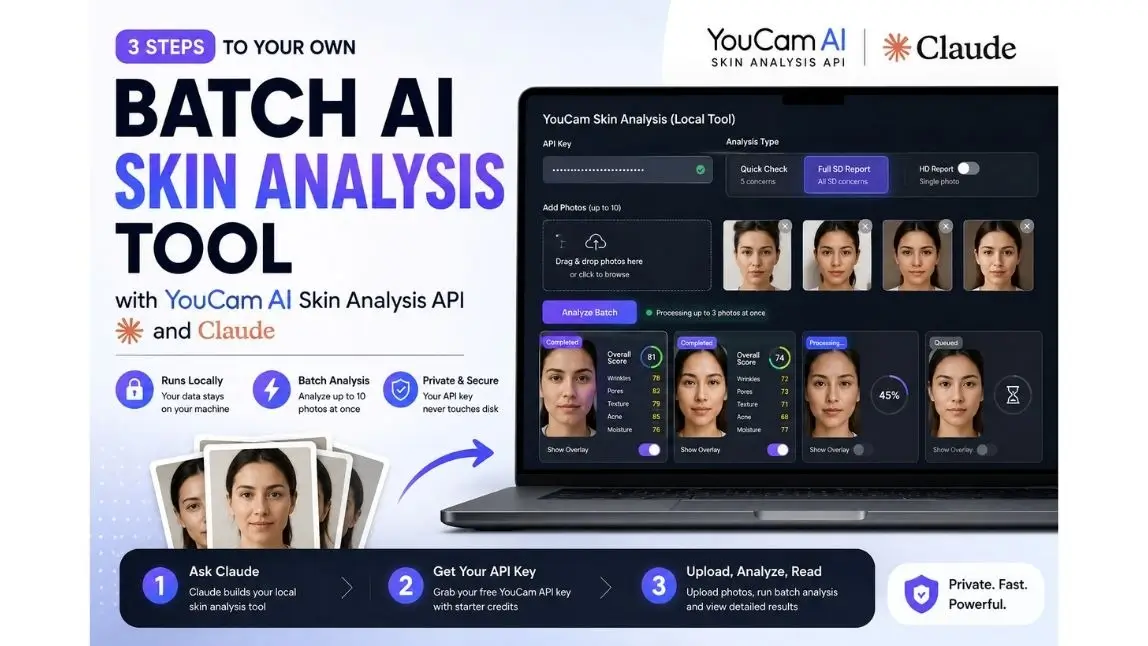
You have a stack of selfies. Maybe you are testing a skincare product line, maybe you are a medspa collecting before photos, maybe you just want to see your own skin score without opening a spreadsheet of API docs. Running each one through a proper skin analysis workflow, upload, wait, read the JSON, repeat, is not a fun afternoon.
Here is the good news: with the YouCam AI Skin Analysis API and Claude, you can have your own batch skin analysis tool running in about five minutes. No coding. No third-party upload sites. Just one prompt, one free API key, and a drag-and-drop tool that runs right on your own computer.
Three steps. Let's go.
What You'll Need Before You Start
- Claude Cowork, Anthropic's agentic workspace app. This is where the tool gets built.
- A YouCam API key, free to grab from the API console, with starter credits so you can run your first analysis right away. Get your API key here
- A few clear, front-facing photos, well-lit, no sunglasses, forehead visible. You probably already have a few good ones on your phone.
That is the whole list. Now let's build.
Step 1: Ask Claude to Build Your Skin Analysis Tool
Open Claude Cowork and paste in the prompt below. Claude builds a small local tool on your machine, a simple web page where you can drop in photos and run YouCam's Skin Analysis engine on each one.

Here is the prompt, copy the whole thing:
YouCam Skin Analysis (local tool)

Batch AI skin analysis using Perfect Corp's YouCam API (skin-analysis).
Runs entirely on your own machine, your API key never touches disk.

Run it
- macOS: double-click start-mac.command.
- Windows: double-click start-windows.bat.
First run installs dependencies automatically, then opens http://localhost:3940 in your browser.

Use it
1. Paste your YouCam API key into the field at the top.
2. Add up to 10 photos (click the dropzone or drag and drop).
3. Pick a concern preset: Quick Check (wrinkle, pore, texture, acne, moisture) or Full SD Report (every standard-definition concern). Add an HD toggle for a sharper, higher-resolution single-photo report.
4. Click Analyze batch.

Each photo gets its own card with a spinner, then a results panel showing a score for every concern plus a toggleable mask overlay so you can see exactly where each concern was detected. Up to 3 photos process at once, if one fails, the rest keep going.

Notes
- The browser only talks to the local server at localhost:3940, the local server proxies requests to yce-api-01.makeupar.com server-side (the API is server-to-server and blocks direct browser calls with CORS errors).
- Your API key is held in a JS variable in the browser and sent per-request via the X-YCE-API-Key header. The server never writes it to disk or logs it.
- SD and HD concerns cannot be mixed in a single request. The tool defaults to SD unless you flip the HD toggle for a given photo.
Hit enter and let Claude do the building. You'll get back a ready-to-run tool.
Double-click start-mac.command on Mac or start-windows.bat on Windows, and a clean little analyzer opens at localhost:3940 in your browser.
Step 2: Grab Your Free YouCam API Key
The tool needs one thing to work: a YouCam API key. Head to the YouCam AI API page, sign up, and you'll have a key ready in the dashboard along with starter credits to cover your first batch of scans. Check the console for the current free credit amount, it is enough to properly test the tool before you commit to anything.

Copy your key from the dashboard. The tool Claude built never saves it anywhere, it lives in your browser session only.
Step 3: Upload, Analyze, Read Your Results
Back in your new local tool:
- Paste your API key into the field at the top.
- Add your photos, click the dropzone or drag them in.
- Pick Quick Check or Full SD Report, or flip on HD for a single detailed scan.
- Click "Analyze batch" and watch each photo get its own card, its own spinner, and a few seconds later, its own score panel with a mask overlay you can toggle on and off.
Each concern comes back with a score out of 100 and a visual mask showing exactly where it was detected, wrinkle lines around the eyes, pore concentration on the nose, redness across the cheeks. That is the same detection engine behind YouCam's consumer skin analysis tools, running against your own photos, in your own browser tab.
Why Is This Better Than Doing It One Photo at a Time?
| The old way | The YouCam + Claude way |
|---|---|
| Upload a photo to a random skin quiz site, hope it is legitimate | Runs locally on your own machine |
| One photo, one report, repeat manually | Drop in a batch, click once, done |
| No visual explanation, just a vague score | Score plus a mask overlay showing exactly where a concern was detected |
| Your photo sits on someone else's server indefinitely | Your API key and photos never get written to disk by the tool |
And because it is built on the real YouCam API, the same engine scales far past a personal tool, into a product page, a medspa intake flow, or a skincare app's onboarding screen, whenever you are ready to move past prototyping.
FAQ: YouCam AI Skin Analysis + Claude
Is the YouCam Skin Analysis API free to try?
Signing up gets you starter credits so you can test real results before deciding whether to scale up. After that, you pay only for what you use.
How many photos can I analyze at once?
The tool accepts up to 10 photos per batch and processes up to 3 at a time. If one fails, for example a photo with poor lighting or no clear face, the rest keep going.
Do I need to know how to code?
No. Claude Cowork builds the entire tool from the prompt above. If you do write code, the same API plugs directly into your own apps, no local tool required.
Is my API key safe?
Yes. The tool runs entirely on your own machine. Your key lives in a browser variable, gets sent per request through a secure header, and is never written to disk or logged.
What is the difference between the Quick Check and Full SD Report presets?
Quick Check runs a handful of common concerns for a fast read. Full SD Report runs every standard-definition concern available. Neither can be combined with HD concerns in the same request, that restriction comes from the underlying API, not from this tool.
What if a photo does not produce good results?
Lighting and framing matter more for skin analysis than almost any other YouCam feature. A front-facing, well-lit photo with the forehead visible and no glasses gives the most reliable scores.
Ready to try it? Sign up for the YouCam AI API, grab your key, and have your own skin analysis tool running before your coffee gets cold.