 Author:
 ![How to Batch Expand Images with AI? [Try Free API]](https://plugins-media.makeupar.com/smb/blog/post/2026-08-25/webp_07aa8e1e-fef0-4ffa-a808-86f2d8ff1673.jpg)
Every brand hits the same wall: one photo, a dozen aspect ratios, zero time. AI outpainting fixes that — but doing it one image at a time is just a slower version of the same headache. The real unlock is batch processing: feeding a folder of hundreds of photos into an API and getting them all back, reframed and platform-ready, before your coffee gets cold.
This guide breaks down exactly how AI batch image expansion works, walks through a real API workflow, compares the top tools, and shows where teams usually get it wrong.
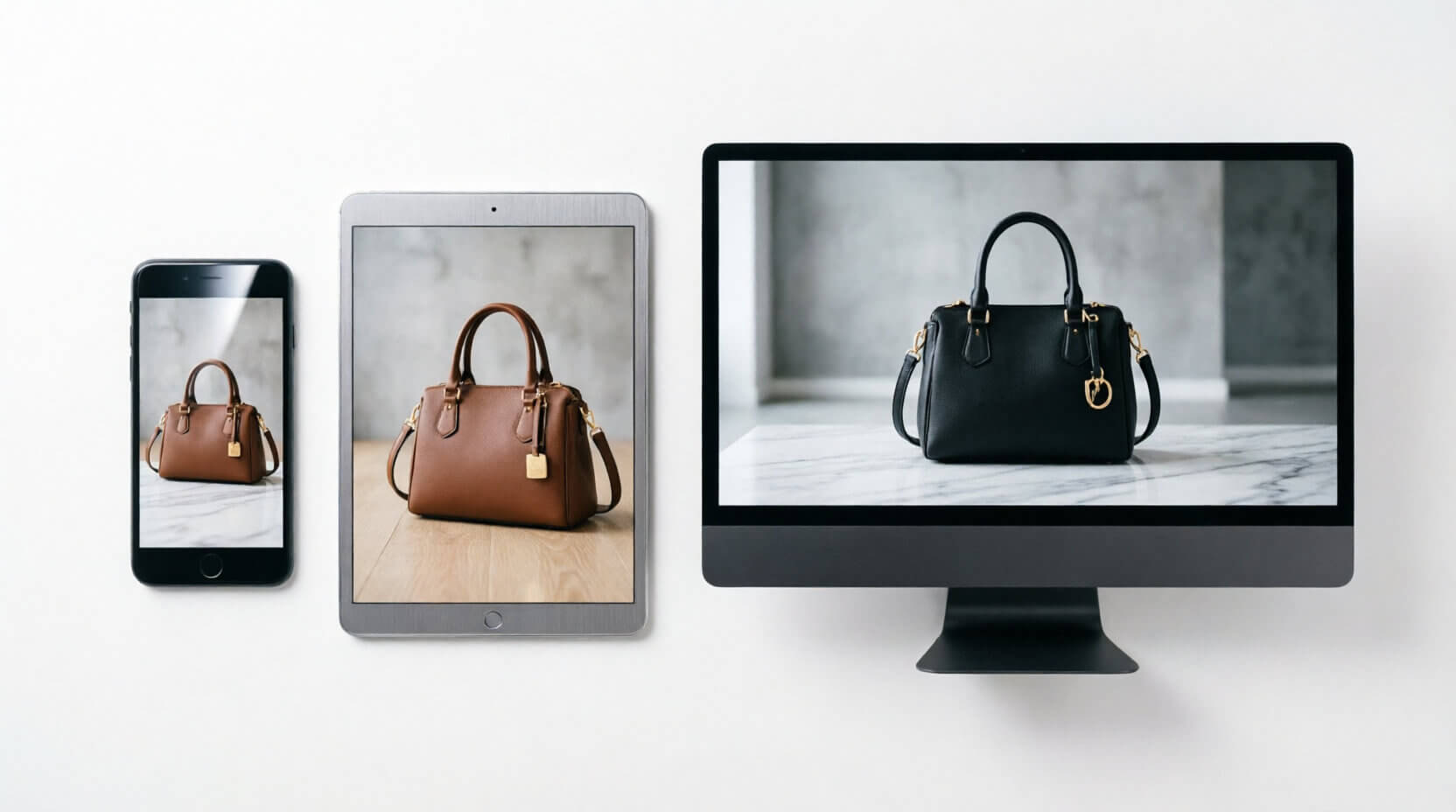
Every brand hits the same wall: one photo, a dozen aspect ratios, zero time.
What Does It Mean to "Batch Expand" Images with AI?
"Batch expanding" is exactly what it sounds like: instead of dragging one photo into an editor, picking a crop, and repeating that forty more times, you hand an entire folder — or an entire product catalog — to an AI outpainting engine in one pass.
The AI looks at each image's edges, lighting, and composition, then generates new pixels that extend the scene outward, filling in sky, floor, fabric, or background so convincingly that nobody can tell where the original photo ends.
The difference between "expanding an image" and "batch expanding images" isn't just volume. It's automation: a single API call (or a short script looping over an API) that processes dozens or thousands of files in parallel, applies consistent aspect ratios across the whole set, and hands back a folder of ready-to-publish assets.
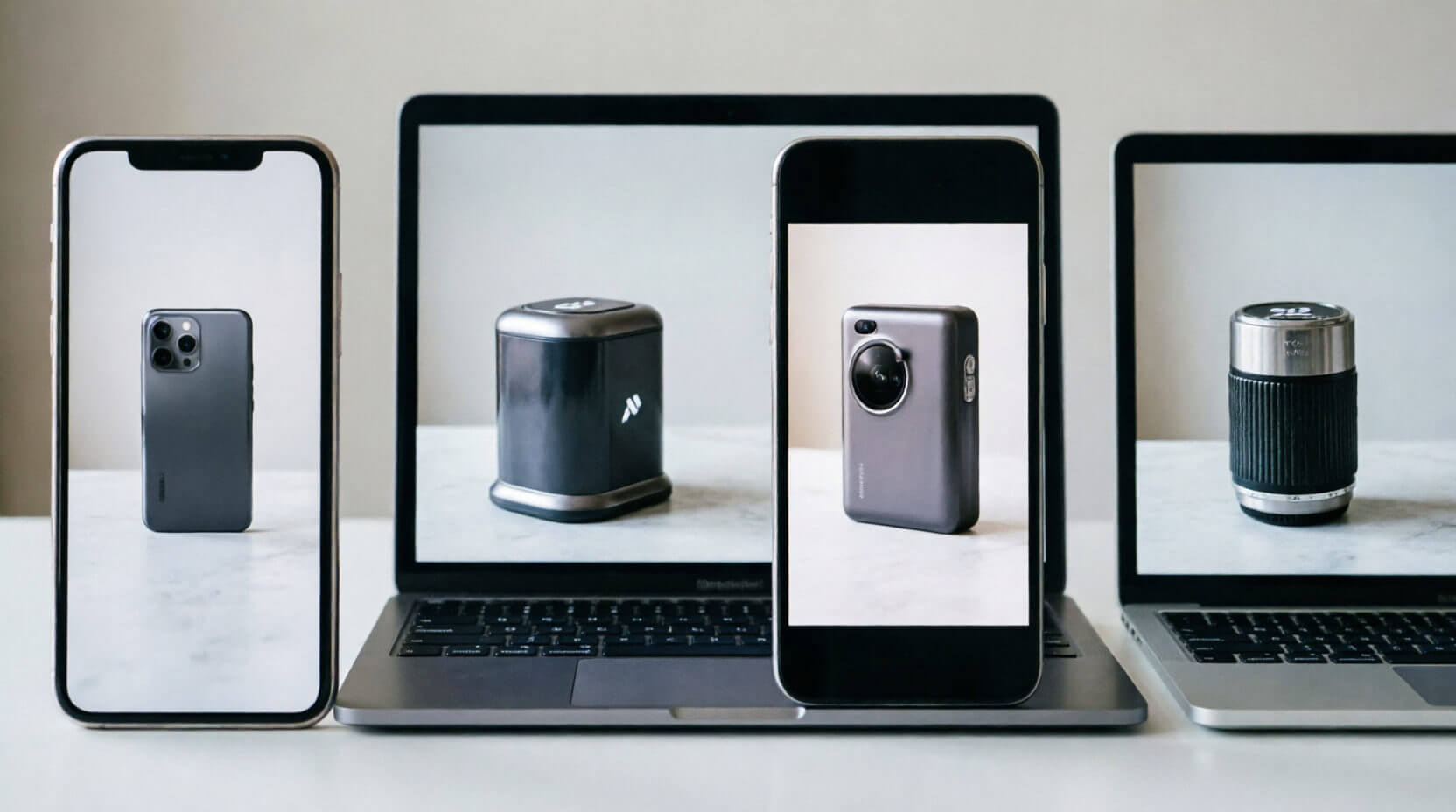
For any brand managing more than a handful of product photos, that distinction is the entire point.
How to Batch Expand Images with AI? [Try Free API]
Step 1: Ask Claude to Build Your Batch Image Extender
Open Claude Cowork and paste in the prompt below. Claude will build a small local tool on your machine — a simple web page where you can drop in photos and extend them into new aspect ratios in bulk using YouCam's AI engine.
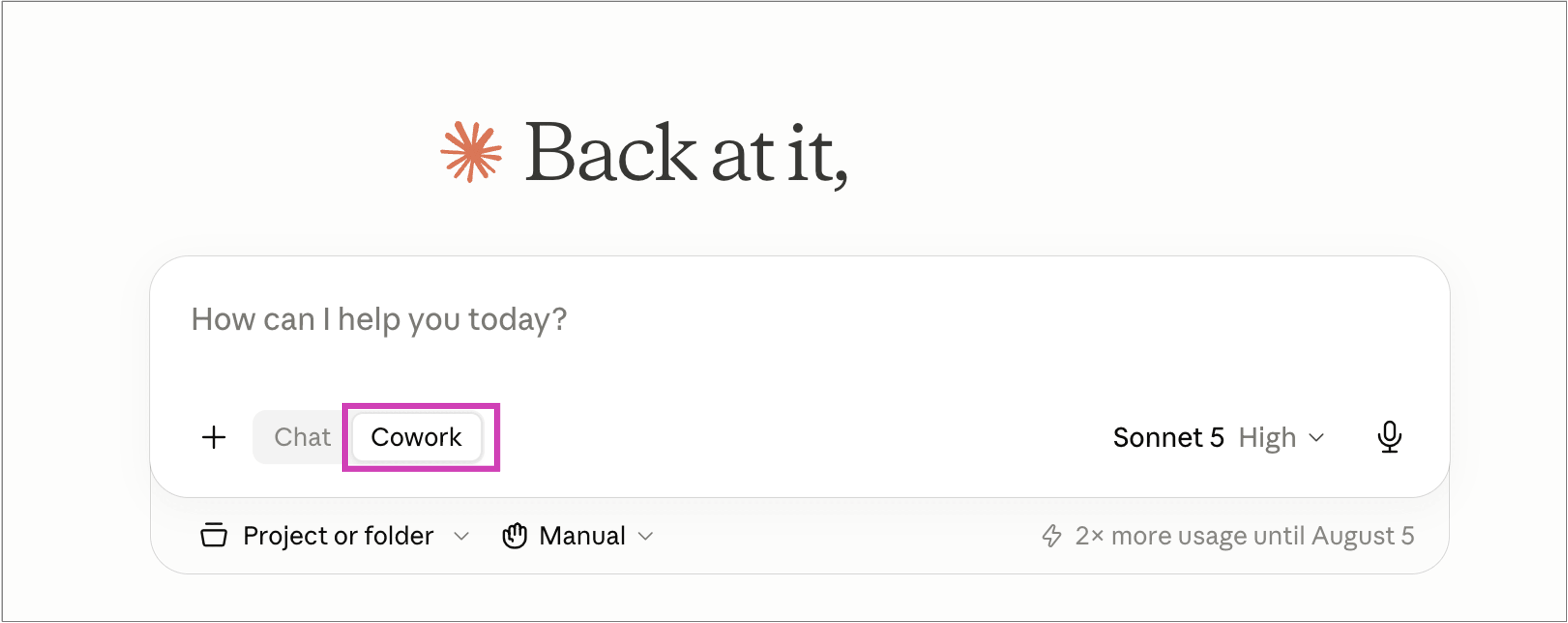
Here's the prompt — copy the whole thing:
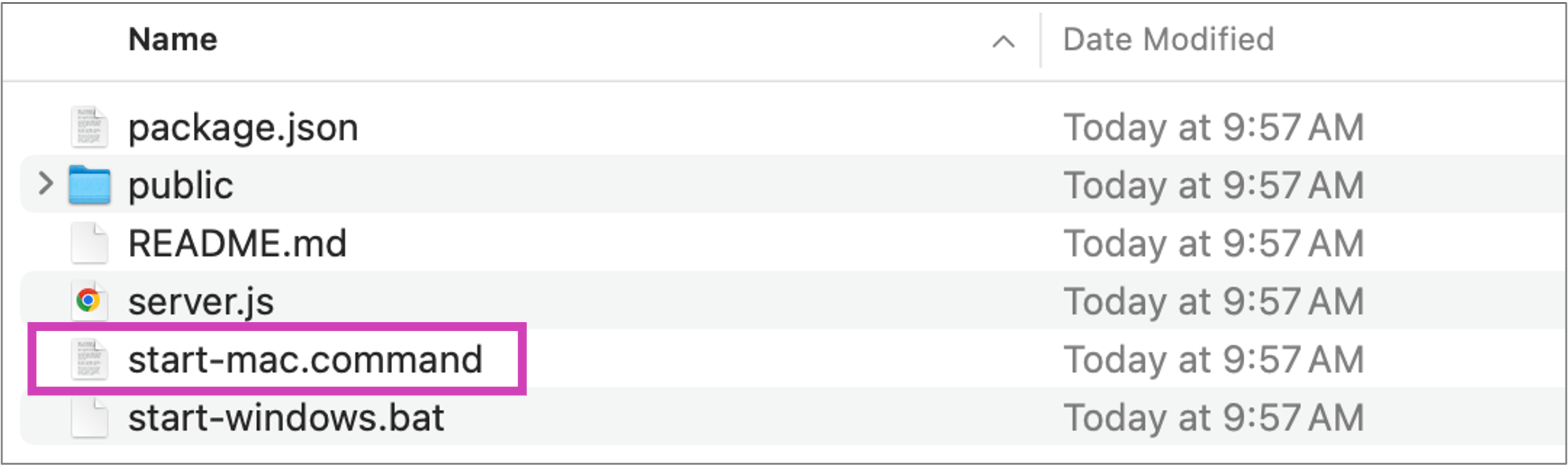
YouCam Image Extend (local tool) Batch AI image extension using Perfect Corp's YouCam API (Image Extender, /s2s/v2.0/task/image-extender). Runs entirely on your own machine — your API key never touches disk. Run it - macOS: double-click start-mac.command. - Windows: double-click start-windows.bat. First run installs dependencies automatically (using a project-local npm cache), then opens http://localhost:3939 in your browser. Use it 1. Paste your YouCam API key into the field at the top. 2. Add up to 10 photos (click the dropzone or drag and drop). 3. Pick a target canvas: Square (1:1), Portrait (4:5), Story (9:16), Widescreen (16:9), or enter a custom output width and height. Each photo is automatically centered on the new canvas and the AI fills in the space around it. 4. Click Extend batch. Each photo gets its own card with a spinner, then the extended result and a full-size link. Up to 3 photos process at once; if one fails, the rest keep going. Notes - The browser only talks to the local server at localhost:3939; the local server proxies requests to yce-api-01.makeupar.com server-side (the API is server-to-server and blocks direct browser calls with CORS errors). - Your API key is held in a JS variable in the browser and sent per-request via the X-YCE-API-Key header. The server never writes it to disk or logs it. - Source images should be under 10MB and in JPG or PNG format; oversized photos are resized before extension to stay within the API's limits.
Hit enter, grab a coffee (a short one — this is fast), and Claude will hand you back a ready-to-run tool.
Double-click start-mac.command on Mac or start-windows.bat on Windows, and a clean little extender opens at localhost:3939 in your browser.
Step 2: Grab Your Free YouCam API Key (and 40 Free Credits)
The tool needs one thing to work: a YouCam API key. Head over to the YouCam AI API page, sign up, and you'll get 40 free credits the moment you register. No credit card gymnastics required.
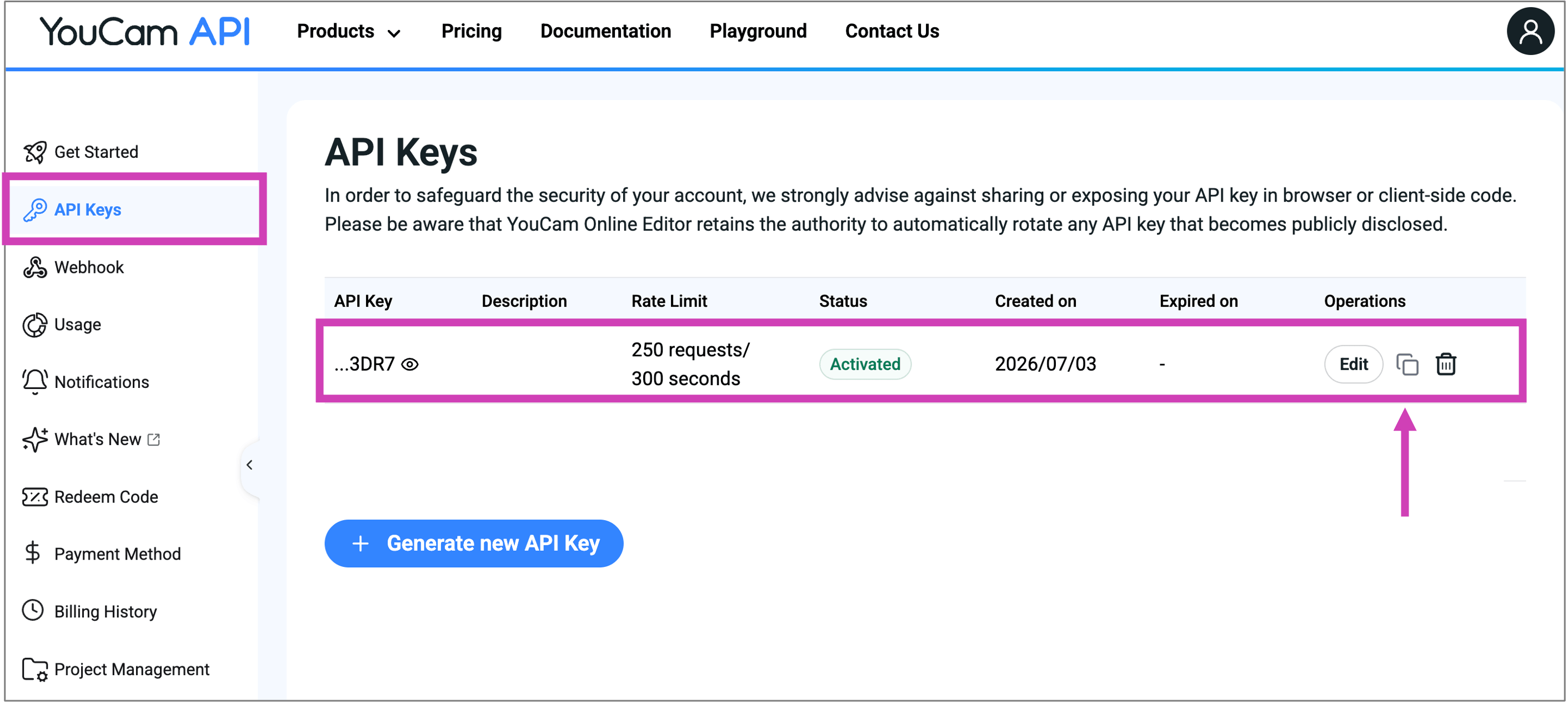
Once you're in, copy your API key from the dashboard. That's your golden ticket — and here's the nice part: the tool Claude built never saves it anywhere. It lives in your browser session only, so your key stays yours.
Step 3: Drag, Drop, Extend
Back in your shiny new local tool:
- Paste your API key into the field at the top.
- Add up to 10 photos — click the dropzone or just drag them in.
- Pick your target canvas: Square (1:1), Portrait (4:5), Story (9:16), Widescreen (16:9), or a custom width × height. Your original photo is centered on the new canvas, and the AI paints in everything around it.
- Click "Extend batch" and watch each photo get its own card, its own spinner, and — a few seconds later — its own seamlessly extended result with a full-size download link.
That's the whole workflow. Cropped-tight batch in, perfectly-framed batch out. The AI handles context-aware outpainting — reconstructing backgrounds, textures, and lighting beyond the original frame instead of just stretching or padding it — the same image-extender engine behind YouCam's AI Image Extender feature that creators and businesses use every day.
Want to see what else the YouCam engine can do in the wild? Browse the Perfect Corp. showcase for real examples.
Why Do Brands Need to Batch Expand Images in 2026?
Every platform wants a different shape. Amazon wants square. Instagram Stories wants 9:16. Your homepage hero wants a wide 16:9.
A single photoshoot was never designed to serve all of them at once — which is why teams either reshoot constantly, pay a retoucher to hand-crop everything, or accept ugly white bars. None of those scale.
E-Commerce Catalogs That Need a Dozen Ratios Overnight
A catalog of 2,000 SKUs shot in one ratio has to become 2,000 SKUs in five ratios the moment it lands on Amazon, Shopify, and a retail partner's marketplace simultaneously. Manually that's a multi-week job for a design team. Batch AI expansion turns it into an afternoon.
Social Ads That Die Without Platform-Perfect Crops
Performance marketers know a stretched or awkwardly cropped ad tanks click-through rate. Running the same campaign across Reels, Stories, in-feed, and display means the same hero image needs five different crops that all still look intentional — not resized.
AI outpainting generates the missing context instead of just zooming or padding, so the ad still reads as a real photo.
How Does AI Outpainting Actually Work Under the Hood?
Outpainting is a generative technique, distinct from simple upscaling or padding. The model analyzes pixel data at the boundary of the original image — color gradients, texture, light direction, perspective lines — and predicts what should logically continue beyond the frame.
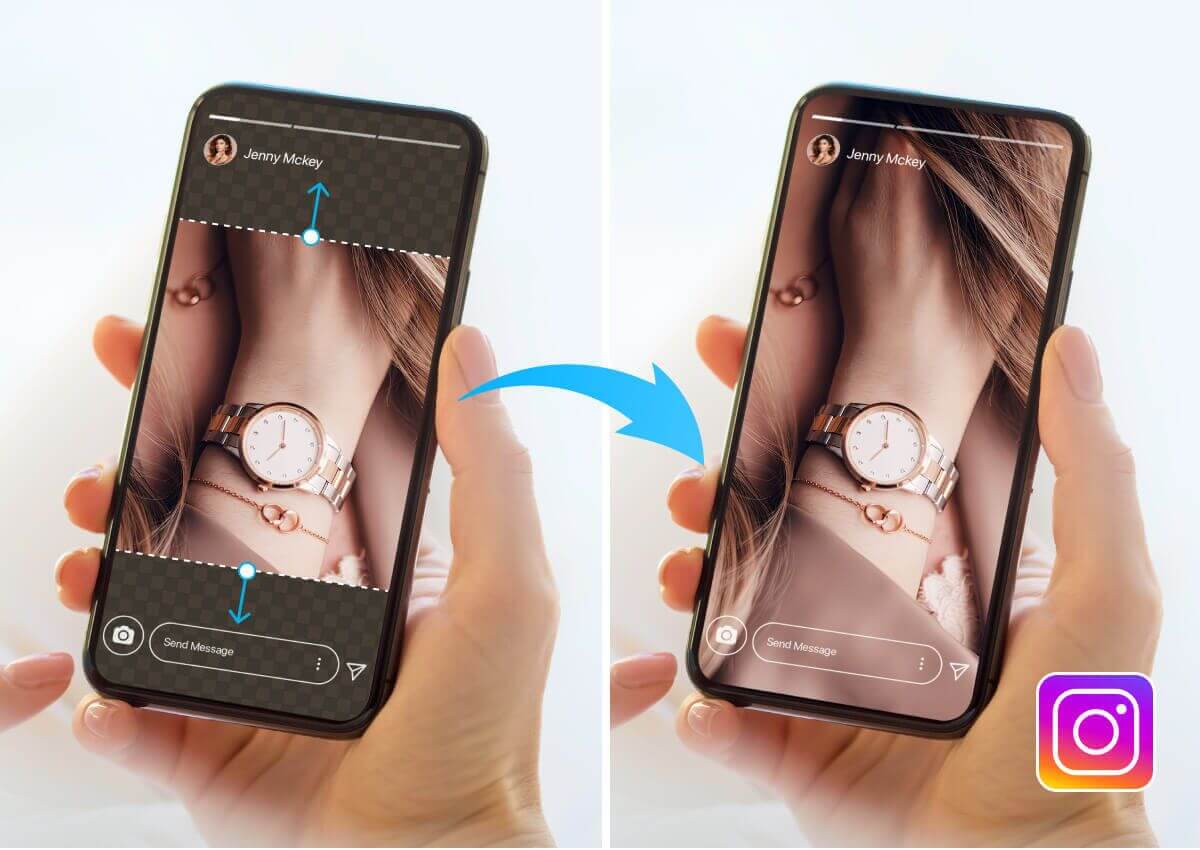
It's the same family of technology behind generative fill, but tuned specifically for coherent, photorealistic extension rather than object replacement.
| Technique | What It Actually Does | Result Quality |
|---|---|---|
| Simple padding / letterboxing | Adds solid color or blurred bars around the image | Looks obviously edited |
| Upscaling | Enlarges existing pixels, no new content | Doesn't change aspect ratio |
| AI outpainting | Generates new, context-aware pixels beyond the frame | Seamless, publish-ready |
This is the same underlying approach used across Perfect Corp's broader generative AI product suite, tuned specifically for beauty, fashion, and product photography use cases where accuracy at the edge really matters.
Which Batch AI Image Extender Should You Actually Use?
Every "AI expand image" tool on the market solves the single-image case well. The gap shows up the moment you need hundreds of images processed consistently, on a schedule, without a human clicking "generate" each time.
| Tool | Batch Limit | API for Automation | Best For |
|---|---|---|---|
| Perfect Corp AI Image Extender API | Scales via async API, no fixed cap | Yes — full REST API | Brands automating full production pipelines |
| Pixelcut Bulk Expand | Up to 10,000 per batch (in-app) | Limited | Marketers working inside one app |
| PixExtender Batch Extender | ~20 images per batch | No | Small, occasional batch jobs |
| Manual Photoshop generative fill | One image at a time | No | One-off hero images needing art direction |
If the goal is a one-off social post, an in-app bulk tool is fine. If image expansion needs to plug into a content pipelin, a PIM system, a CMS, a nightly job that touches your entire catalog, an API is the only option that actually scales. That's exactly the gap Perfect Corp's AI Image Extender API is built to close.
What Are the Most Common Mistakes When Batch Expanding Images?
Batch expansion goes wrong in predictable ways. Skipping any of these usually means redoing the batch:
| Mistake | Why It Hurts |
|---|---|
| Mixing inconsistent source resolutions in one batch | Low-res originals produce visibly softer extended regions |
| Applying one ratio to an entire mixed-subject catalog | Some subjects (flat-lays vs. models) need different framing logic |
| Skipping the QA pass | A small percentage of edge cases — busy backgrounds, reflective surfaces — need a manual redo |
| Not versioning original files | Makes it impossible to re-run a batch with different parameters later |
Ready to stop resizing images by hand? Try Perfect Corp's AI Image Extender API free and run your first batch today.
FAQ: Batch Expanding Images with AI
How many images can I batch expand at once?
It depends on the tool. An API-based approach like Perfect Corp's AI Image Extender API has no hard batch cap, it scales with how many concurrent requests your pipeline sends, so the real limit is your own infrastructure, not the tool.
Does batch expanding reduce image quality?
Not when it's done with a proper outpainting model. Because the AI generates new pixels rather than stretching or upscaling existing ones, the original image area keeps its full resolution and quality, only the newly generated border regions are AI content, and a good model blends them seamlessly.
Can I apply different aspect ratios to each image in the same batch?
Yes, with an API-driven workflow. Because each image is submitted as its own task, you can request a square crop for one file and a widescreen banner for the next, all within the same batch run — something in-app bulk tools with a single global setting often can't do.
What file formats and sizes are supported?
Perfect Corp's AI Image Extender API accepts JPG/JPEG files with a long edge under 4096 pixels and a file size under 10MB. Other tools support additional formats like PNG or WEBP, so check the source format against the tool's docs before running a large batch.
Is batch AI image expansion free to try?
Most providers, including Perfect Corp, offer a free tier or trial credits through their API console so you can test quality and workflow before committing to volume pricing. Start with the free API trial to test a small batch first.
How is this different from Photoshop's generative fill?
Generative fill is built for one image at a time inside an editor, with a designer manually adjusting each result. Batch AI image expansion via API is built for automation — no manual clicks per image, and it can be wired directly into a content pipeline, CMS, or scheduled job.